Introduction
Thanks to a thread over on LinkedIn, I’ve been inspired to dust off, update, and generally tweak some Planning queries for getting text out of the application repository.One of the things that Planning does rather better than Essbase (Gasp, did I just write that? Sigh, I did, as it’s true) is integrating textual information with the numbers in Essbase. Planning does this by storing said text in the Planning application repository and then marrying that up via web forms, Smart View (when using a Planning data source), and Financial Reports (ditto on the Planning data source).
Of course life wouldn’t be complete if there wasn’t a completely unauthorized, totally unsupported, and generally cool (Cool? Really? For whom? Oh well, I think it’s cool.) series of queries to get this out.
As always with these queries, they are 100% unsupported by Oracle and there’s a tremendous chance that I’ve gotten them wrong, so test, test, test and remember that you are hacking the tables and if anything blows up you are completely on your own. Got it? Good, let’s begin.
And oh yes, we’ll go into some detail about how Planning handles text Accounts as that is handled somewhat differently than the other text types.
What does it look like in Planning?
This is 11.1.1.3 (I am too lazy to fire up my cloud instance and I have 11.1.1.3 at hand, there’s no difference in functionality or the back end), so not the latest and greatest, and it illustrates three Account annotations, cell text, and attached documents) out of the five different kinds of textual information, but this will do as a start. I’ll get to text Accounts and Planning Unit/Form Instructions (believe it or not, they’re in the same table). So just a start, be patient, and all will be revealed in due course.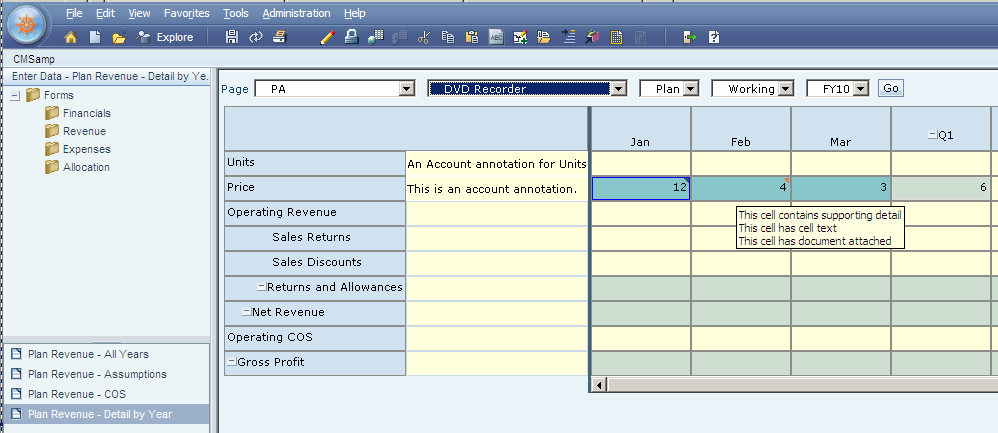
Planning tells you that there’s cell text and/or cell-level documents by putting a tiny little blue (cell text) or red (cell-level document) in the upper right hand corner of the cell in question. You can also hover over the cell to see what’s in a given cell. The above shows that in PA, DVD Recorder, Plan, Working, FY10, Price, and Feb there is both cell text and a cell-level document. The Supporting Detail is for free, and will be the subject of another blog post.
What does Oracle consider cell text?
Per the help:If you have read access to a cell, you can add annotations called cell text to the cell at any level. You can add cell text at the summary time period level and across multiple dimensions at any level. You can also add cell text for non-level 0 members (bottom-up versions), calculated cells (dynamic calc), and read-only cells. For example, you can add explanations for data analysis of variances and rolling forecasts.
Cell text
It’s a bit difficult to see, but look at the icon highlighted in red:

Click on a cell, then click on that ABC icon, and you will see:

There is a limit of 2,000 characters for cell text. How do I know? I took a look at the table HSP_CELL_NOTE_ITEM and see that the field CONTENTS has that length. See, SQL is good for you, or at least poking around and trying to figure things out is. See if you can find that limit in the docs – nope, it isn’t there. You’re welcome, no thanks are necessary. :)

Extracting cell text
-- Purpose: Extract Cell Text from Planning-- Modified: 11 November 2011, Cameron Lackpour
-- Notes: LEFT OUTER JOINS aren't necessary in a
-- single Plan Type app, but might be when
-- there's more than one.
SELECT
P.TYPE_NAME AS 'Plan Type',
O1.OBJECT_NAME AS 'Scenario',
O2.OBJECT_NAME AS 'Account',
O3.OBJECT_NAME AS 'Entity',
O4.OBJECT_NAME AS 'Period',
O5.OBJECT_NAME AS 'Version',
O6.OBJECT_NAME AS 'Currency',
O7.OBJECT_NAME AS 'Year',
O8.OBJECT_NAME AS 'Segments',
I.CONTENTS AS 'Cell Text'
FROM HSP_CELL_NOTE N
INNER JOIN HSP_PLAN_TYPE P
ON N.PLAN_TYPE = P.PLAN_TYPE
INNER JOIN HSP_OBJECT O1
ON N.DIM1 = O1.OBJECT_ID
INNER JOIN HSP_OBJECT O2
ON N.DIM2 = O2.OBJECT_ID
LEFT OUTER JOIN HSP_OBJECT O3
ON N.DIM3 = O3.OBJECT_ID
INNER JOIN HSP_OBJECT O4
ON N.DIM4 = O4.OBJECT_ID
INNER JOIN HSP_OBJECT O5
ON N.DIM5 = O5.OBJECT_ID
INNER JOIN HSP_OBJECT O6
ON N.DIM6 = O6.OBJECT_ID
LEFT OUTER JOIN HSP_OBJECT O7
ON N.DIM7 = O7.OBJECT_ID
LEFT OUTER JOIN HSP_OBJECT O8
ON N.DIM8 = O8.OBJECT_ID
LEFT OUTER JOIN HSP_CELL_NOTE_ITEM I
ON N.NOTE_ID = I.NOTE_ID
SELECT * FROM HSP_CELL_NOTE
Cell text result

Enabling text in forms
Excuse the not quite the last version of Planning – the settings are the same in the latest and greatest, but they do look somewhat different.
What’s that URL doing in the text output (for those of you without the eyes of eagles, it’s in the second row)? It turns out that Planning stores the links to the cell-level documents alongside cell text.
Documents can be attached to cells via an icon the right of the ABC cell text button.

If your administrator selects the Enable Cell-Level Document property for the data form, from data form cells, you can add, replace, and view EPM Workspace documents. These documents can be a Web site or any file type (for example, an .XLS or .PDF file). For example, you could associate a cell with a document that explains your assumptions behind the cell's sales data.
Did you catch the important bit? The bit that makes the link to this fantastic blog (ahem) completely pointless? The help reiterates the point:
Before you add a cell-level document, the document must be added to the Workspace repository. See Oracle Enterprise Performance Management Workspace User's Online Help.
Ohhhhhh. Bummer. The docs have to be imported into Workspace to be accessible.
However, I’ve discovered that if you have a URL link in that on the Open Document icon, Planning will in fact open a new browser window. Huzzah, For he’s a jolly good fellow, & c. So you see, that link isn’t pointless after all. But you still can’t link seamlessly to, oh, say an Excel document. I don’t know what to make out of non-documented functionality, or even if it works in other releases. Proceed With Caution.

And of course you can still pull the references via the query. Do you feel a little better?
Account annotations
Again, these have to be enabled for a given form, but once enabled, click on a row, go to View->Edit Account Annotations and type away.

Extracting Account annotations
-- Purpose: Extract Account annotations-- Modified: 11 November 2011, Cameron Lackpour
-- Notes:
SELECT
O1.OBJECT_NAME AS 'Scenario',
O2.OBJECT_NAME AS 'Version',
O3.OBJECT_NAME AS 'Entity',
ISNULL((SELECT OA.OBJECT_NAME
FROM HSP_ALIAS A
INNER JOIN HSP_OBJECT OA
ON A.MEMBER_ID = D.ENTITY_ID AND
OA.OBJECT_ID = A.ALIAS_ID), '') AS 'Entity Alias',
O4.OBJECT_NAME AS 'Account',
ISNULL((SELECT OA.OBJECT_NAME
FROM HSP_ALIAS A
INNER JOIN HSP_OBJECT OA
ON A.MEMBER_ID = D.ACCOUNT_ID AND
OA.OBJECT_ID = A.ALIAS_ID), '') AS 'Account Alias',
D.CONTENTS AS 'Account Annotation'
FROM HSP_ACCOUNT_DESC D
INNER JOIN HSP_OBJECT O1
ON D.SCENARIO_ID = O1.OBJECT_ID
INNER JOIN HSP_OBJECT O2
ON D.VERSION_ID = O2.OBJECT_ID
INNER JOIN HSP_OBJECT O3
ON D.ENTITY_ID = O3.OBJECT_ID
INNER JOIN HSP_OBJECT O4
ON D.ACCOUNT_ID = O4.OBJECT_ID
Account annotation results
| Scenario | Version | Entity | Entity Alias | Account | Account Alias | Account Annotation |
| Plan | Working | E01_101_1130 | Units | An Account annotation for Units | ||
| Plan | Working | E01_101_1130 | Price | This is an account annotation. |
Where oh where are the other dimensions
There are lots of dimensions *not* displayed. I’m not being stingy with the dimensions, Scenario, Version, Entity, and Account define where an Account annotation is stored and displayed. So these annotations would hold for FY09, FY11, etc., for instance. Switching to FY09 supports this:

Where oh where are my aliases?
I will share with you that I spent quite a bit of time trying to figure out where the heck the aliases were for E01_101_1130 which should be PA, aka the Keystone State and Price are.Shared members and no alias
The E01_101_1130 in this form is shared. Shared members don’t have an alias.
Here’s the form definition:
Here’s the form definition:

And here’s what it looks like in the Classic (the one and only) dimension editor:

I won’t embarrass myself by stating how long it took me to figure it out. I was sure my code was wrong. Nope, I just forgot Planning 101. <blush>
Text Accounts
It’s easy to create a text Account:
 The text member gets surfaced in EAS:

The “+” doesn’t make a lot of sense – I would tag it as Never Share – “^” because as we’ll see in a minute, there’s a numeric value stored there. Oh yes, interesting.
What does it look like in Planning? Oh, beautiful.
 And in Essbase (not in Smart View with a Planning data source) there is data, but not of a textual nature. Planning seems to be adding a kind of counter to the cell that is pushed to Essbase. I wonder why they bothered:
 There’s a sting in the tail
What happens when you delete a text value? It’s gone, right? 

The “+” doesn’t make a lot of sense – I would tag it as Never Share – “^” because as we’ll see in a minute, there’s a numeric value stored there. Oh yes, interesting.
What does it look like in Planning? Oh, beautiful.


It looks that way in Planning:


So what’s the big deal?
The query to get this stuff out is as easy as 22/7:-- Purpose: Extract text Accounts
-- Modified: 11 November 2011, Cameron Lackpour
-- Notes:
SELECT
*
FROM HSP_TEXT_CELL_VALUE
Text account result

Text Account data is like the Roach Motel – Planners can enter textual information but it will never, ever, ever come out. No big deal with small amounts of data, but definitely something to bear in mind if you use this functionality a lot. There is no TRUNCATE function.
2nd big deal
Did you note that there are two fields in this query? How do you know what the intersection to the data is? You know, all of the dimensions? It is more than possible that I have this wrong, but I’ve taken a few passes through the tables – I can’t see it. AFAIK, this is handled in the application layer by Magick, I think. Please show me the error of my ways and I’ll update the post.Planning Unit annotations and form instructions
Planning Unit annotations and form instructions together? Yes, that surprised me as well. I guess this is sort of like the way cell text and cell-level documents are stored together?Form instructions

Planning Unit annotations

Extracting annotations
-- Purpose: Extract Planning Unit and Form Instructions-- Modified: 11 November 2011, Cameron Lackpour
-- Notes:
SELECT
O1.OBJECT_NAME AS 'Object',
O2.OBJECT_NAME AS 'User',
A.CREATED AS 'Date',
A.TITLE AS 'Annotation',
A.CONTENTS AS 'Contents'
FROM HSP_ANNOTATION A
INNER JOIN HSP_OBJECT O1
ON A.OBJECT_ID = O1.OBJECT_ID
INNER JOIN HSP_OBJECT O2
ON A.AUTHOR_ID = O2.OBJECT_ID
ORDER BY 'Date', 'User', 'Contents'
Annotations result

It would be nice if the Planning Unit annotations included the items that make up the Planning Unit – Entity, Scenario, and Version – but it doesn’t seem to be there in the table. Is this again something that’s handled in the application layer? Correct me via the comment function and I’ll improve the query.
Oooh, I just had a thought -- could the "PU52602" (which I did *not* enter) be a key with PU = Planning Unit and 52602 being the OBJECT_ID? I will look into this for a future blog post -- I've spent enough of my free time on this post for this week.
Conclusion
What do we now know about Planning and text?1) Planning does text better than Essbase. Groan, but it’s true.
2) A few simple queries can pull out that textual information.
3) Some Planning text data seems to get associated with other members in the application layer or I am too stupid to see where that dimensionality resides. The truth is likely the latter rather than the former. So tell me where I’ve gone wrong and I’ll fix it.
You can’t say I haven’t taken you on a trip down the rabbit hole. Happy Planning hacking!


