Showing posts with label Simplified Interface. Show all posts

Sunday, May 8, 2016

The Compleat Idiot's Guide to PBCS No. 13, LCM aka Application Management

Danger 5

I have been accused of being somewhat conservative in my consulting career:  taking the simple approach over the clever even when the clever is…clever ‘cos it inevitably blows up when the consultant genius who put it in leaves/is fired/can’t get it to work in the new release, never develop in production (oh, the arguments I have over this and if you think “There’s no test like production” you’ll be sooooooorrrrrrrryyyyyyy), actually running calculations through regression tests, and always making sure I’ve got stuff backed up before I make a change.  You say cowardly, I say deeply burnt by terrible experiences and am thus quite good at avoiding danger.  That’s why you hire experienced practitioners – they’ve (or at least I’ve) made almost every mistake there ever was and have learnt to never ever ever ever do it again.

Back it up

And with that, we’ve come to an awfully important part of our series, and one that I jumped over but didn’t forget in my excitement over diving into how to manage the Vision PBCS application.  In a word:  backups.  Boring, yes.  Vital, absolutely when things go pear shaped.  And PBCS gives you two (sort of) different ways of doing it.

I’m not going to recap how to do an on-premises Essbase back up as I’ve covered it here:  A lightweight, modular, and better Essbase backup.  So long as I’m trying to encourage you, note that the code I’ve written is error checked, parameterized, and extremely lightweight.  I’ve seen more complex backups – actually a lot more complex, cf. my comment about complexity vs. simplicity above – but I haven’t actually seen any that back up Essbase more completely.

But when it comes to Planning and FR and SS and who knows what else, an Essbase backup isn’t going to cut it.  Instead, in the on-premises world, we use LCM to either back up application components through the UI or via the LCM utility.

NB – Some of the more perspicacious amongst you may note that LCM backups Essbase data as part of the Planning application.  That’s as true as far as it goes but it’s pretty crippled and a far more flexible approach is to have a separate Essbase backup.  To each his own.

In the land of Cloud (Sky of Could?  Heaven of Cloud?  Hope and Glory?) things are both easier and the same.  But I’m getting ahead of myself.  Let’s stick with Good Old On-premises for the time being.

On-premises

What’s easier to archive?  Essbase via that backup code I wrote?  LCM backups of Shared Services groups, users, and provisioning?  Or Calculation Manager?  Or Financial Reports?  Or the Planning application itself?  All of these must be (at least in the UI if LCM is to be used) backed up one after the other.  It’s a complete pain.

It’s easy enough to do just involved.
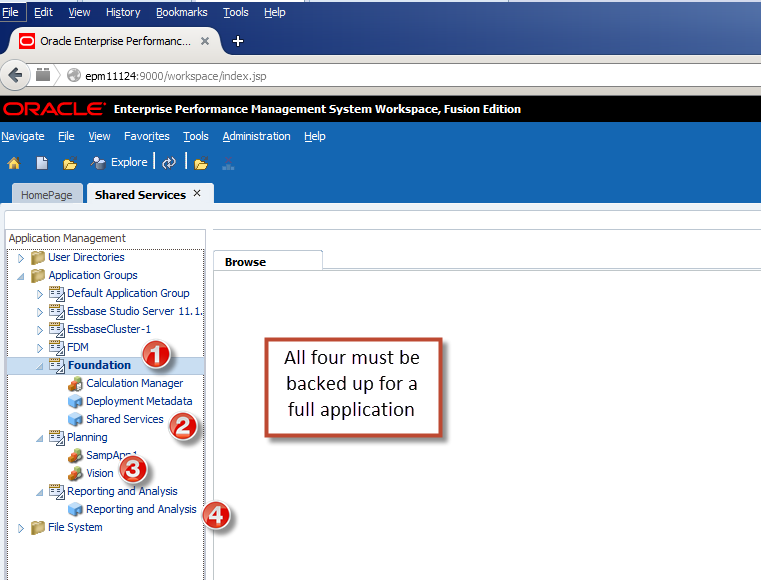
You’d have to (and we will do this in the next post) script the whole thing using the Lifecycle Management Utility and then schedule it unless you really are a glutton for punishment.  All of my readers (the three or four of you) are of course of the Best and Brightest so there’s little chance of that happening.  Right?  Right.

In the meantime I will spare you the selects and exports but here’s what you end up with:
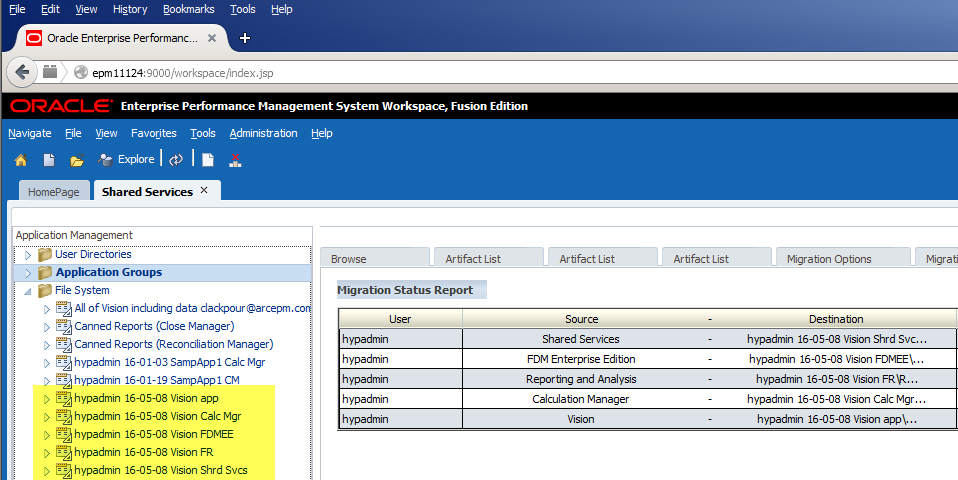
Navigating through the products isn’t so awful, it’s just that I had to select ‘em all.
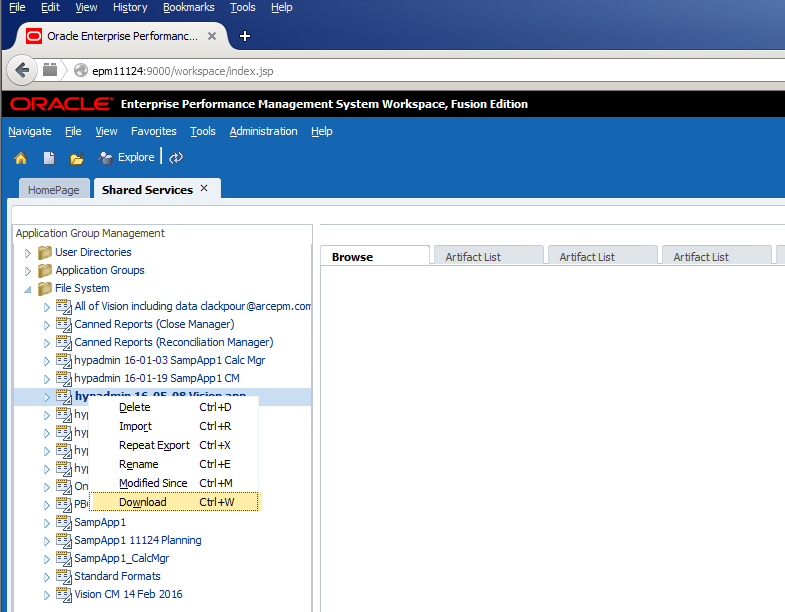
Downloading it is dead easy:

And here it is on my local drive:

Do with it what you will.  In the real world, a nightly export is often archived off to a safe location.

Not really Workspace, not really the Simplified Interface

And in PBCS?  It backs up the application automagically each night.  There’s no need to script anything or run a utility or fire up your OS’ scheduler or think about having a separate Essbase backup (although the backups are a bit odd – see my post on migrating from PBCS to on-premises).  It just isn’t necessary.  All that you, Gentle Reader, need to do is to make two simple selections  from the admin landing page.
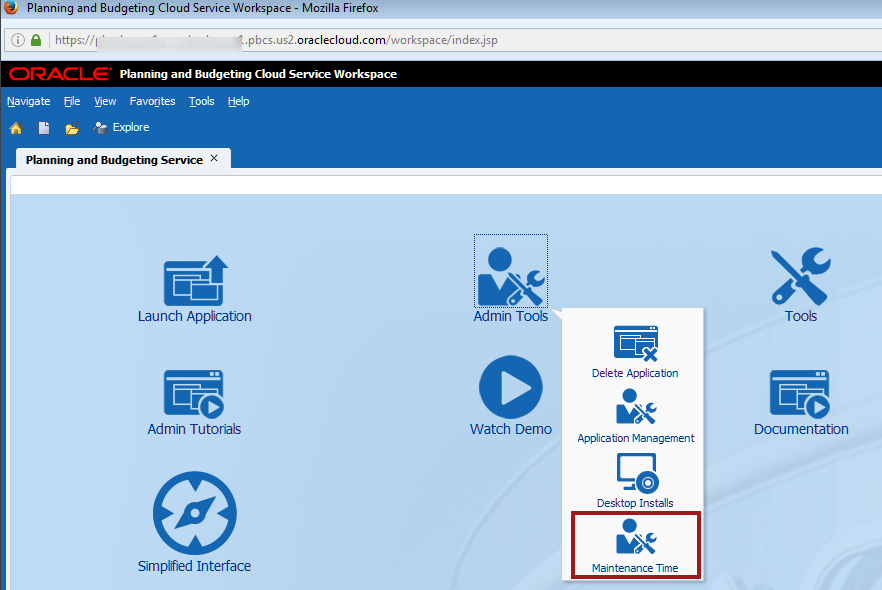
And then pick when you want the backup to occur having set your time zone.
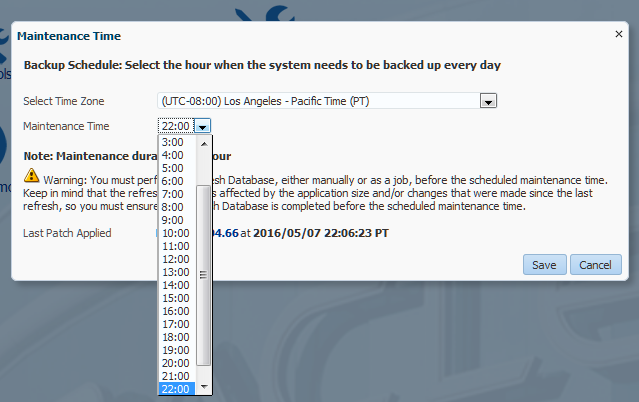
And you are done.  That was nice, wasn’t it?

So just what does the scheduled snapshot show?

Workspace

Let’s go take a look from the traditional soon-to-be-gone Workspace:
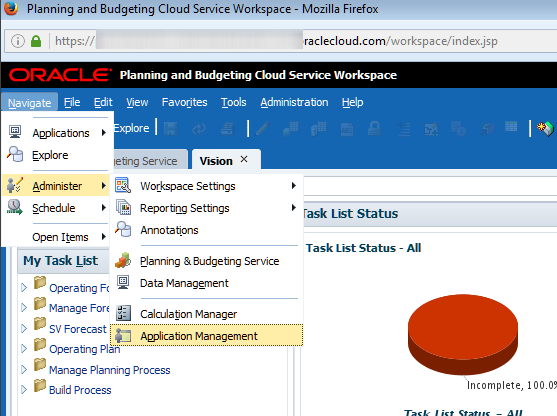
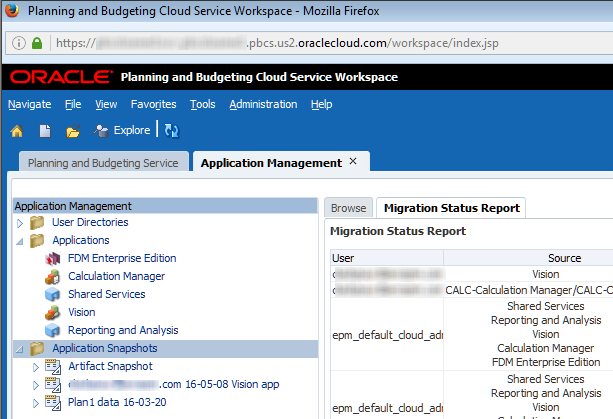
And there it is.  Instead of on-premises’ “File System” LCM backups are called “Application Snapshots”.

The Artifact Snapshot is the system-generated backup and it has everything but everything all together.  
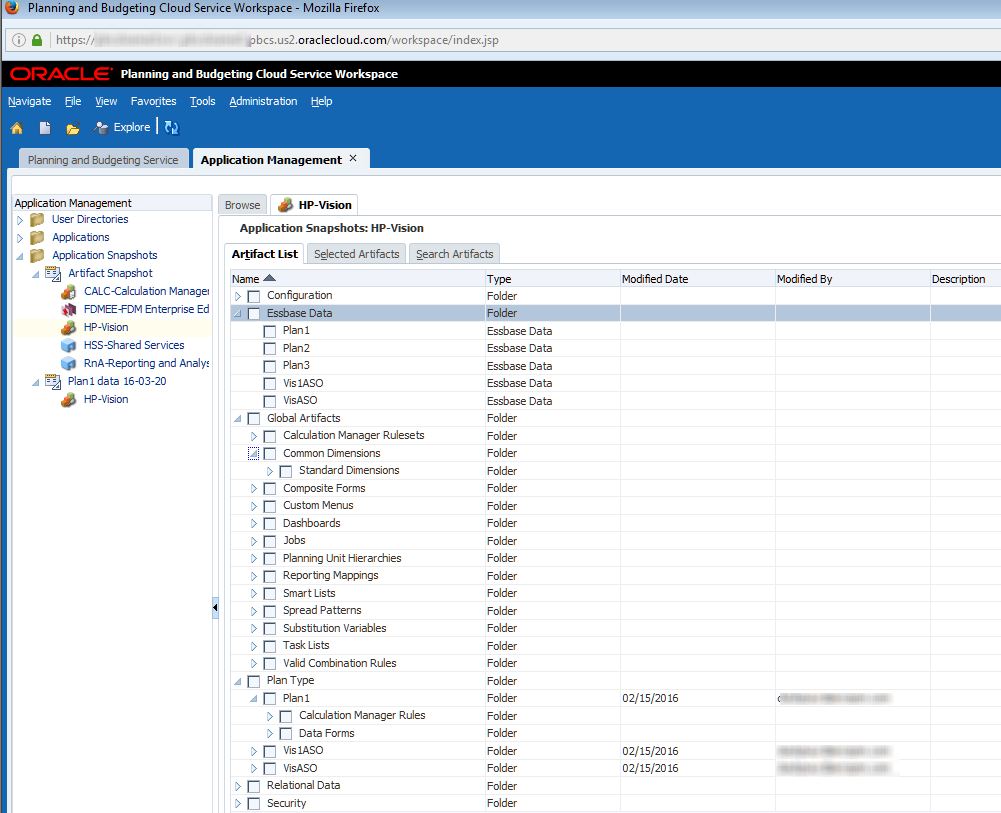
Just as with on-premises, if last night’s backup needs to be restored or just a part of that backup, simply navigate to the object and click on import:
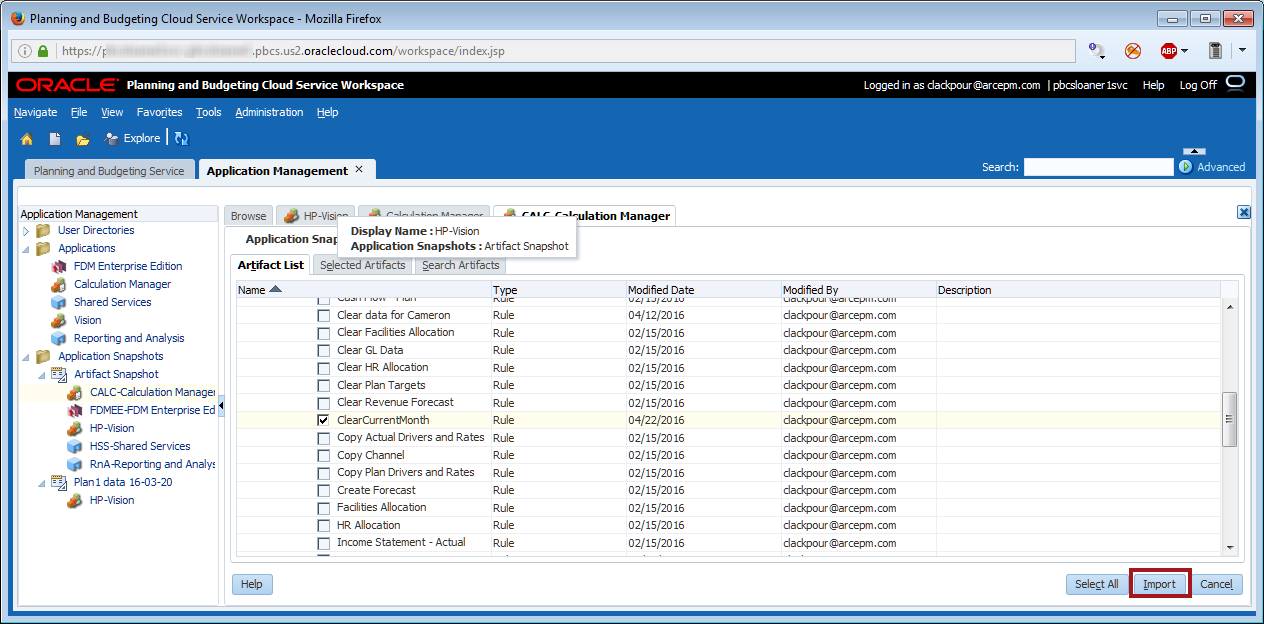
And then confirm that you really want to import the object:
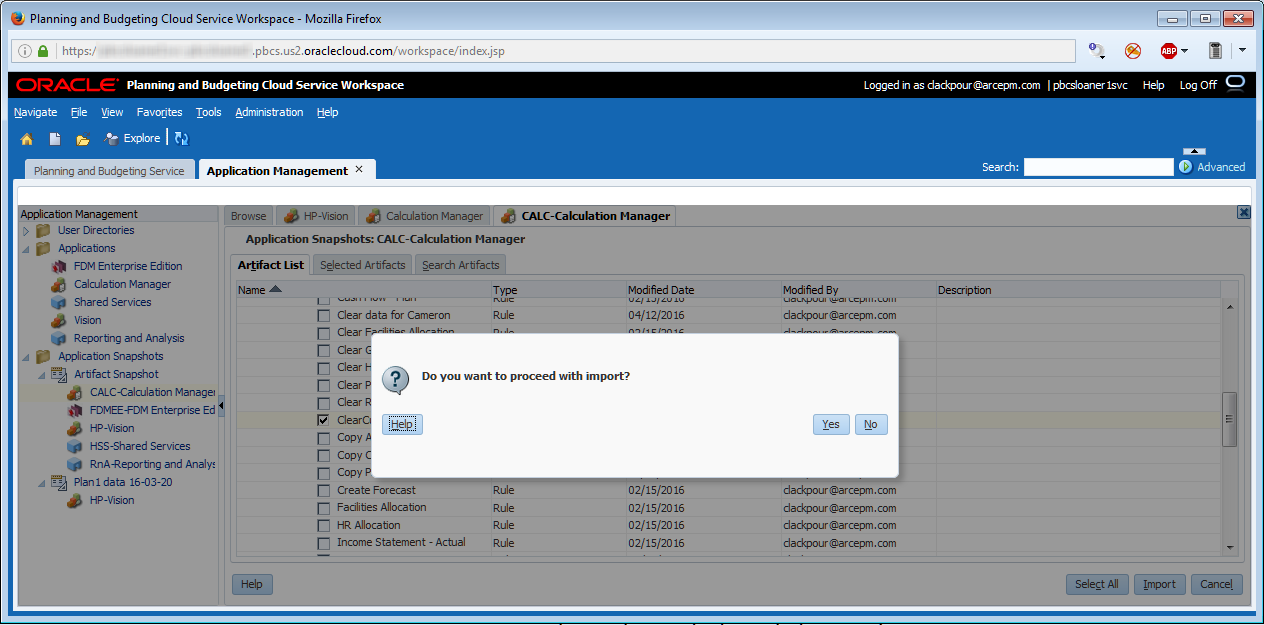
There it is.
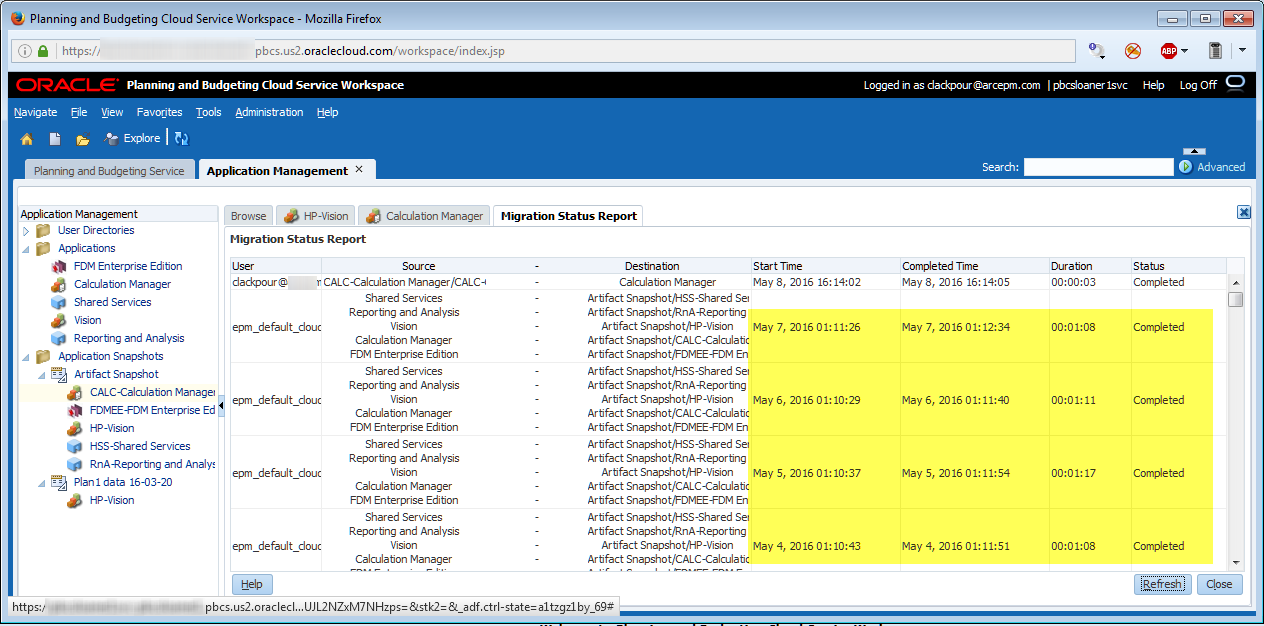
Also note that the Migration Status Report shows the nightly backup.  Of course that makes sense because that’s exactly what was scheduled.  If you’re trying to reconcile the time between what you see in this screenshot and the Maintenance Time dialog box, remember that 22:00 Pacific = 01:00 Eastern.

All or nothing at all


And here’s a bit more than the on-premises backup as I only downloaded the Vision Planning application.  Remember that on-premises doesn’t combine products.  
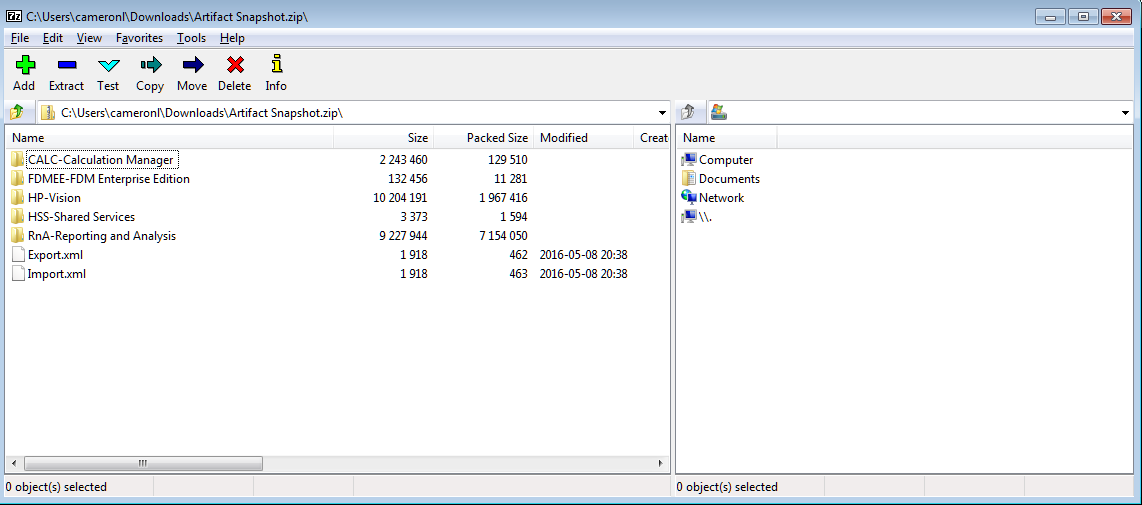
You have a choice

That’s the scheduled export.  What about if a manual backup is needed?  This use case is solved almost exactly the same as on-premises LCM:  pick the product, click on Select All then Export then name the file:
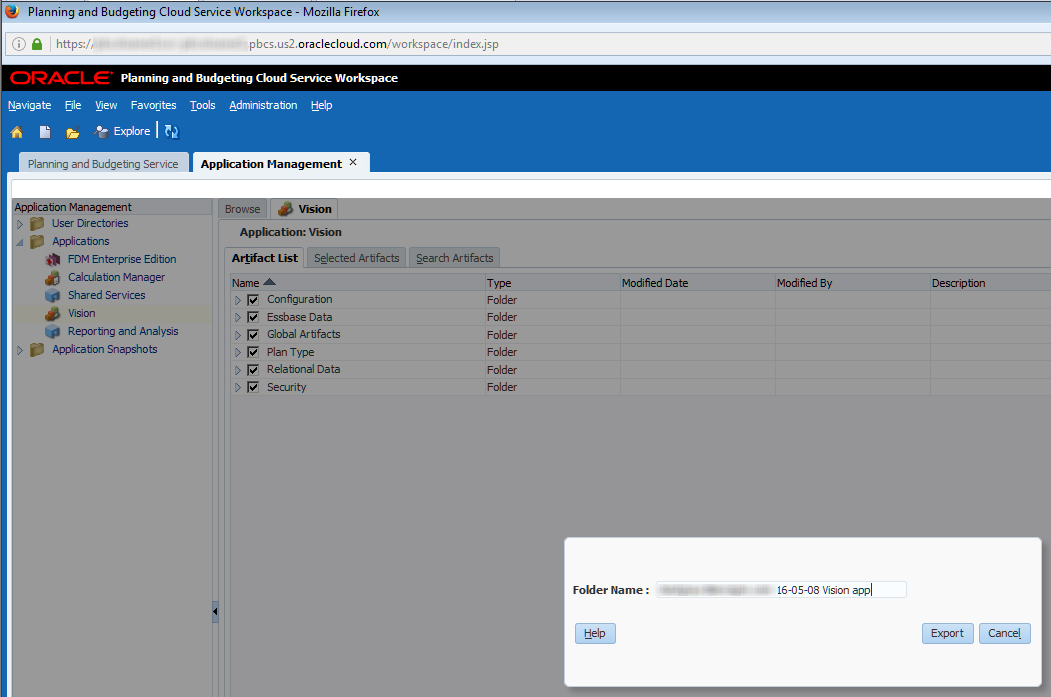
Ta da, we have a single product export.
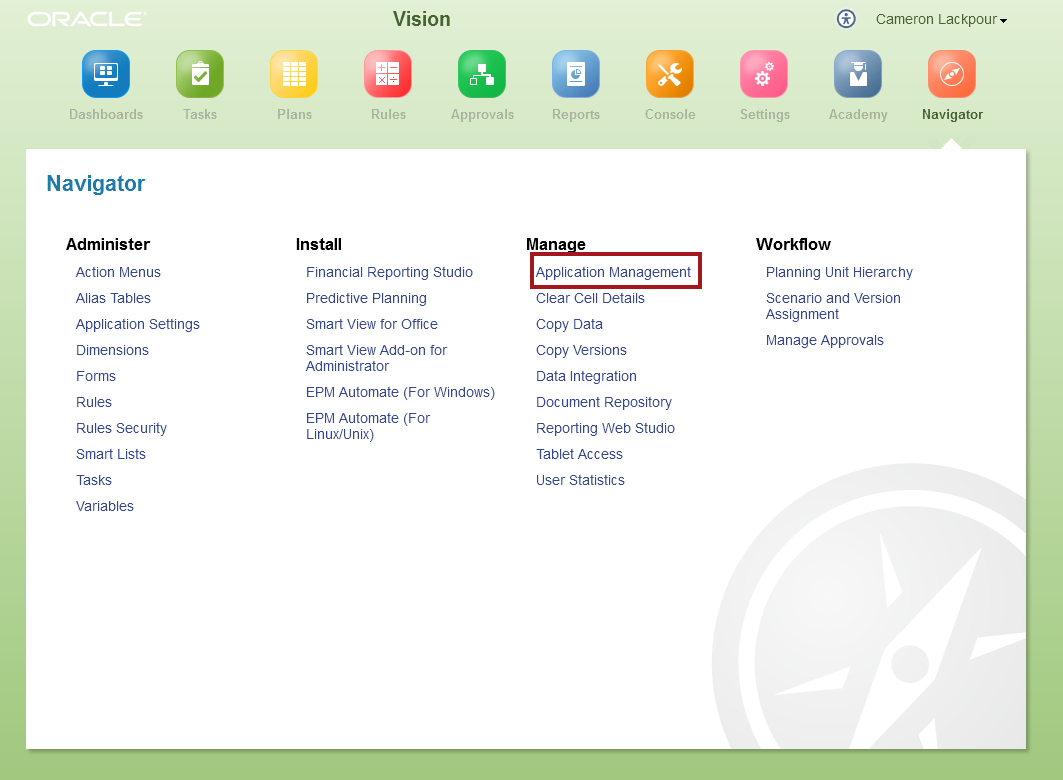
What about the Simplified Interface

It’s a bit of a work in progress.  Oh, it looks like it’s there in the Navigator.  So go on, click on it:
A new window opens:
And here we are again:
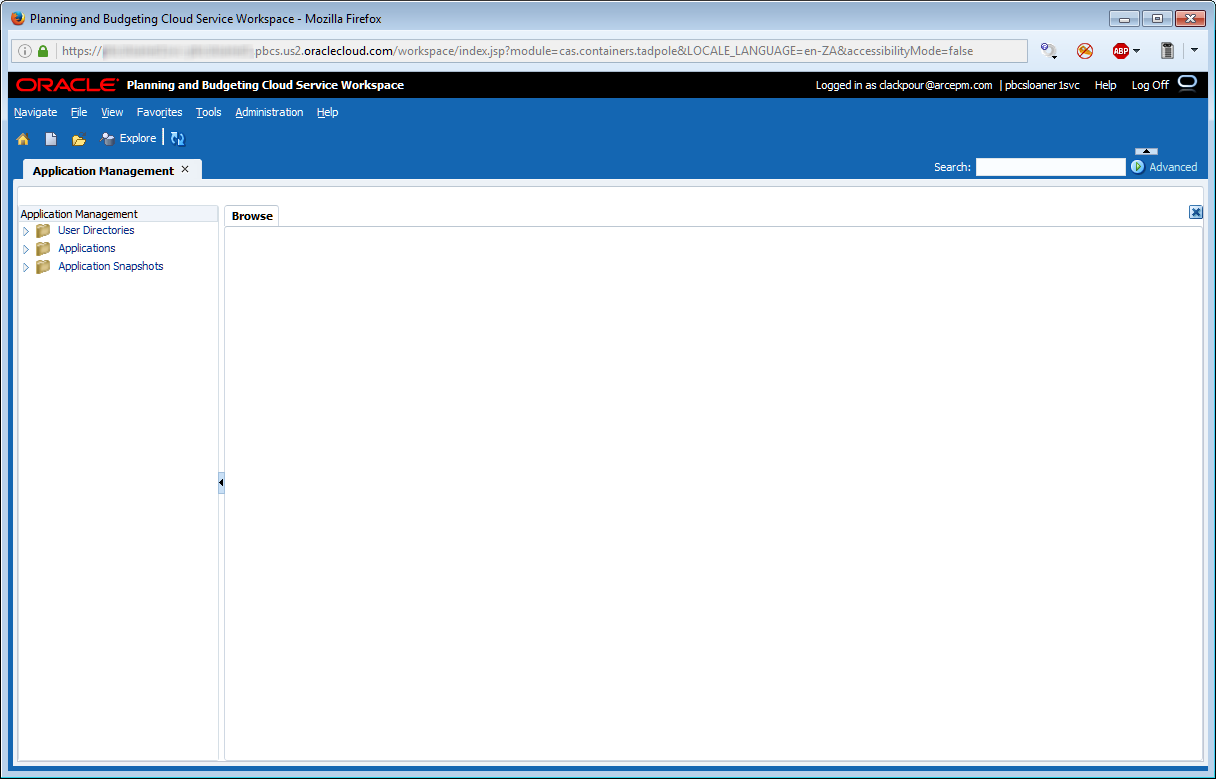
Look for this and everything that is in Workspace to eventually be transferred to the Simplified Interface but not quite yet.  One of the problems with this series in particular is that PBCS is changing so quickly some of this will be out of date far faster than on-premises products.  Customers are still on 11.1.2.2 as of the date of this writing – there won’t be PBCS instances three plus years out of date in future.

How hard was that?

There are two axes of effort:  automatic versus custom full exports.  Automate PBCS backups consist of one step of set and forget.  On-premises we’ll have to tackle next time because it’s all got to be scripted and then scheduled; that post will also take on EPM Automate’s backup functionality.  Let’s take it as read that on-premises is way harder.

As for interactive backups, on-premises vs. PBCS Workspace/Simplified Interface is largely the same.  One could argue that having to navigate through multiple application in on-premises makes the process a bit harder but that’s counting how many angels can dance on the head of a pin.

Our next post will be tying all of this together – backups, metadata loads, data clears, data loads, data aggregations – in an overall script.  It’s not hard to predict which will be the more painful although if you can’t guess you’ll just have to wait till the next post and All Will Be Revealed.

Be seeing you.

Tuesday, May 3, 2016

The Compleat Idiot's Guide to PBCS, No. 12, PBCS and calculations

I have spared you Gallia est omnis divisa in partes tres.  Are you grateful?

After my last bout of dead language infatuation, the answer is almost undoubtedly yes.  

Although I am sticking to the Queen’s English this time, like Caesar and what became France, I am at the third and last post on the current month Actuals in Forecast use case via the various UIs.

In part one of this series I covered what it takes to get new metadata into PBCS, in the last post I reviewed loading data (and had a mildly epic rant about Planning’s native data format), and I shall now illustrate what it takes to write and run a Calculation Manager Business Rule.

With that let’s begin.

Calculation Manager is everywhere

Calculation Manager is Calculation Manager is Calculation Manager

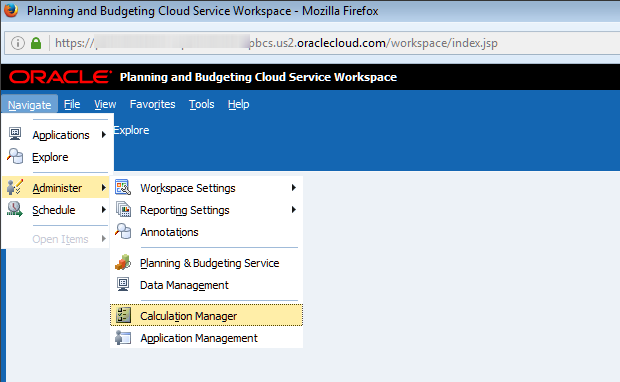
Using version 16.2.2.0.0 of Oracle Planning and Budgeting Cloud service, Calculation Manager doesn’t have a Simplified Interface, uh, interface.  Oh you can get to Calc Mgr through the SI, but once done, it’s the same Workspace we all know and love.

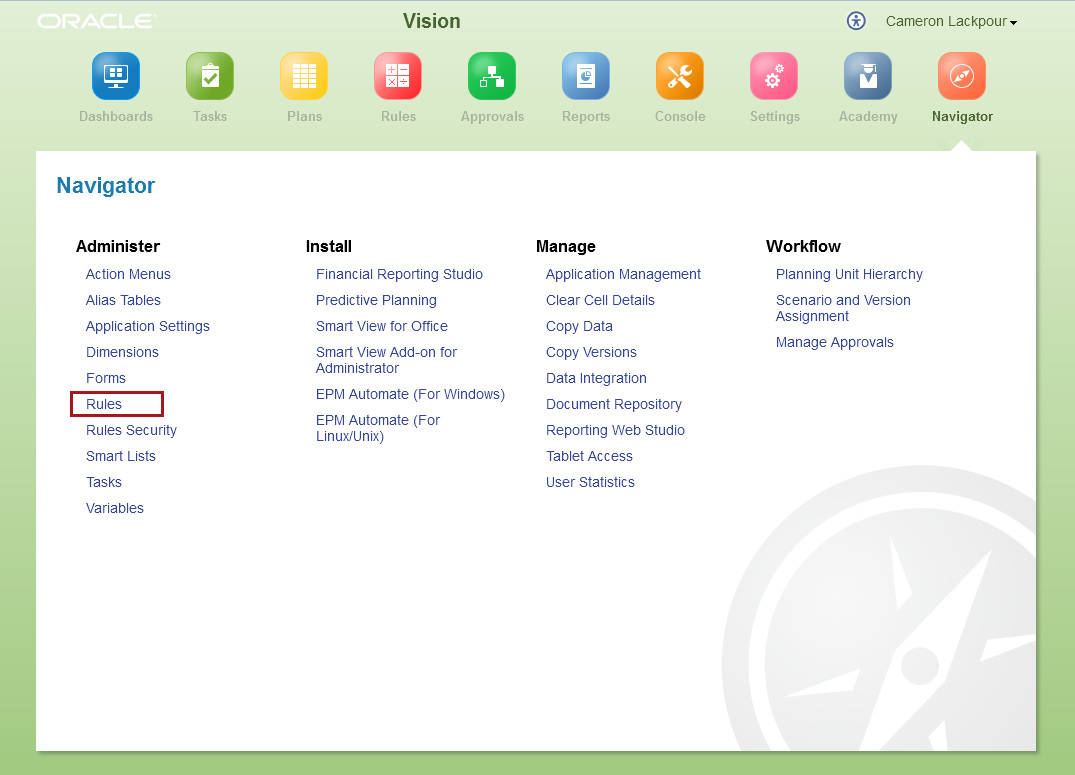
Navigating to the Navigator’s Rules…

…launches (briefly) a new window…

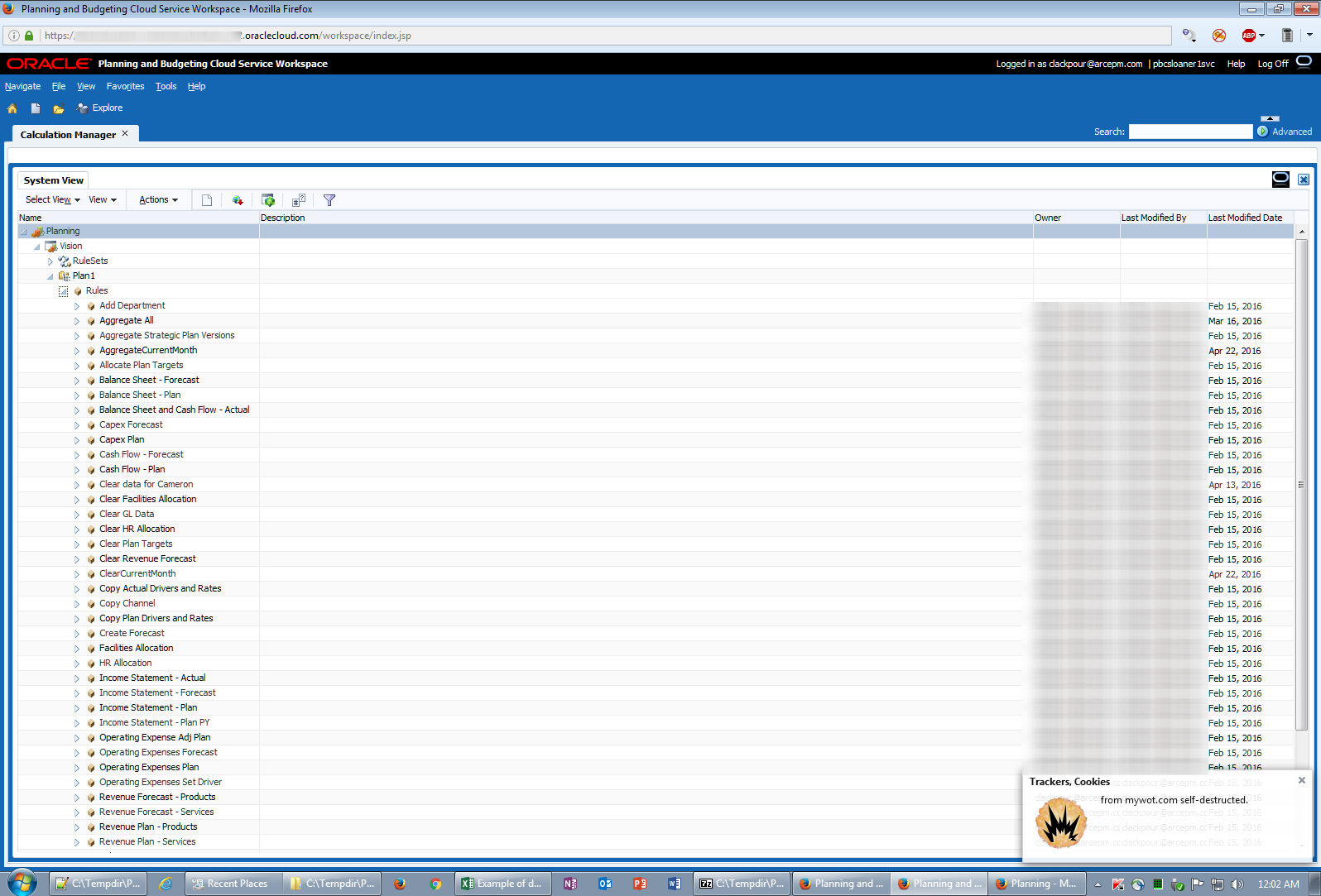
…and then finally into good old Workspace:

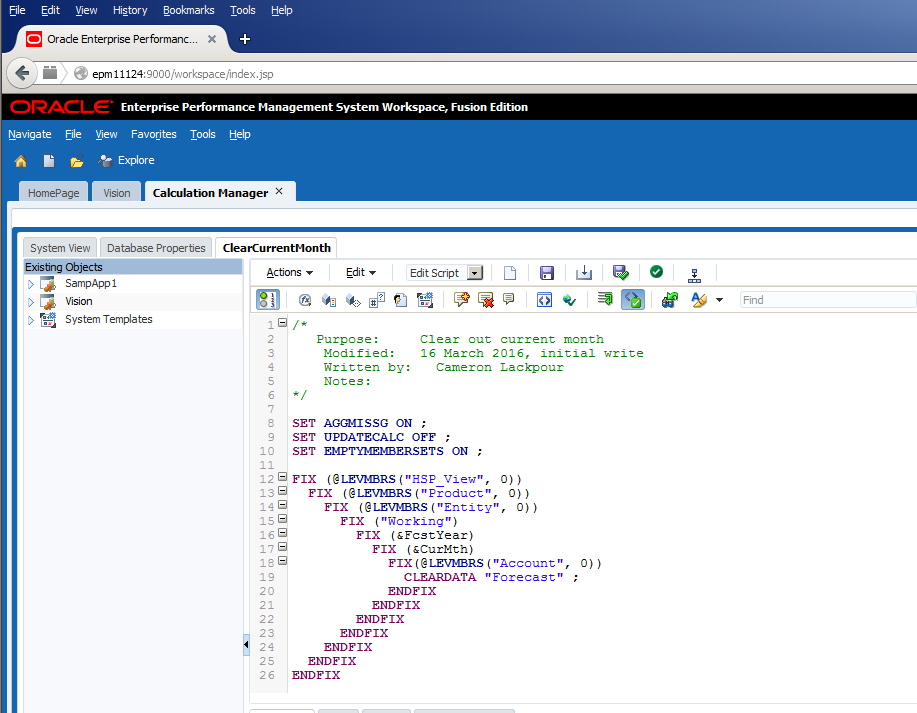
Alternatively, for those of us Bittereinders who are holding on to Workspace with every ounce of energy we can muster, it looks just like on-premises and takes us to the same Calc Mgr explorer.

What does the code actually do?

Let’s take a quick break to review the very simple code.

Again coming back to the steps that a monthly Actual load automated process has to go through, it must:
  1. Load new metadata
  2. Refresh the database
  3. Clear out the most current month’s data
  4. Load that data
  5. Aggregate the data

Clearing the deck

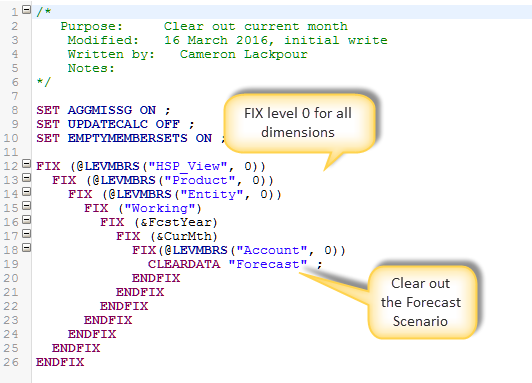
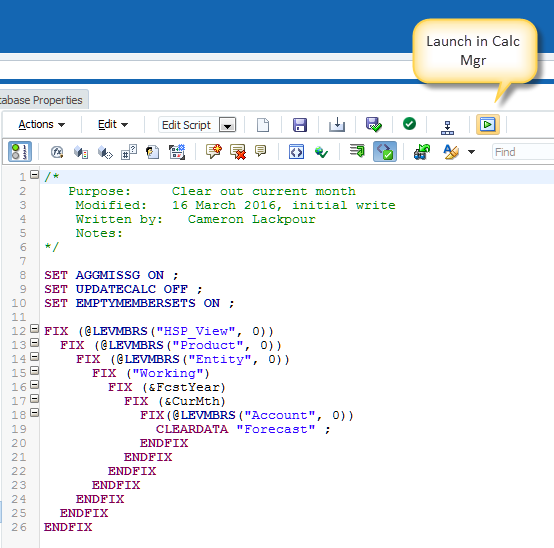
The data clear is simple.  I’m showing it in PBCS but the code is the same in on-premises.

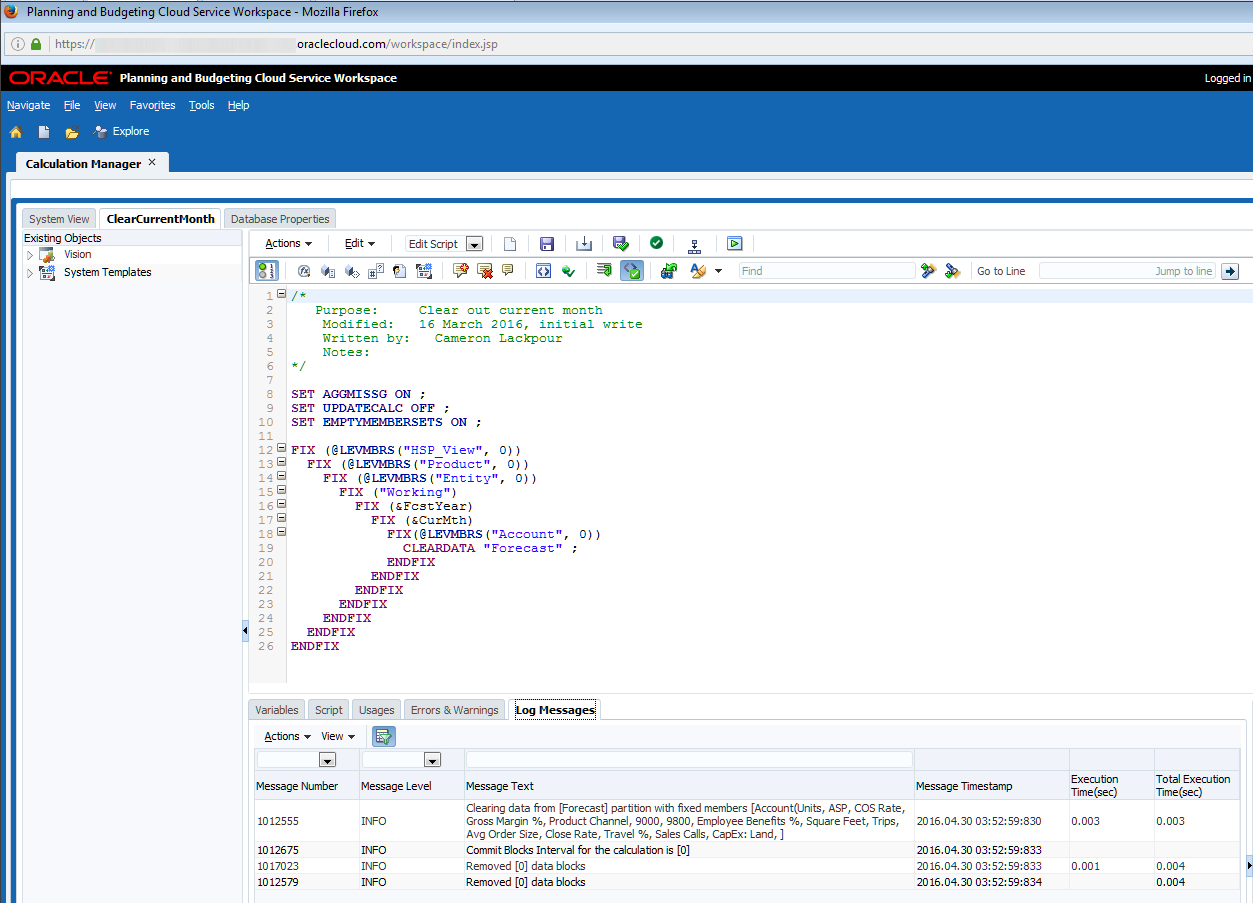
The logic is simple – FIX on all level 0 members for the current month using the Essbase Substitution Variable &CurMth to clear out the Forecast Scenario.  Easy-peasy.

Sum of the parts

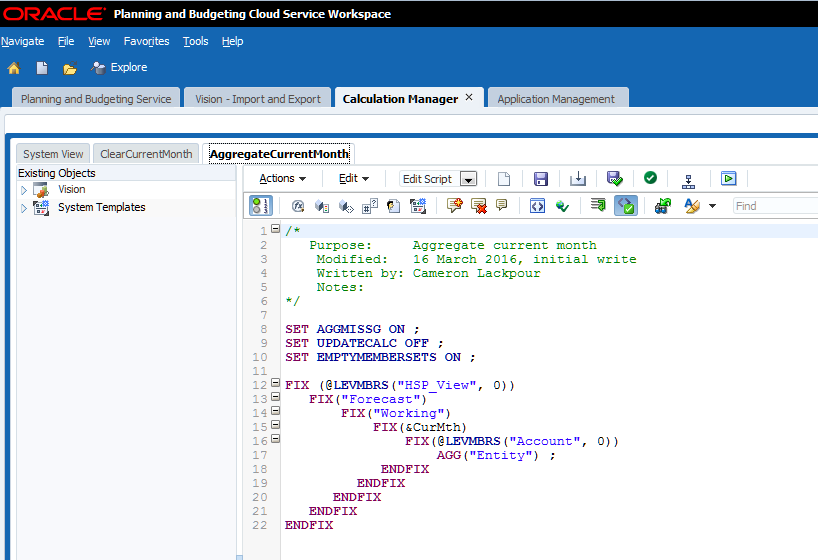
After the data has been loaded there’s an even easier aggregation of the Entity dimension.  Believe it or not, in the PBCS Vision application all other dimensions are either fully dynamic sparse or dense so there’s just Entity that needs to be aggregated.


Executing Business Rules

Traditional from Workspace

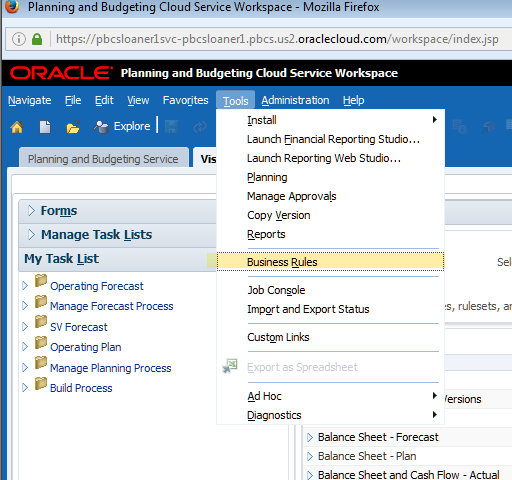
Whether on-premises or PBCS, Workspace navigation is the same:

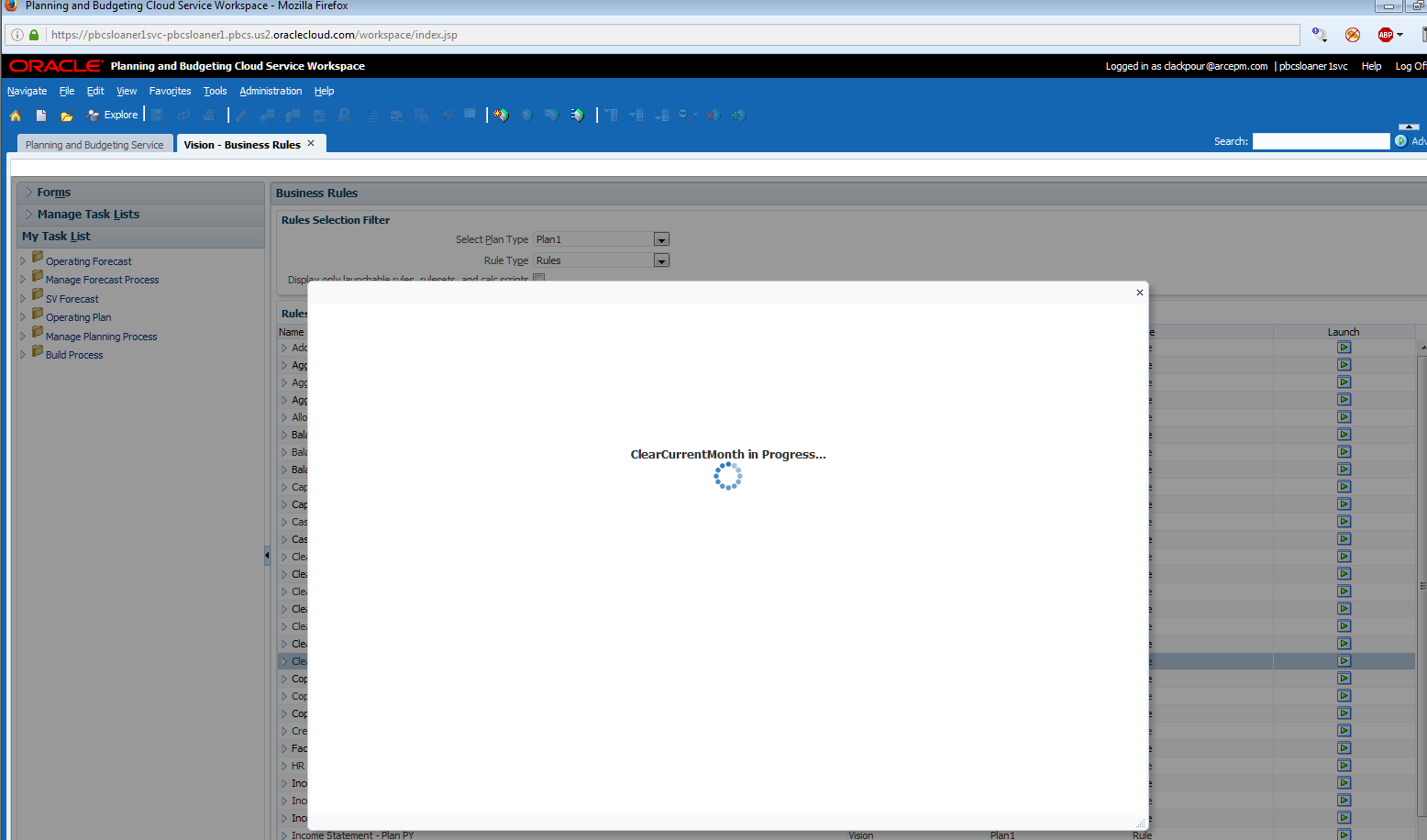
And then run from the list:

It runs:

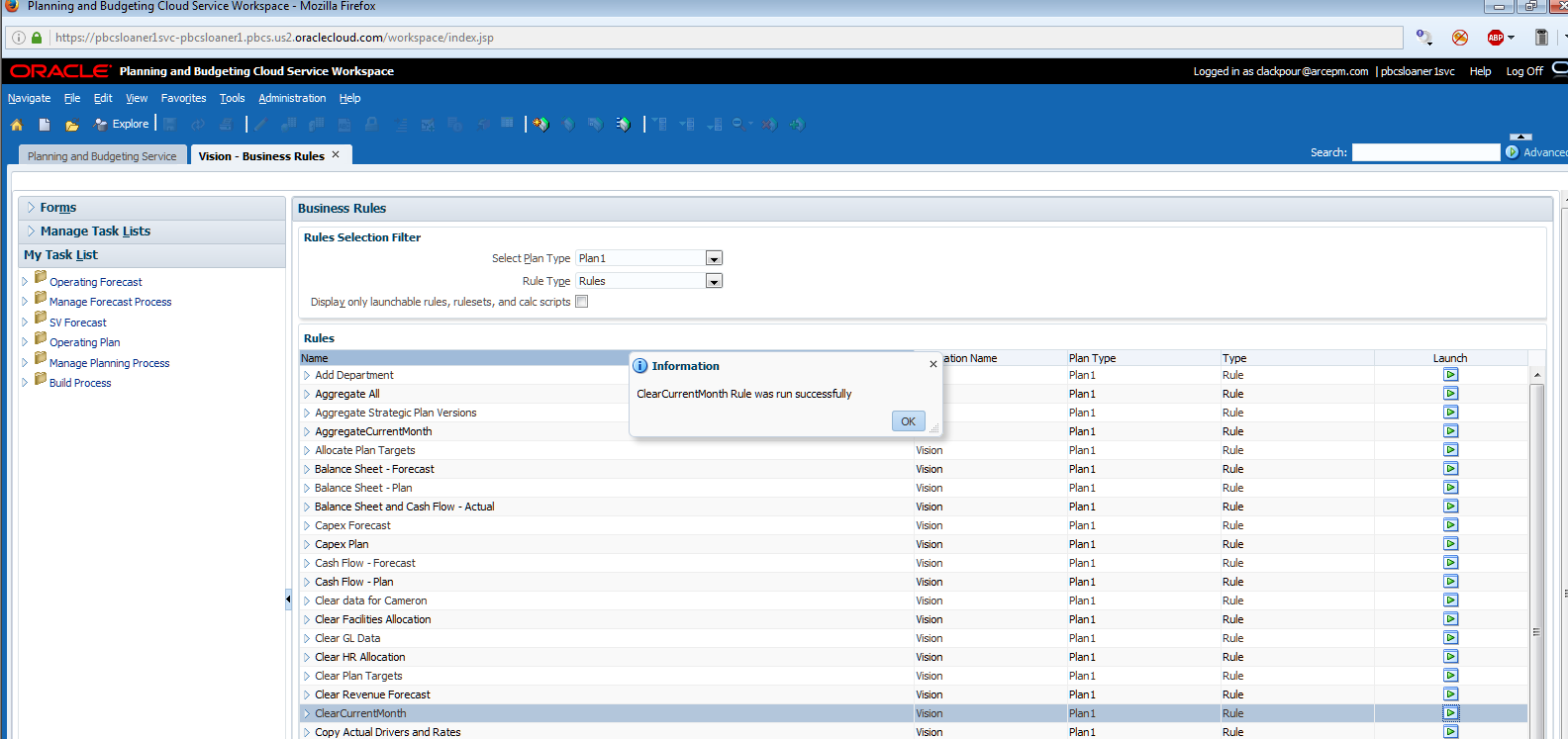
It’s done:

Simplified Interface

In the SI, things are a bit different but conceptually it’s the same.

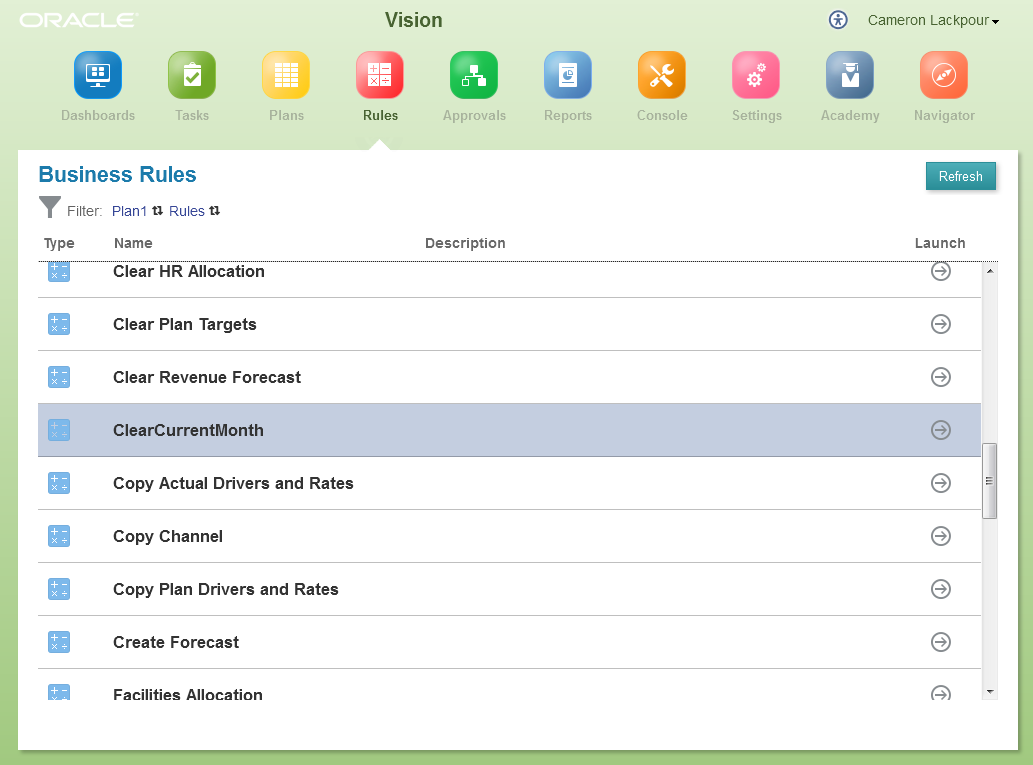
Navigate to Rules:

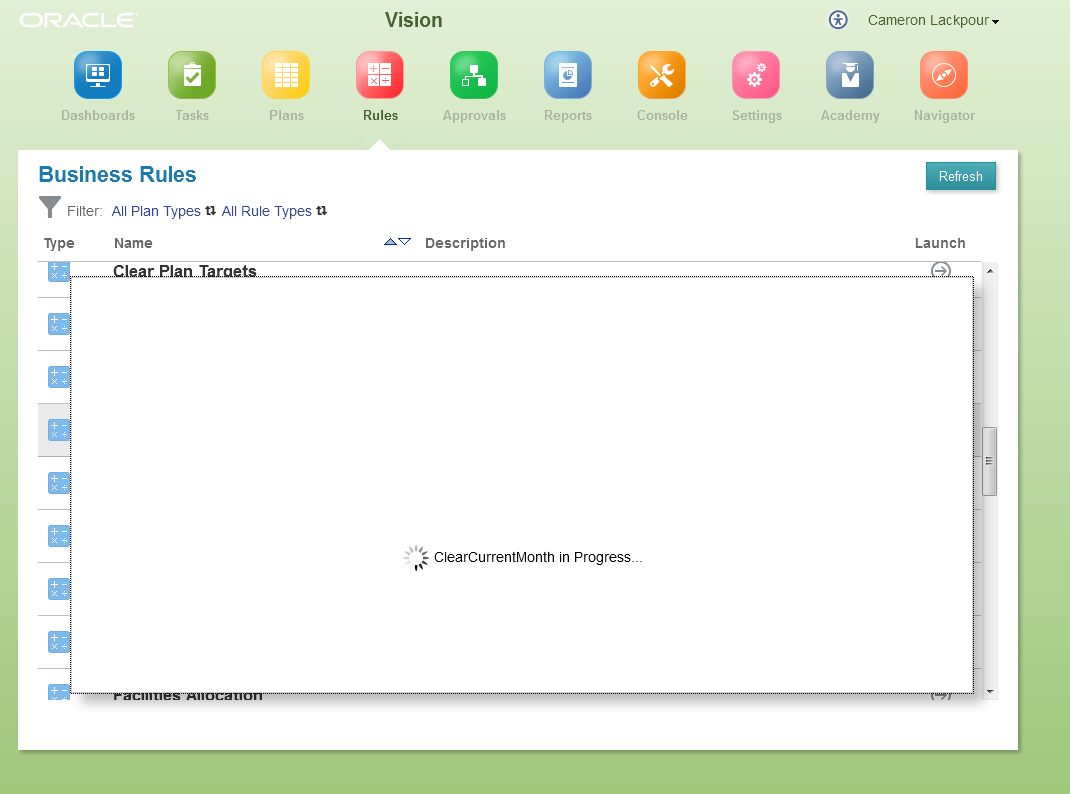
Find the one you want, in this case ClearCurrentMonth, and run it.

No confirmation message pops up when complete.  Instead go back to the good old Console’s Jobs tab to see the results:

Smart View

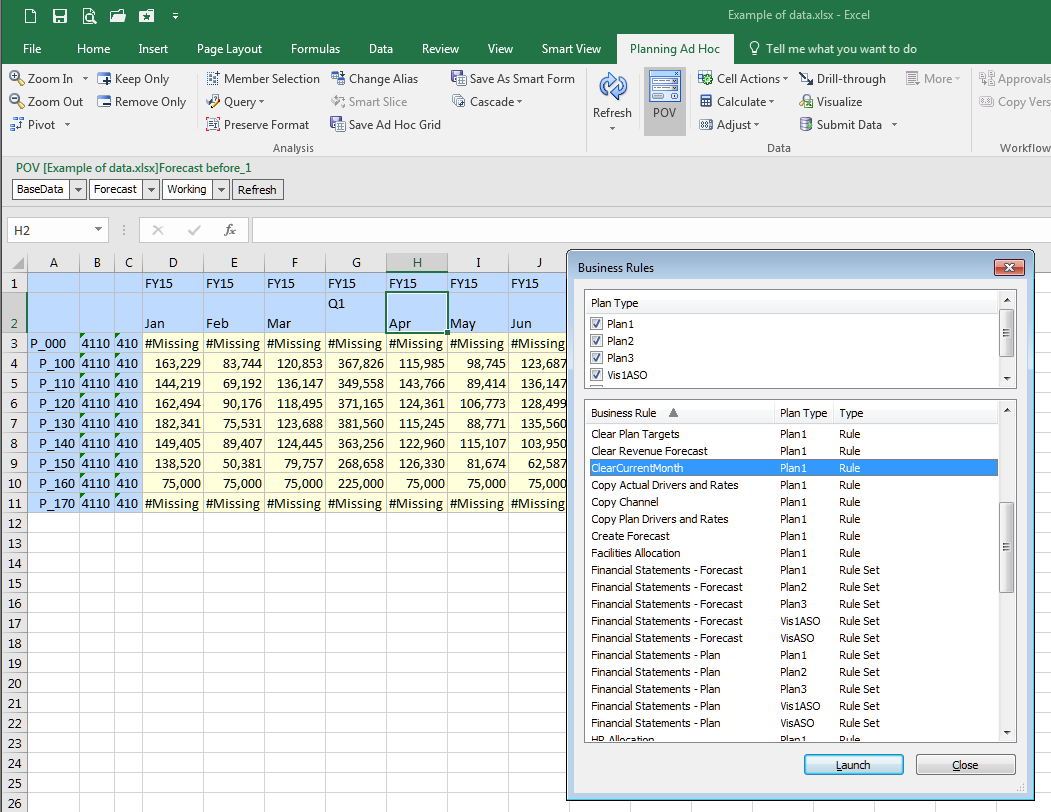
Finally, it’s possible to run business rules from Smart View – both on-premises and PBCS work the same way:

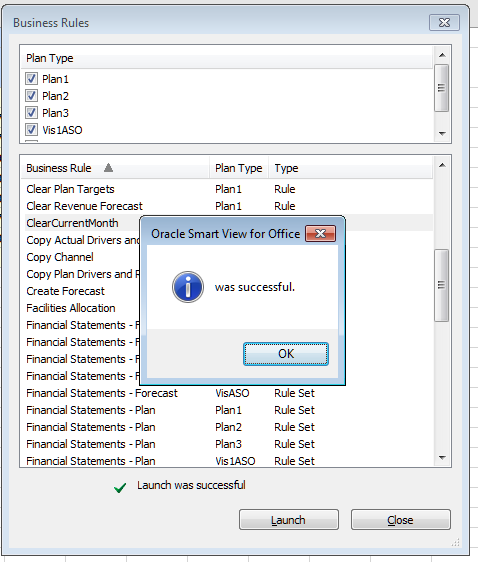
Just as with Workspace and SI, there’s notification of both execution:

And completion:

How many ways to skin this cat?  Four.

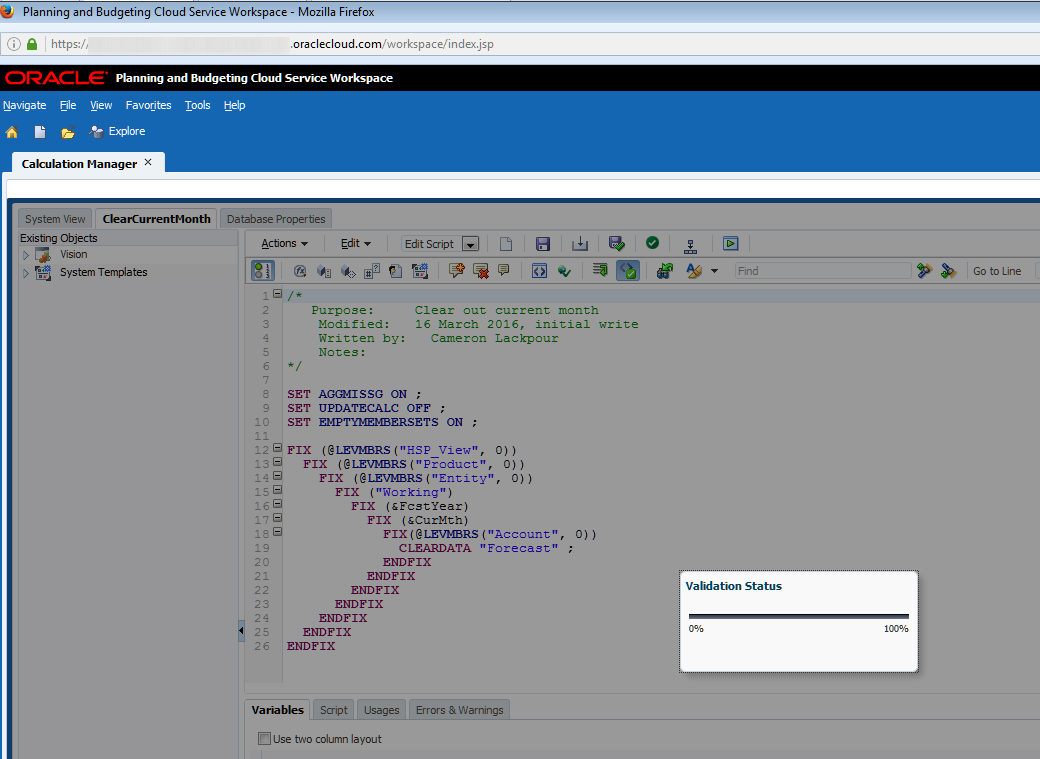
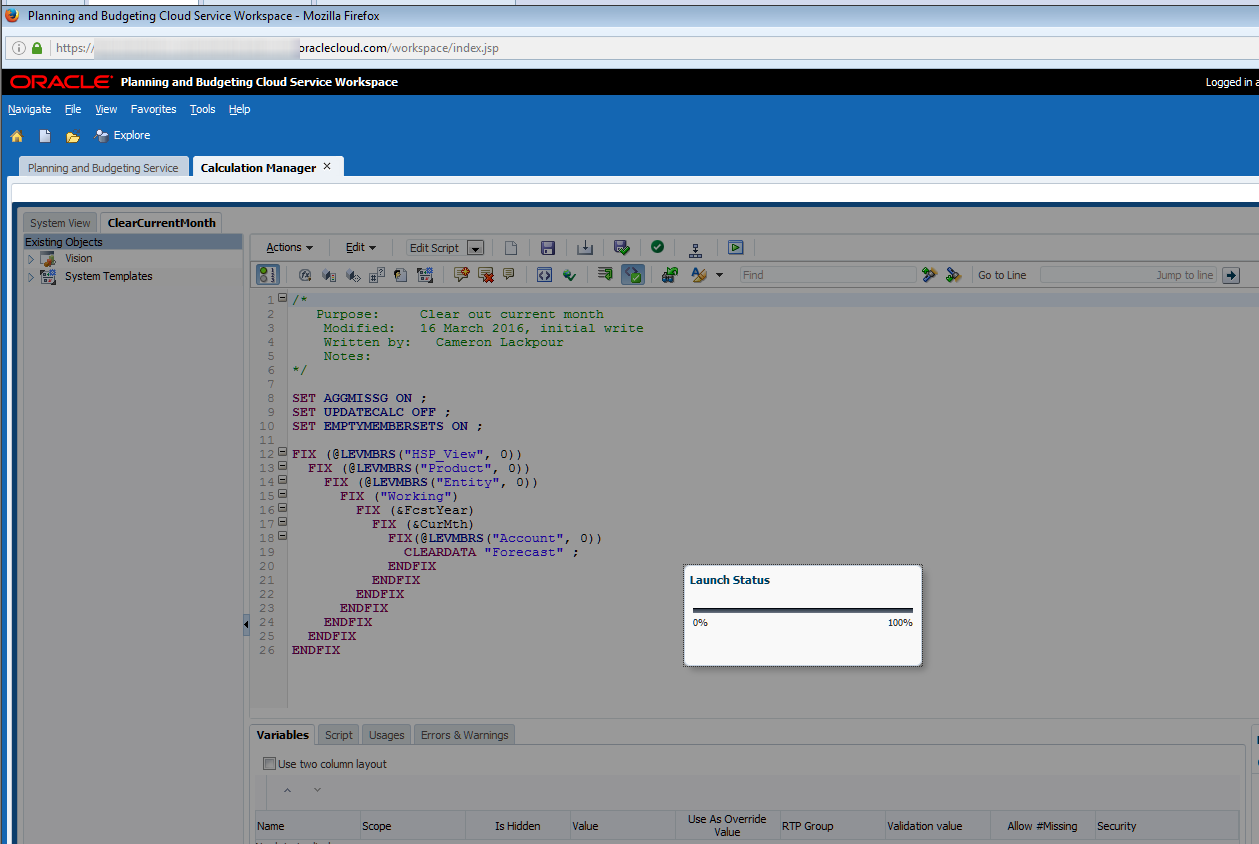
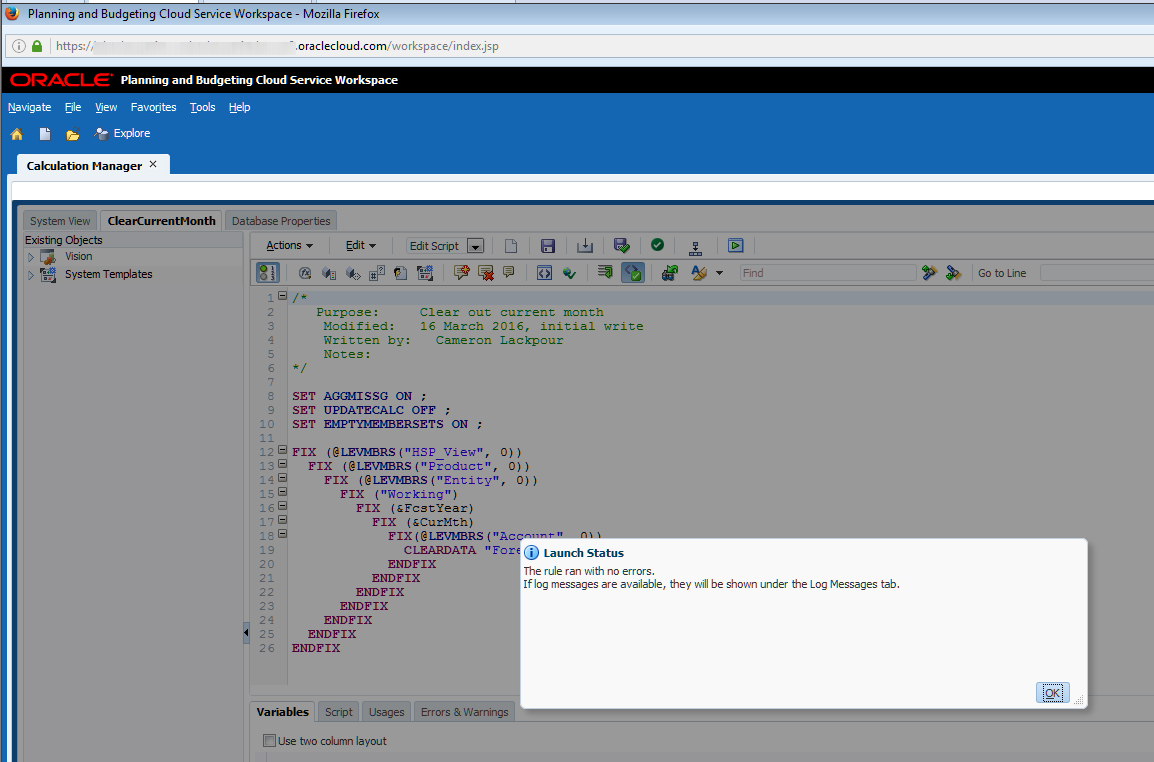
Other than the title bar that says, “Planning and Budgeting Cloud Service Workspace” can you see a subtle addition to the Calc Mgr code snippet above?  Look on the top toolbar in the editor.  See it?  No?  It’s oh so little and yet oh so useful.  

Let’s make it a bit more explicit.


That launch button is not in on-premises like so many other functions.  Sigh.

Putting aside my eternal lament about feature parity, this is Yet Another Pretty Cool PBCS Function (YAPCPF, pronounced yapkapfif).  No more need to deploy the rule to Planning to test it although for Workspace, the SI, and Smart View that will have to be done..  Fwiw, if you didn’t find it, be glad because I had to really exercise my inner OCD to see the difference as I compared icon-by-icon-by-icon across the two platforms.

Clicking on that button delivers a Validation before run (remember, if it’s deployed it’s validated):

And then a processing message:

And then finally a completion message:

Btw, there’s a Log Messages panel in Calc Mgr to give you log file information.  Note that there is no other way to get to the log file. Bummer on that one.

So what’s it all supposed to do?

Let’s take it in calculation steps.

Assuming this:

The ClearCurrentMonth business rule gets executed.  As July is the current month and there is no data, nothing changes.

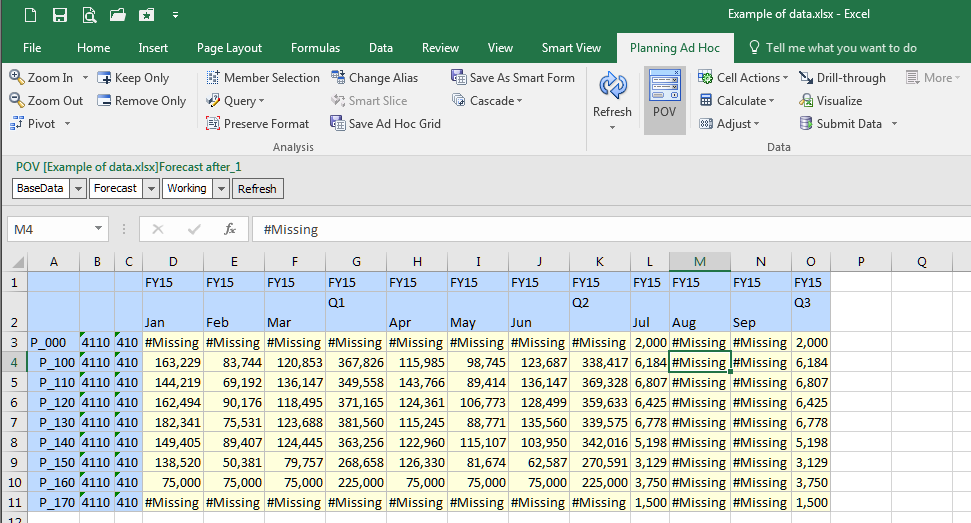
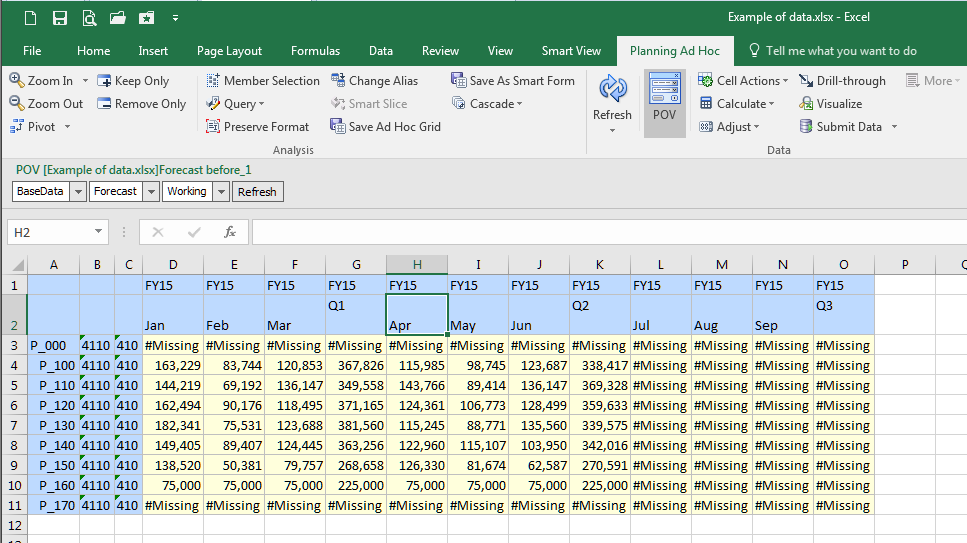
Data gets loaded in as per The Compleat Idiot's Guide to PBCS, No. 11, PBCS and data which now looks like:

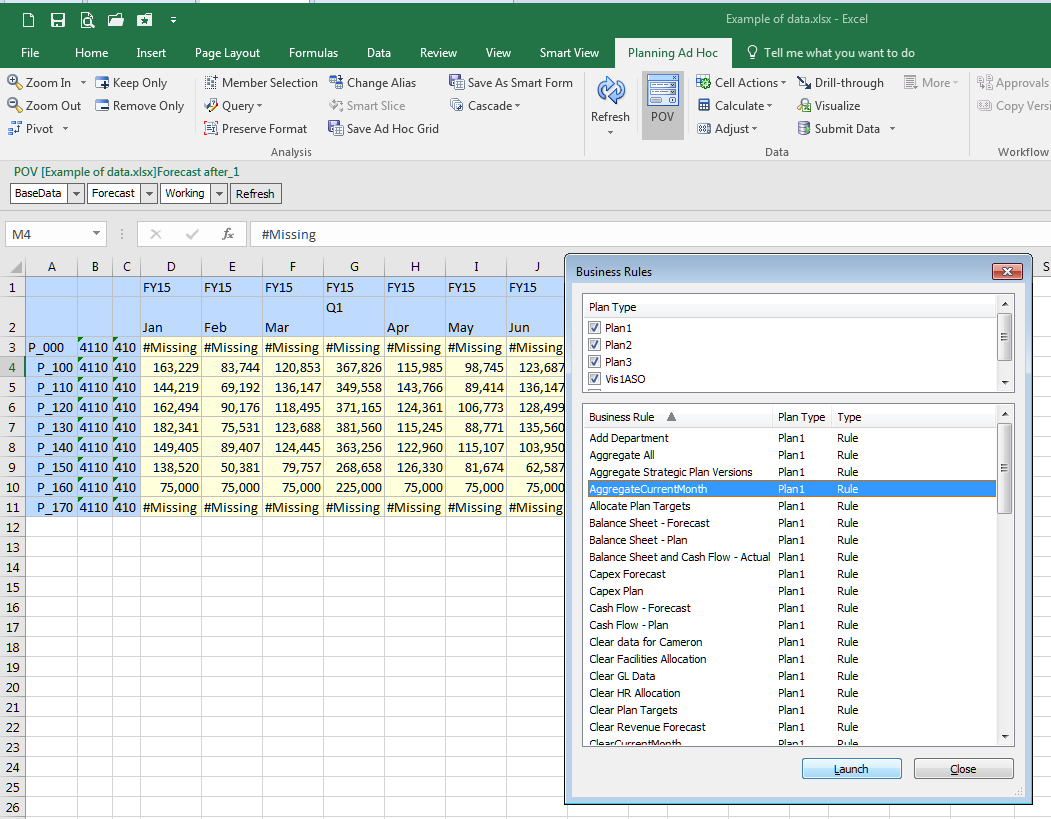
To aggregate it, run the AggregateCurrentMonth rule.  I chose to run it from Smart View but it could happen in Workspace, the SI, or Calc Mgr itself:

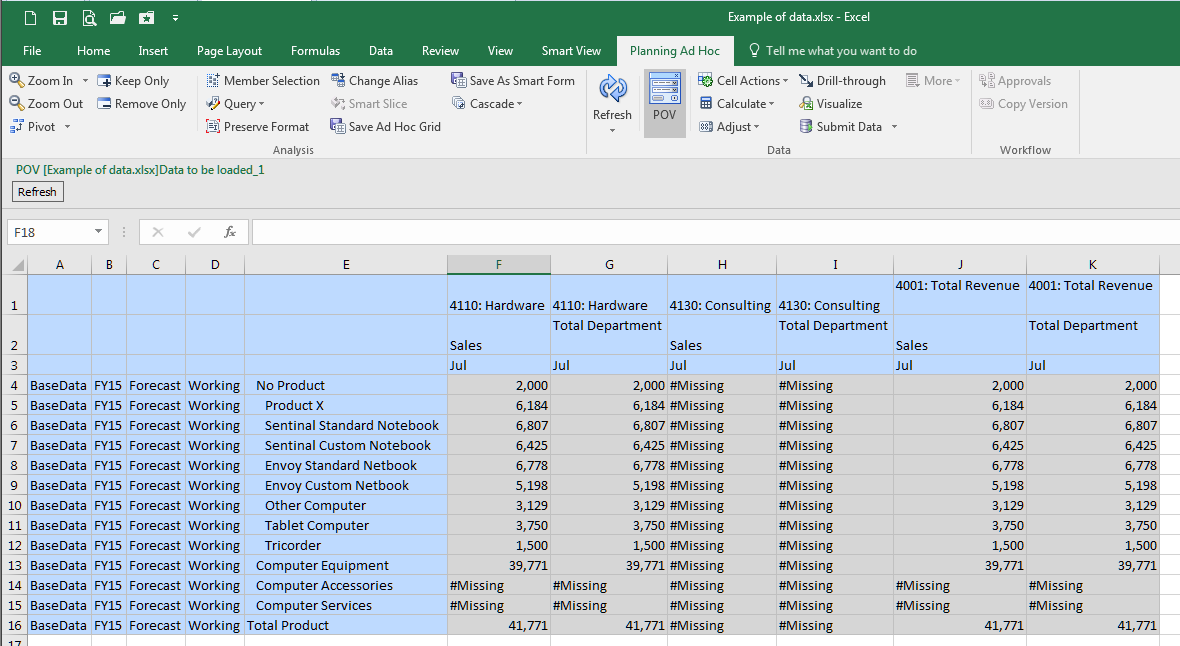
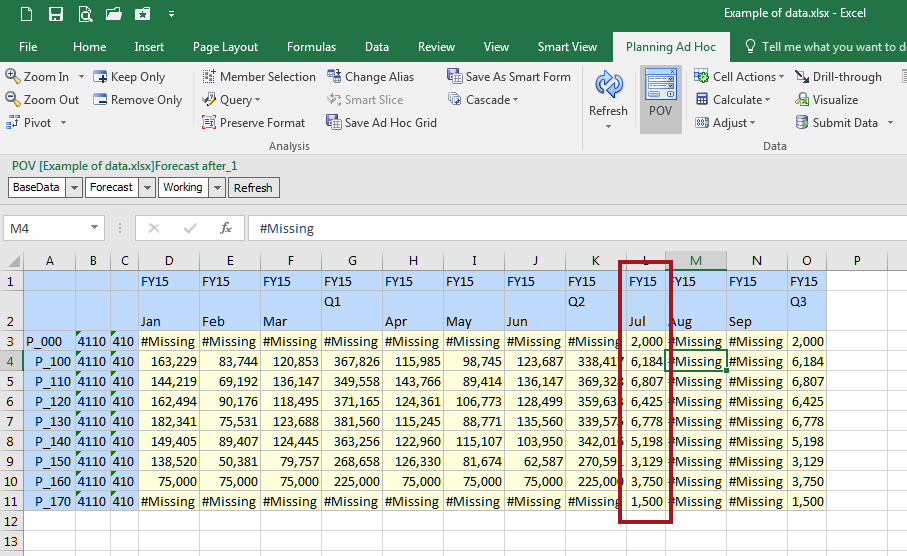
Ta da, aggregated data:

Btw, I am almost resigned used to working with Planning ad hoc forms in lieu of Essbase ad hoc connections.  Almost.

Summing it all up

If I were to look at the four approaches and count clicks as a way of measuring complexity, I see the following:
  • Workspace – four including clicking on OK when the process is finished
  • Simplified Interface – four including navigating to the Jobs console
  • Smart View – six including closing the Business Rules dialog box
  • Calc Mgr itself – two assuming being already in the editor

So not much of a difference in terms of effort between traditional Workspace and the Simplified Interface.

PBCS really moves beyond on-premises with that ostensibly simple ability to run the business rule from within the editor.  No more writing the code, deploying it, watching it fail/having useless junk in your Planning application.  Instead, just write, run, edit, run, edit, run, approve, deploy, drink a celebratory beverage of your choice.

Let’s take stock of where we are with this series:

With those three posts we’ve covered how to interactively load current Actual into Forecast.  That’s all well and good but in the real world no one (hopefully) would ever do this.  Instead it needs to be scripted so it can be run on demand or through a scheduler.

And that scripting process for both on-premises and PBCS will be the subject of the next post.  Expect to see quite a few differences between the two platforms.  You’ll have to decide which one is the best for you although I think that will be pretty obvious.

Be seeing you.
Sunday, May 1, 2016

The Compleat Idiot's Guide to PBCS, No. 11, PBCS and data

Short(ish) and sweet(ish)

The previous post on this was long, too long maybe (Maybe?  Definitely.) and certainly the longest post I’ve ever written if counting the pages in MS Word is a guide – 56 – and that is too much of a good thing. In my defense, the length came from trying to show you all of the different ways PBCS supports loading metadata.  I’m going to try to keep this a bit shorter although the same approach of using graphical how-to between Workspace and the Simplified Interface will continue.

This post is going to show how to follow the next steps in loading Actuals into a forecast:
  1. Clear out the current Actual month just in case there’s something there or if a reload is required.  ←No, I’m not going to do that this time round as this post will again be too long.  You’ll have to wait.
  2. Load of Actuals data to the current month.
  3. Aggregate the database ← Ibid.  Sorry, but I can’t do another 50+ page post.

The post after this one (edit:  nope, the one after the one after this one, see above) will show (finally) how to do this in an automated way in both on-premises and PBCS.  If you thought there were differences between the two products thus far, you ain’t seen nothing yet.  

To reiterate, based on the length of this post, it’s data, data, data and no calculations as yet.  Sooner or later…

Sort of a mea culpa about data

Back in part 9 of this series, I wrote:

The on-premises (and PBCS) native data load functionality is so brain-dead it beggars belief.  Really, it’s just awful.  At least the two are at parity.  :)

Well, it is brain-dead.  And it is awful.  But, it does work.  This isn’t quite like my EPMA rant (see here and here and here and I’m sure there other places) but let’s take a look at data file formats for PBCS and then decide for yourself.  Btw, if you disagree with me, I’d really like to hear why.

An important bit to remember

Usually (always, actually) when I load data into a Planning application, I use an Essbase load rule to do so.  In fact, I’ve never, ever, ever used Planning to load data.  There is no direct access to Essbase in PBCS and hence no load rule.  You must provide a preformatted and pretransformed data file and it must be a text file unless you load through the FDMEE-lite that comes with PBCS.  I’ll cover that in a future post and as it’s not required and maybe not even desired, I’m going to stick with loading text files.  

I’ll also note that the data files can be in a zip format but again I’ll cover that in later post to help somewhat with brevity.

First the sweet, then the bitter

This is what Essbase (PBCS) data ought to look like.

There are the following dimensions in the PBCS sample application Vision’s Plan1 Plan Type:
  • HSP_View
  • Year
  • Scenario
  • Version
  • Entity
  • Product
  • Account
  • Period

It looks ugly when Yr. Obt. Svt. marks it up, but it’s a very simple dimensional mapping of data with each column representing a dimension and the last being the data values.

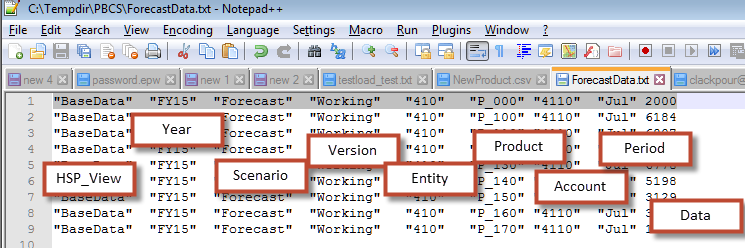
The tab delimited record:
"BaseData"    "FY15"    "Forecast"    "Working"    "410"    "P_000"    "4110"    "Jul" 2000

Also note that all field values except data must be enclosed in double quotes.  This is not necessary when loading through an Essbase load rule in on-premises Planning.  Why the tab and then double quote delimiters?  Damfino.

That bitterness?  Is it cyanide?

I might be resorting to a teensy-weensy bit of hyperbole, but this format just offends my Essbase and relational and I’m sure something else sensibilities.  

In any case, this is what PBCS data looks like and it oughtn’t.

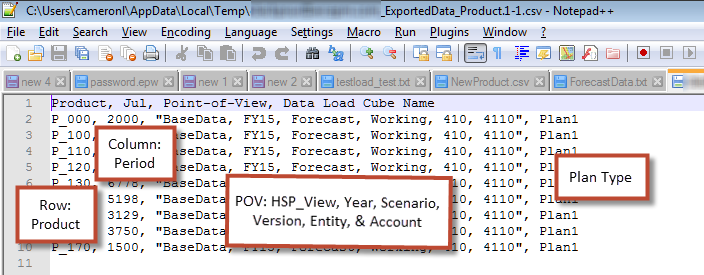
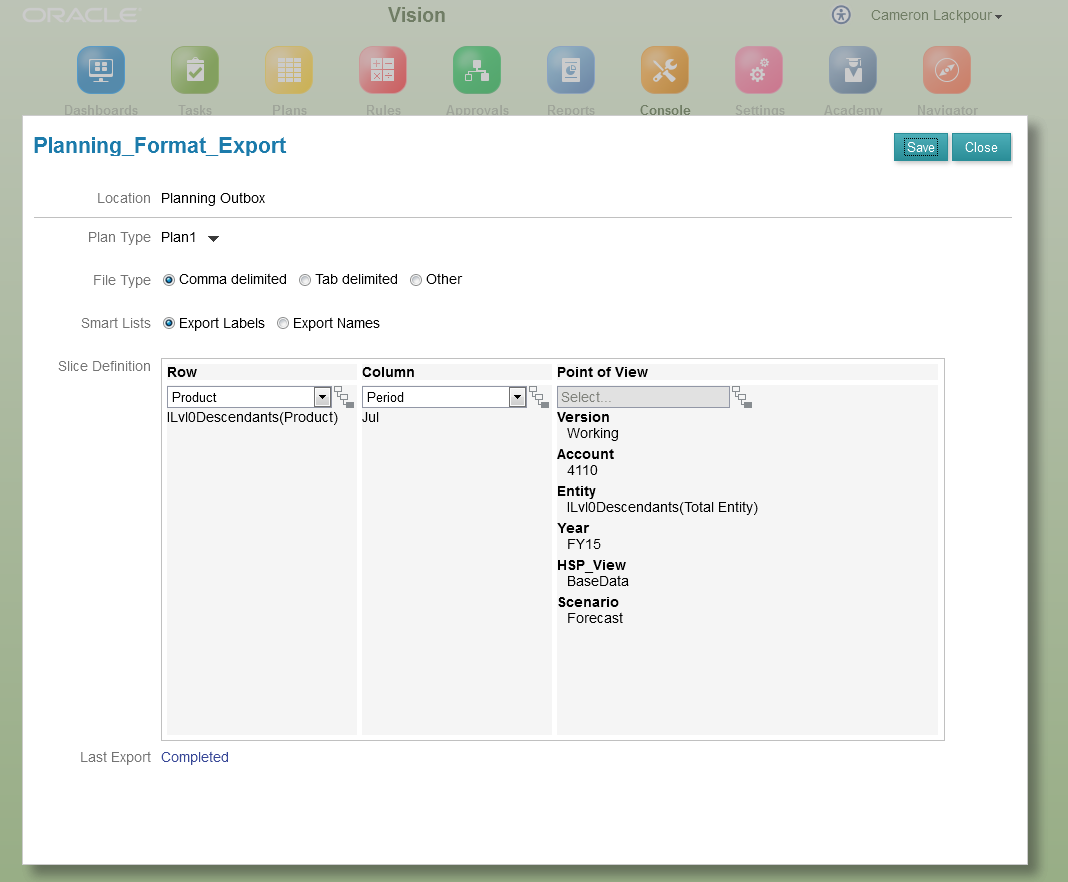
The Planning data format is…different.  There’s a concept of a row and a column which in this case is all level 0 Products and July respectively.  The other data elements are in the Point of View but are actually they’re analogous to the data columns above.  In addition, the Plan Type is defined in the record as well.

NB – This record is comma delimited but it could have used a tab or some other character if desired.

The comma-delimted record:
P_000, 2000, "BaseData, FY15, Forecast, Working, 410, 4110", Plan1

Why would Oracle Hyperion do this?  The data ends up being sandwiched between the row (which ought to be more than one dimension in just about anyone’s definition of a fact table row) and the column and the “POV” which btw require all of the other dimensions – and thus fulfills the role of the row columns expcet it’s got a different name – to be defined within double quotes.  Why oh why oh why is this considered “better” or even “necessary” or “not-put-out-of-its-miserable-life-by-a-bullet-to-the-back-of-its-head-whilst-kneeling-at-the-edge-of-a-lime-filled-pit”?  ←This last bit might be a tad over the top but take it as read that I’m not a fan of seemingly needless complexity.

Seriously, Gentle Reader, tell me why it’s so and I’ll write a panegyric about why you’re right and I’m not.

Just in case you think I’m telling porkies, that Planning file format comes out of PBCS’ own self:

No, one cannot put more than one dimension into the Row slice definition.  Believe me, I tried.  

So I call mea culpa on my mea culpa – the Planning data format is brain-dead.  I’m sure someone, somewhere, somehow uses it but I cannot for the life of me understand why.

Step-by-step-by-step

Putting aside that rant – and it was a good one wasn’t it – let’s play the how-does-a-Compleat Idiot-do-this game.

Before and after the fact

NB – I’m only going to show this once as loading the data will have the same impact each time.

July is empty

Here’s my oh-so-simple load of data.  Note that member P_170 aka Tricorders is part of the form.  Yes, I do actually write these posts in serial.

July is loaded

There it is.  Rinse, rather, repeat through the three approaches to loading data to follow.

Workspace

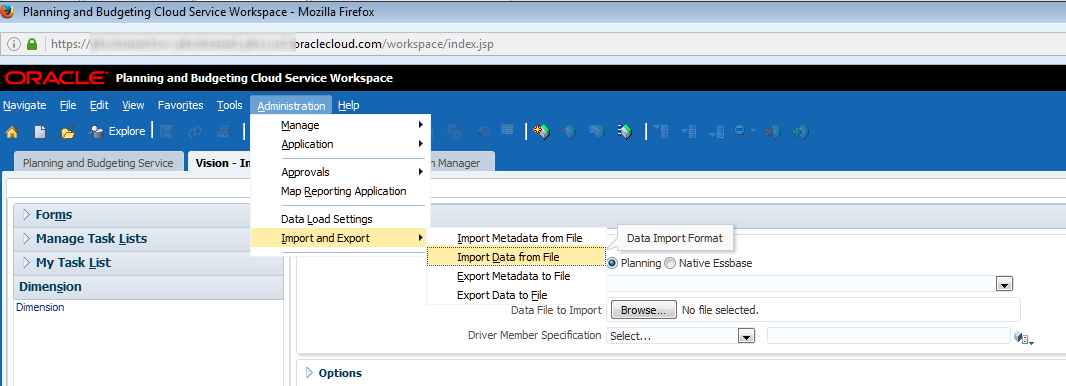
As with metadata Workspace is dead easy and fast.  Do you see a pattern here?  And no, it’s not because I’m used to Workspace, it’s because there are just so few steps compared to the SI.

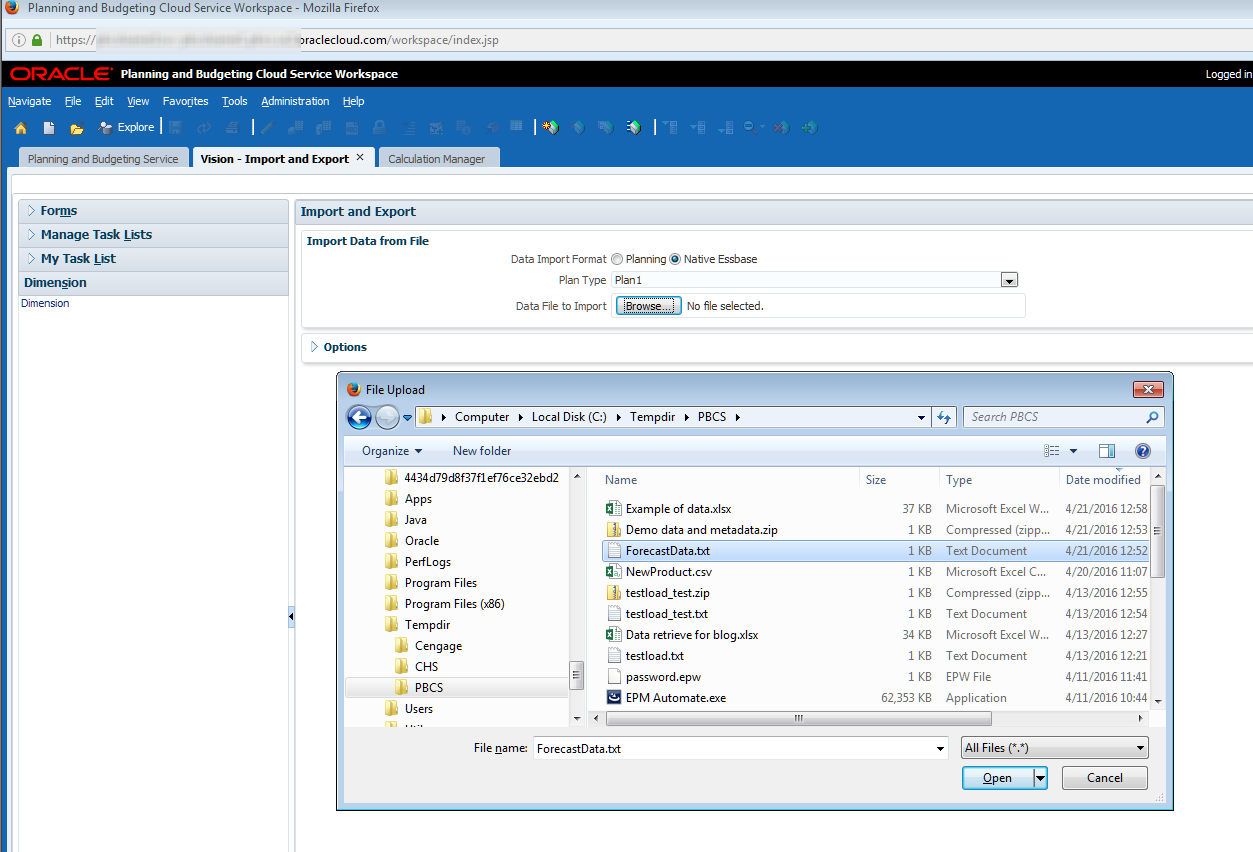
Navigate to Administration->Import And Export->Import Data From File.

Pick your poison.

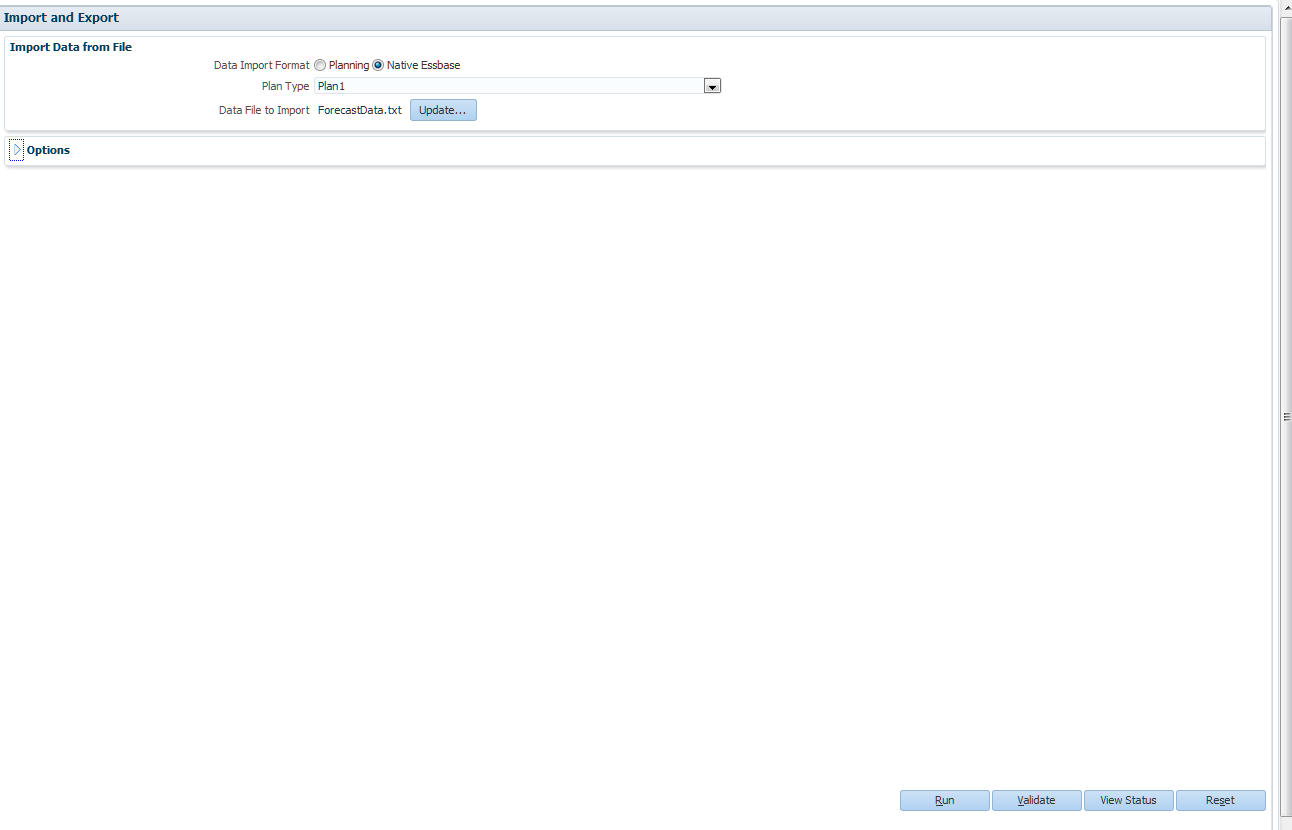
I’ve selected Native Essbase and pointed it to Plan1:
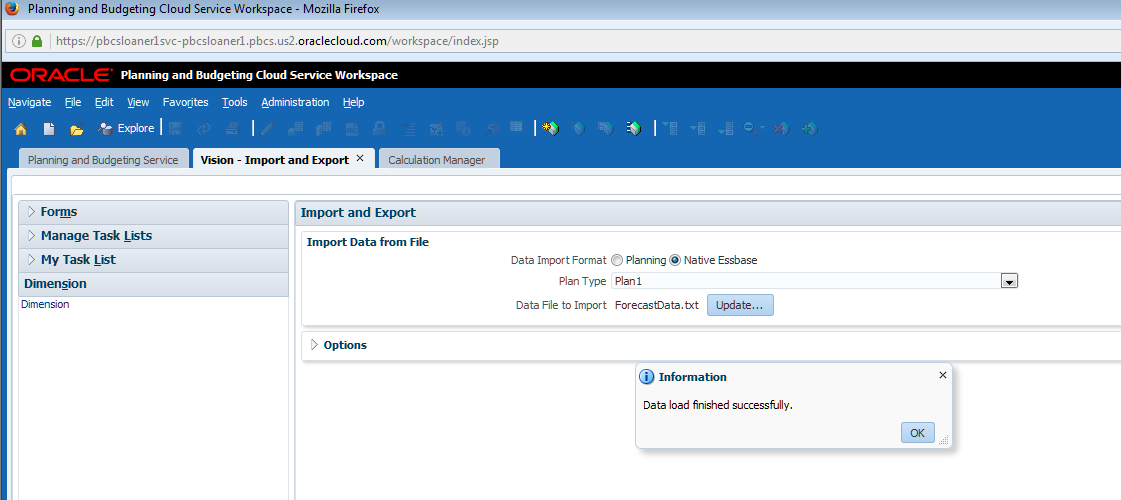
Ta-da, we’re done.

Did that in five (give or take) steps.  Will I match that with the SI?  When Sus scrofa domesticus becomes airborne should be your guess.

Simplified Interface

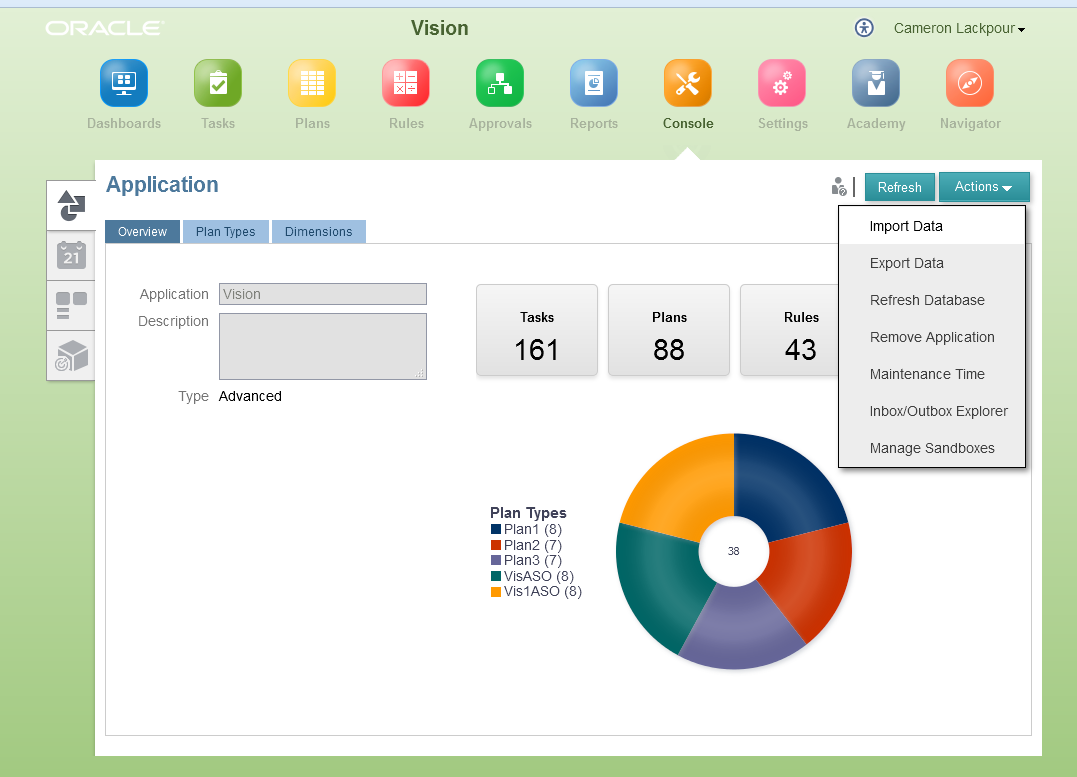
By now you should be familiar with the Console as this is where most processing occurs.

Get a job but not this time

One thing to note is that I’m not explicitly creating a job this go round as I’m directly loading the file.  Regardless, I’ll be viewing the success or failure of this load via the Job console.  Weird.

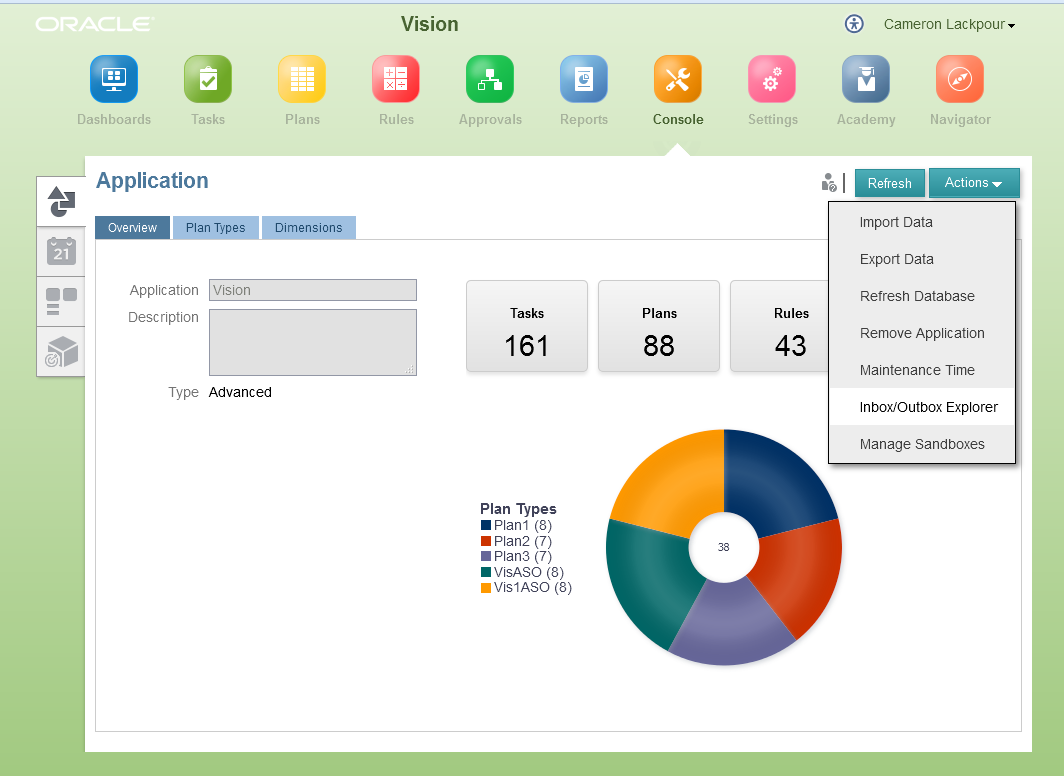
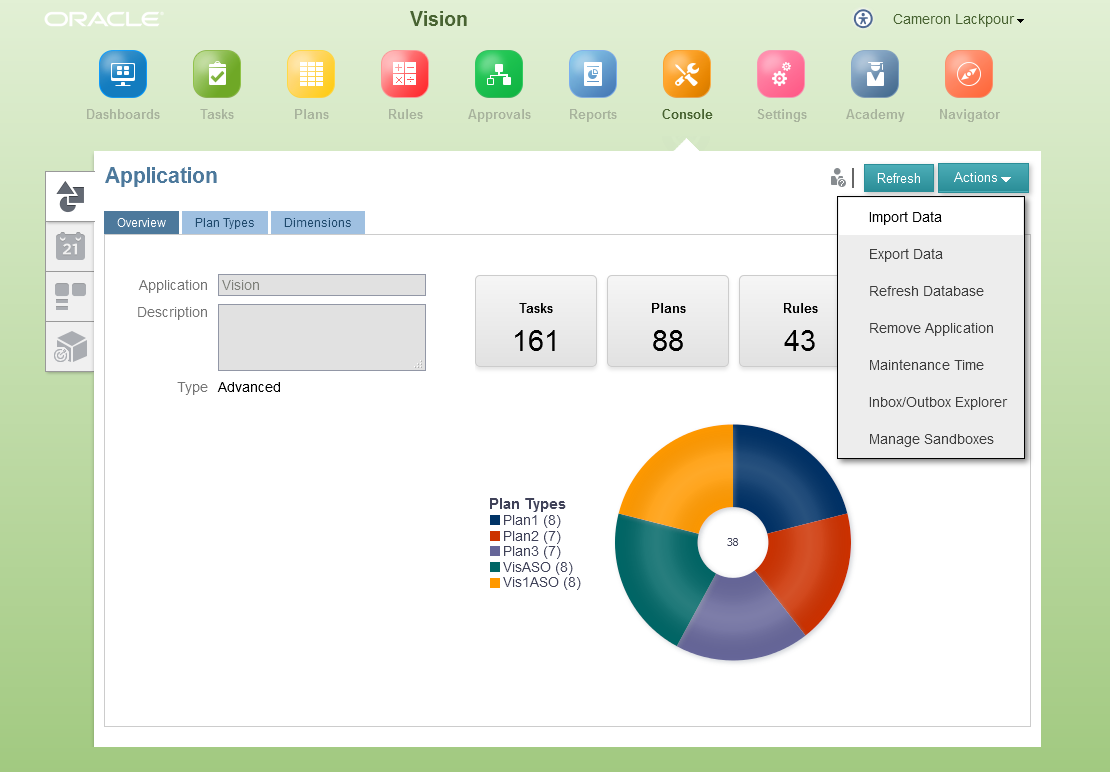
Putting aside weirdness, I’ll go to the Actions button and select Import Data.

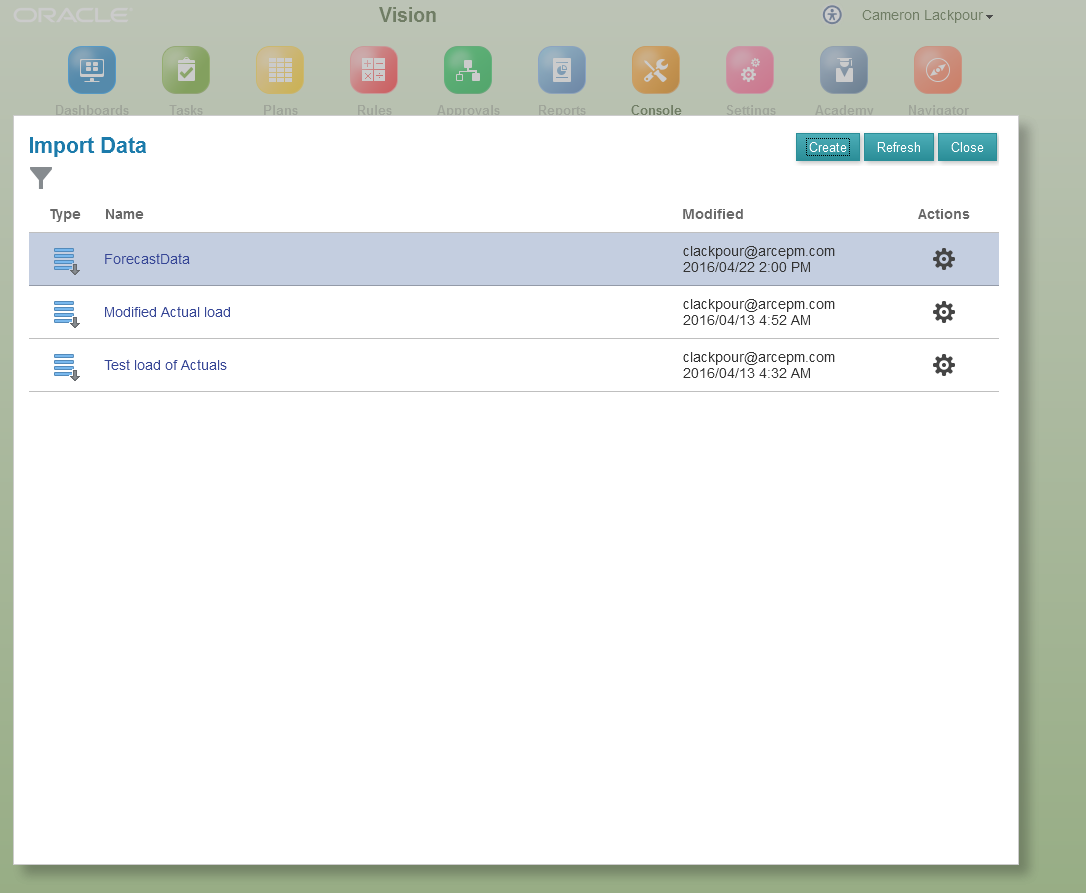
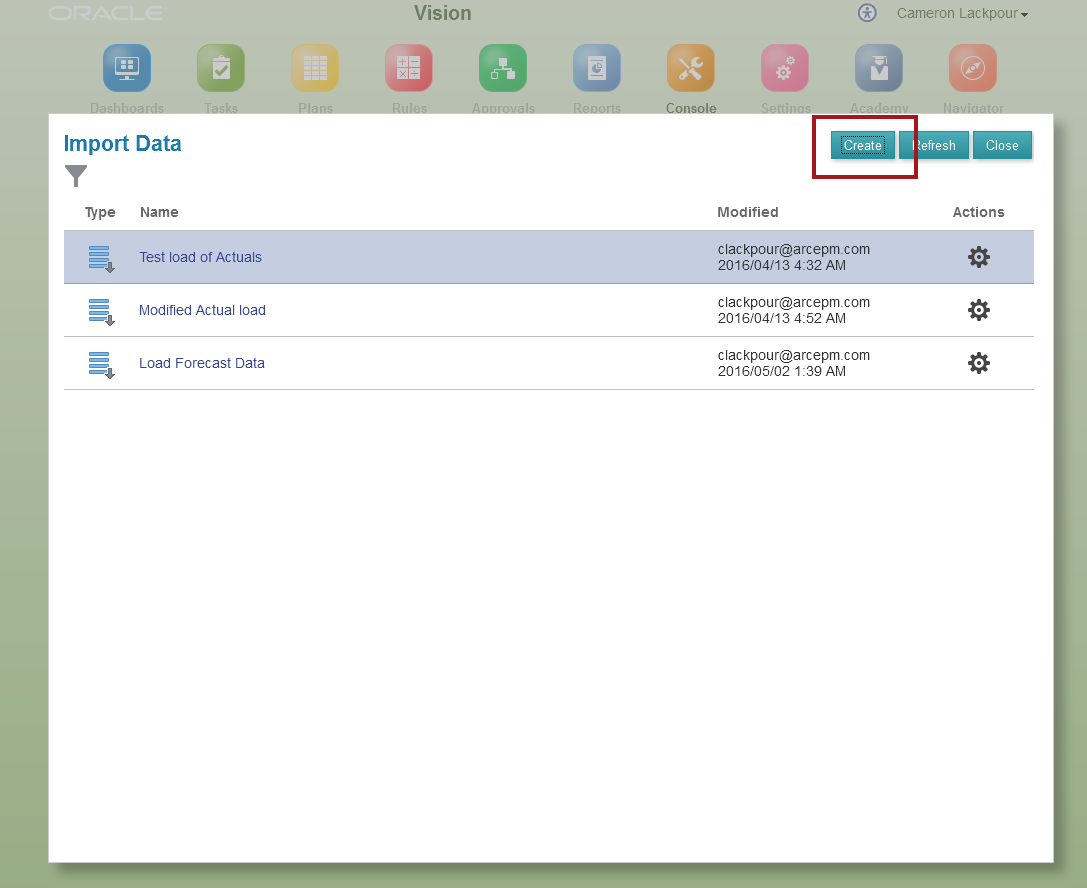
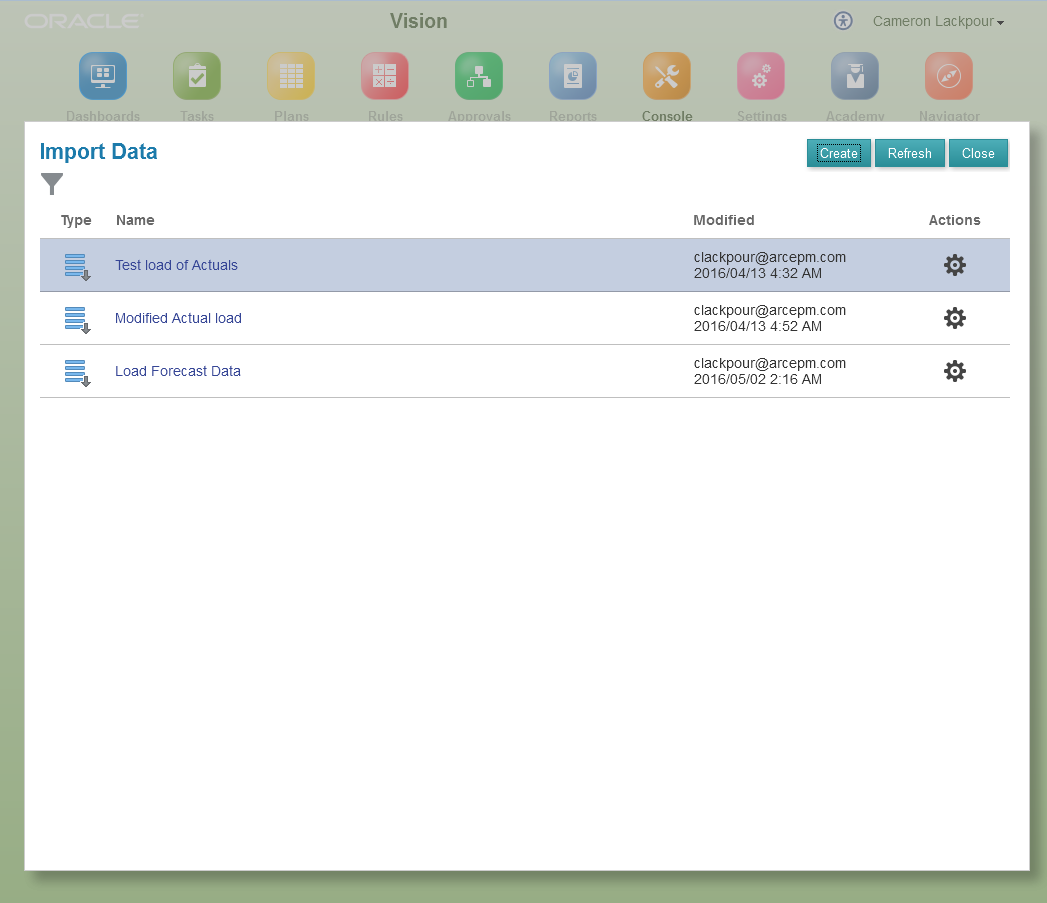
You can see that I’ve already created jobs to import data.  No mind, I’m going to create a new one:

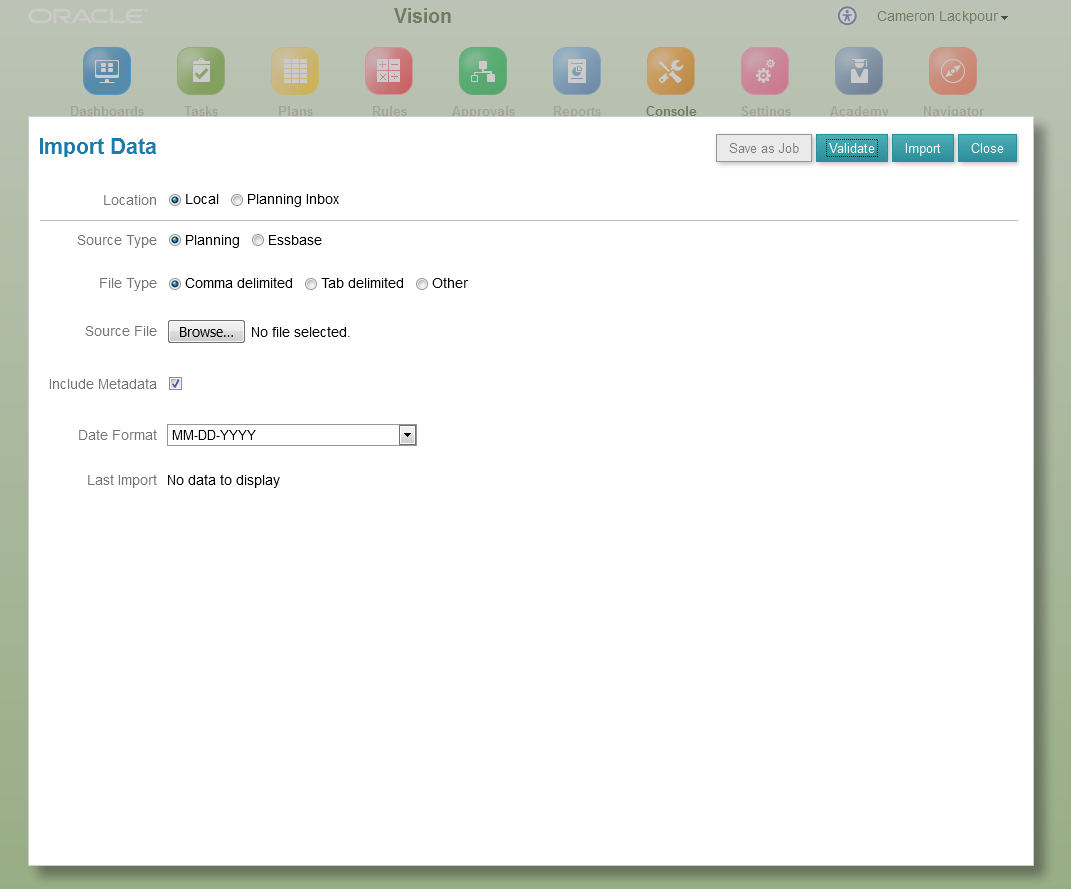
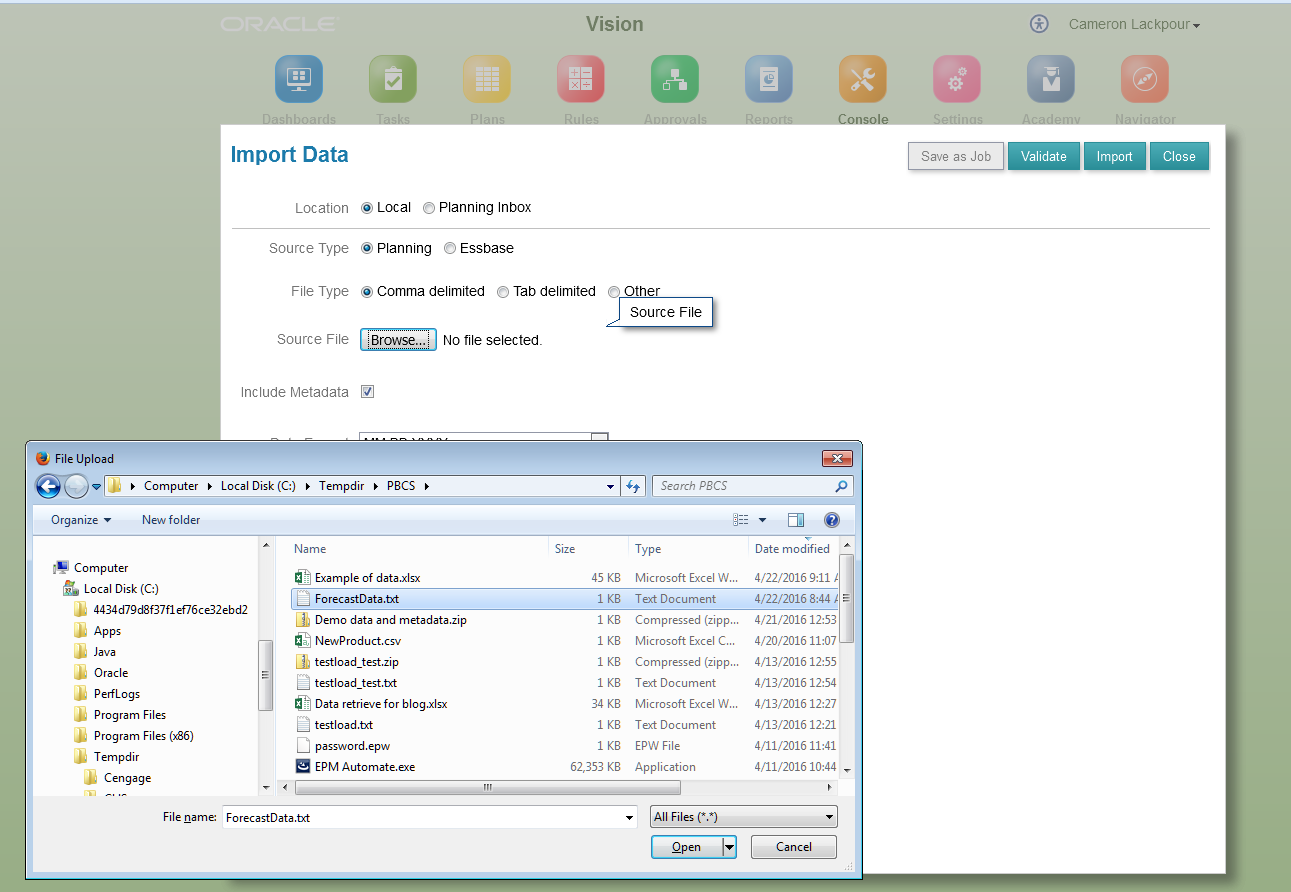
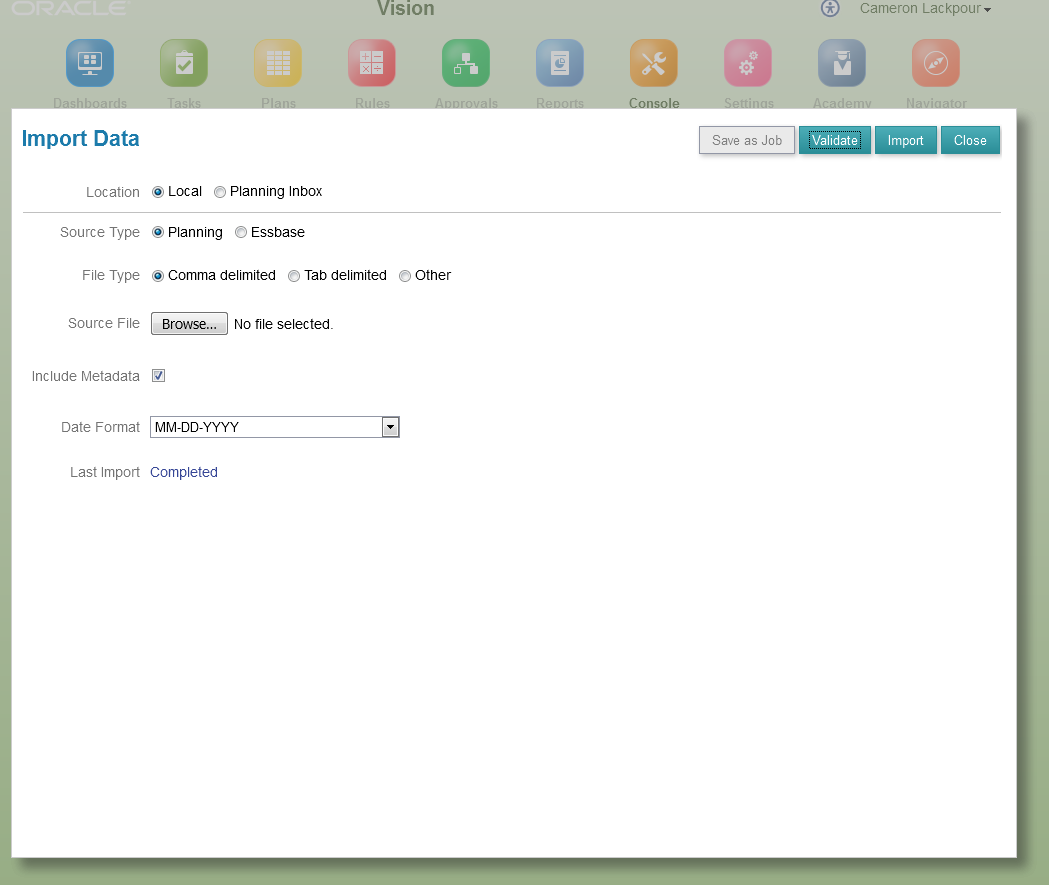
Oooh, I’m at the bit where I define the file I want to import.  Let’s go pick it.  

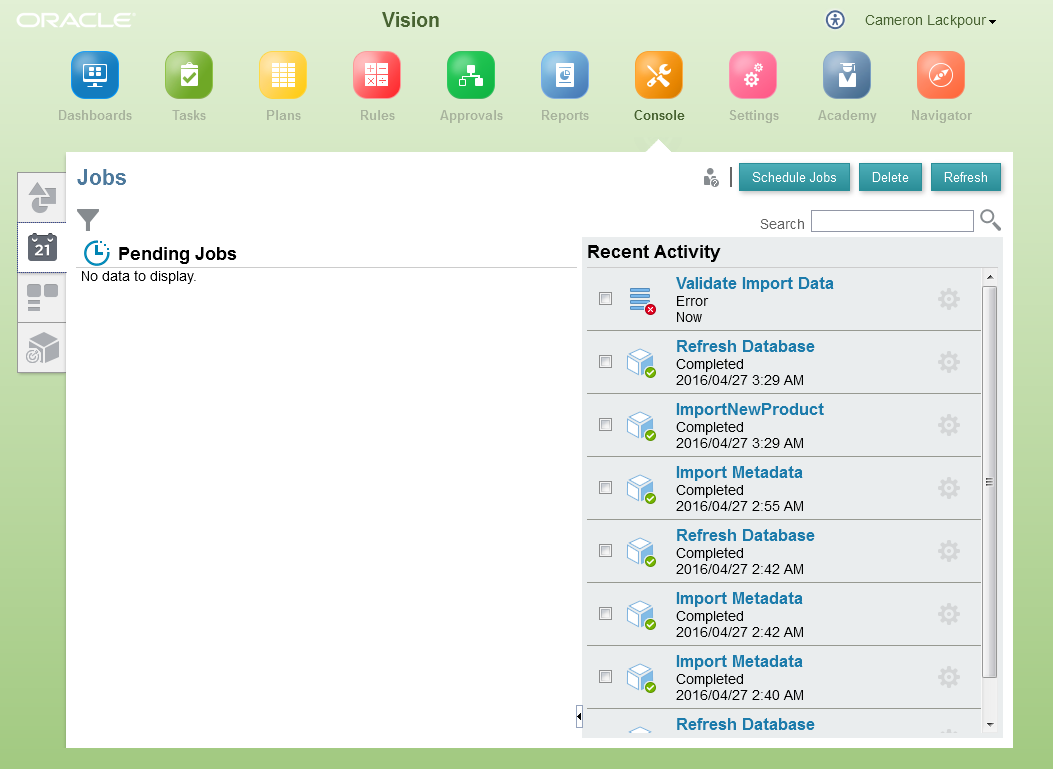
What could possibly go wrong?  I’m loading the Essbase format file.

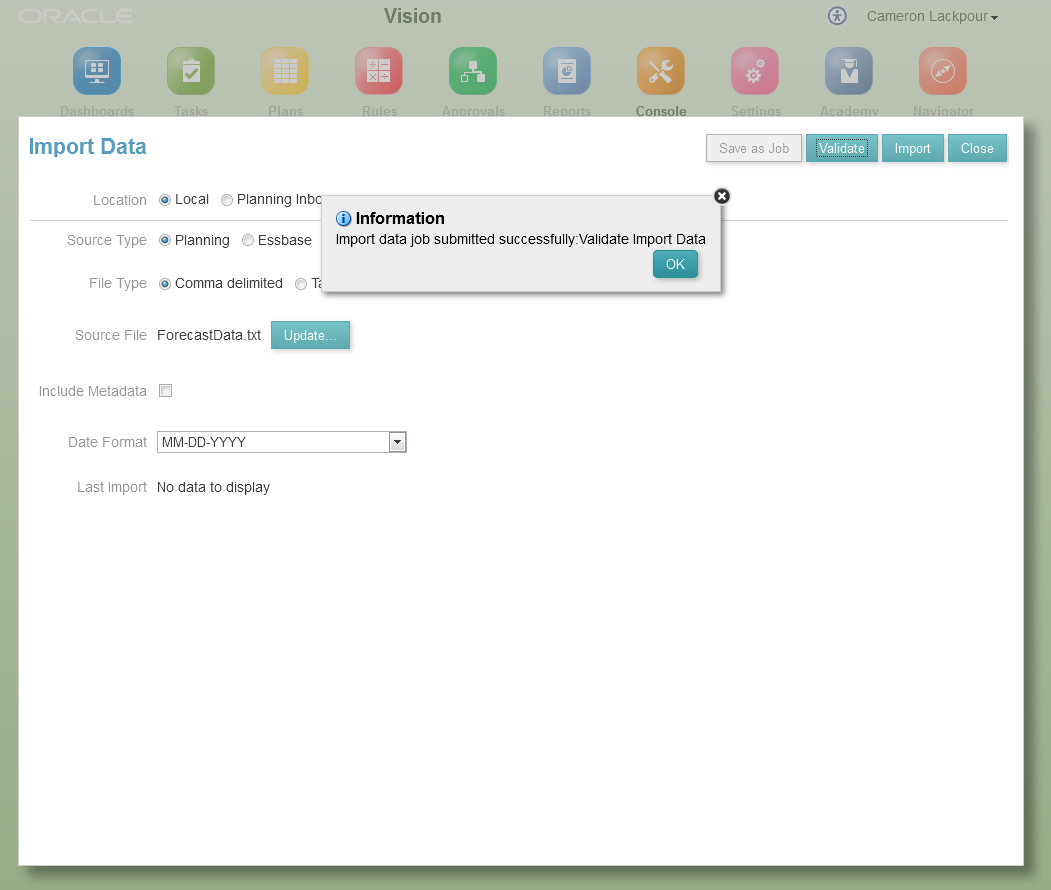
As I am a bit on the cautious side, let’s validate that file before actually loading it.

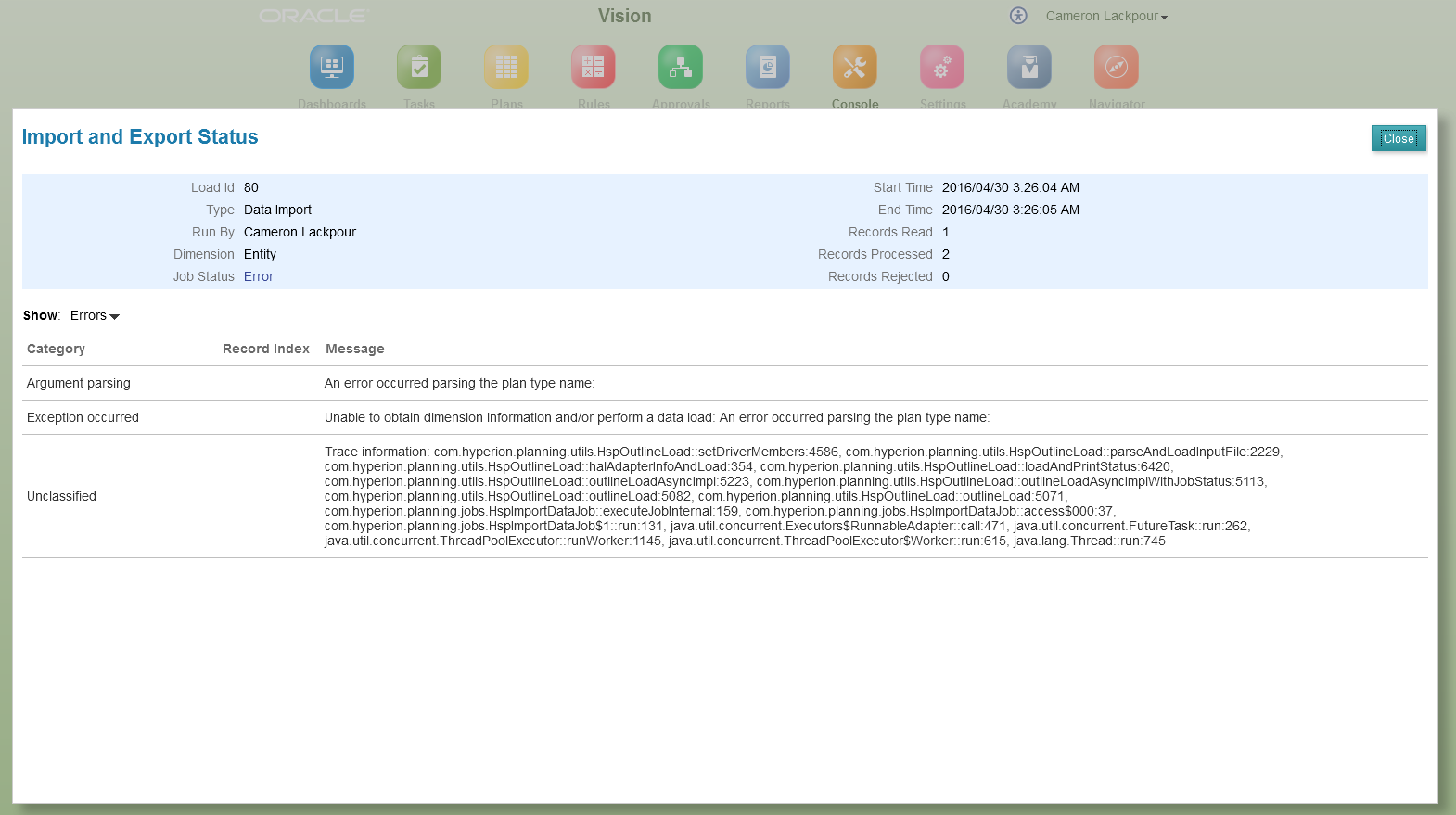
Hmm, something isn’t working out.

The Plan Type name isn’t there.

The problem is I picked an Essbase file format where a Planning file is requried.  Bugger.

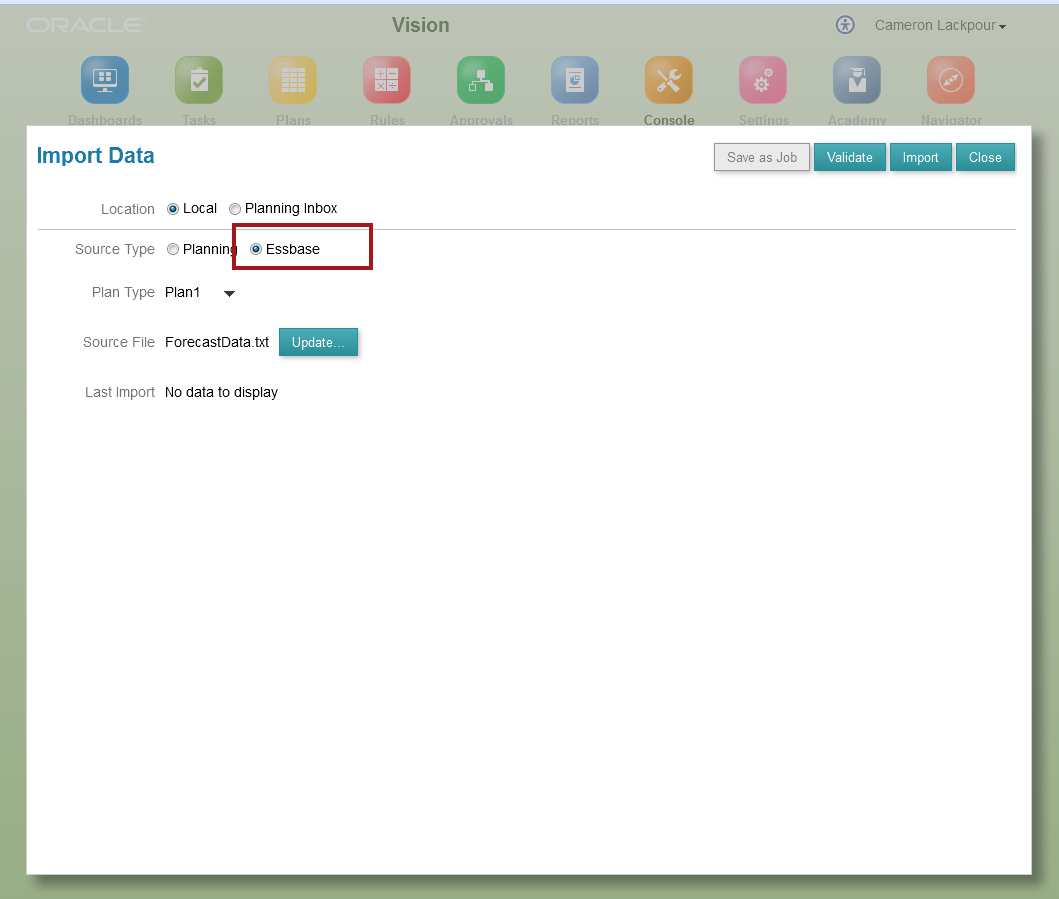
Let’s try that again but this time select the right file type.  Duh.  

Sparing you the act of getting back to the file, this time Click on import having selected Essbase Source Type.

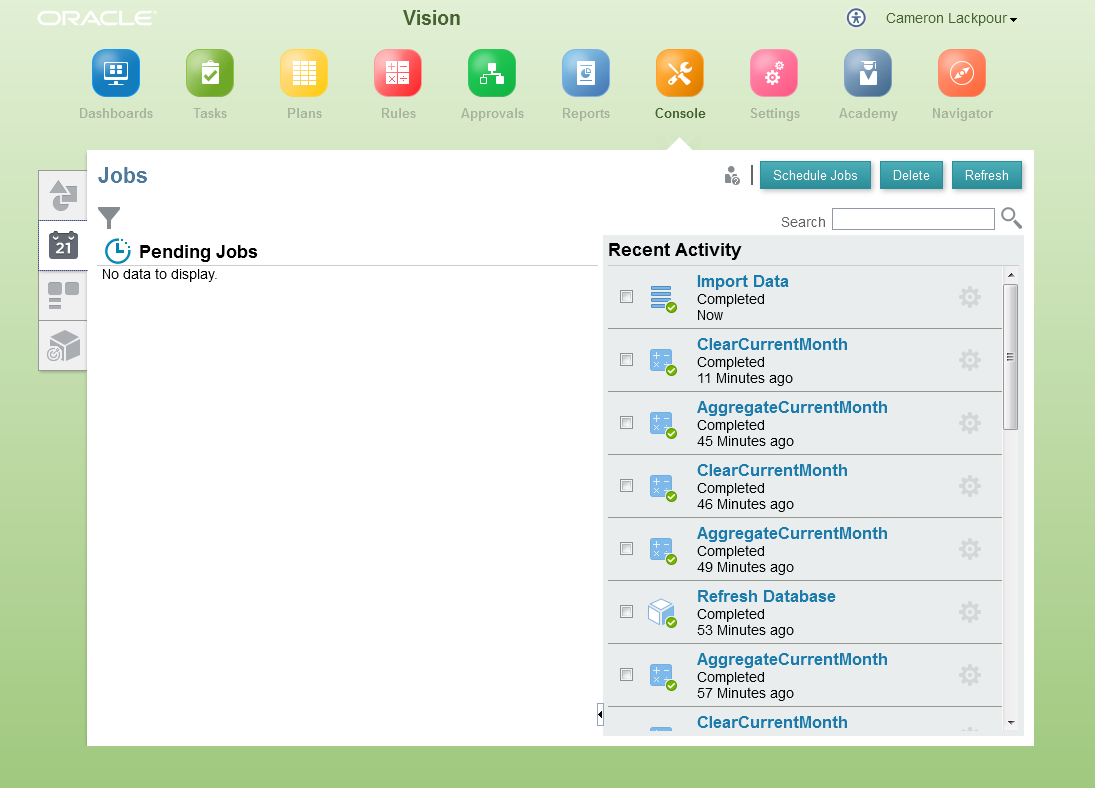
Ahhh, that tastes better.

This time it’s all good although the message…
…is just wrong Gentle Reader as I checked to see if the data loaded; it did.  Oh well, what would life be without a scintilla of uncertainty?

So long as we’re counting steps, I make that seven.

Get a job you bum!

This time round we’re going to load this to the PBCS InBox.

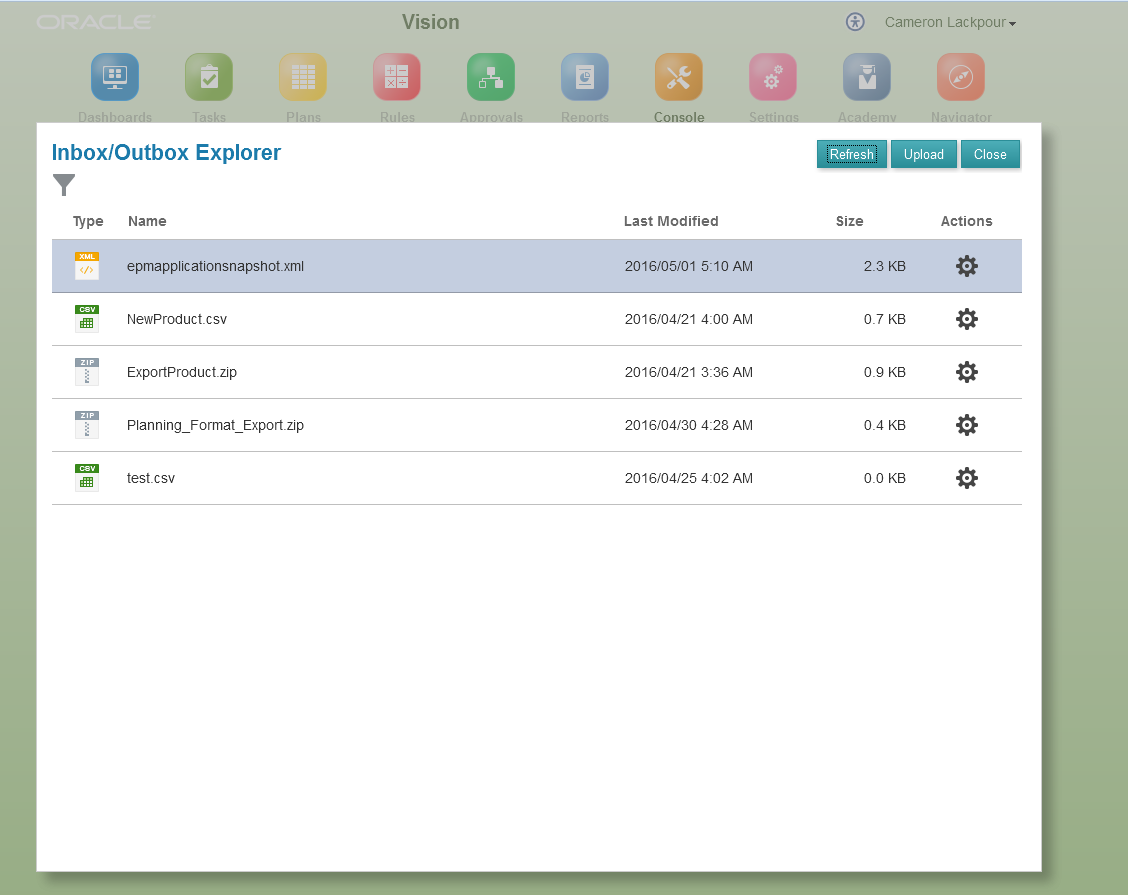
Our first stop naturally then is the Inbox/Outbox Explorer.

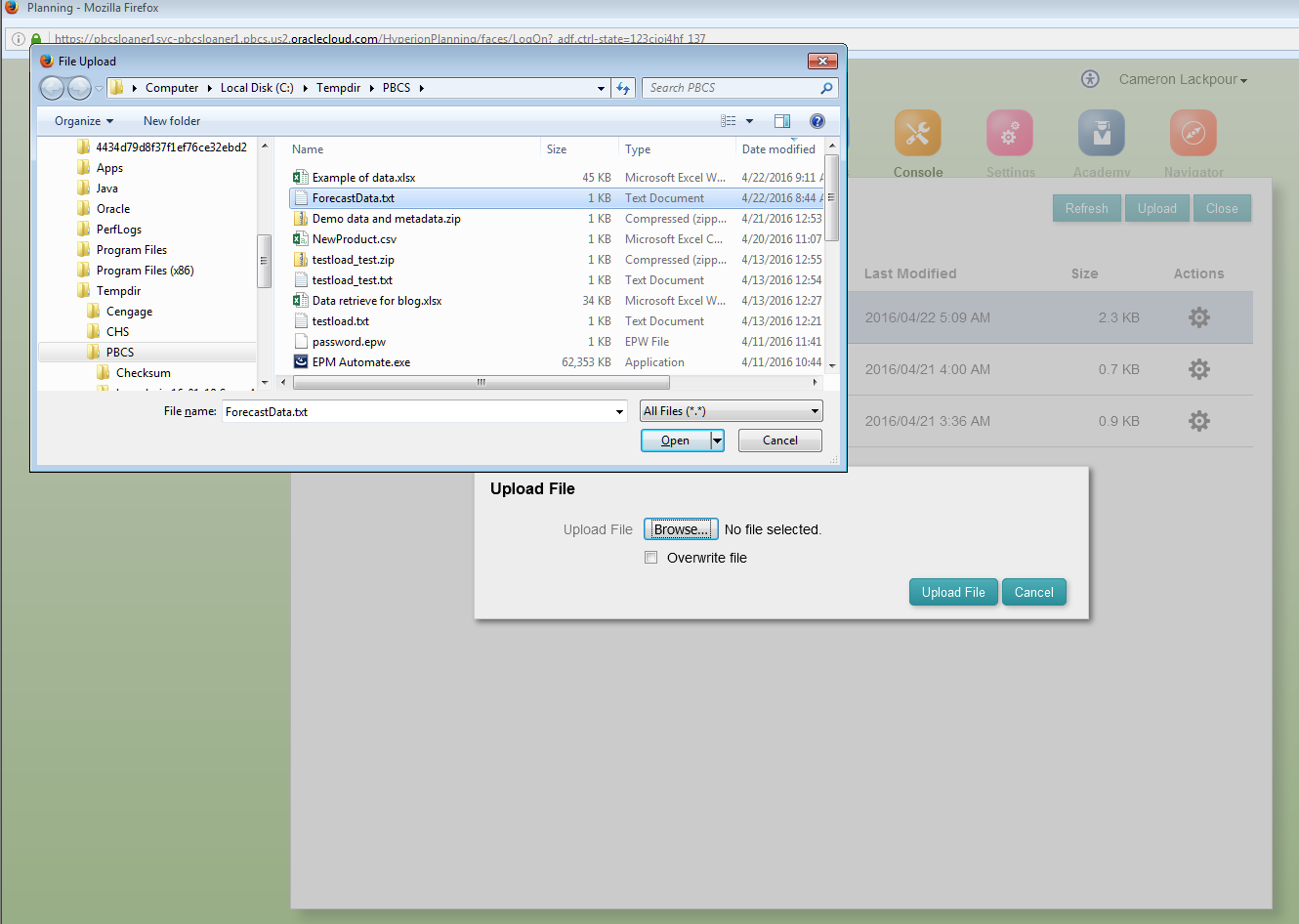
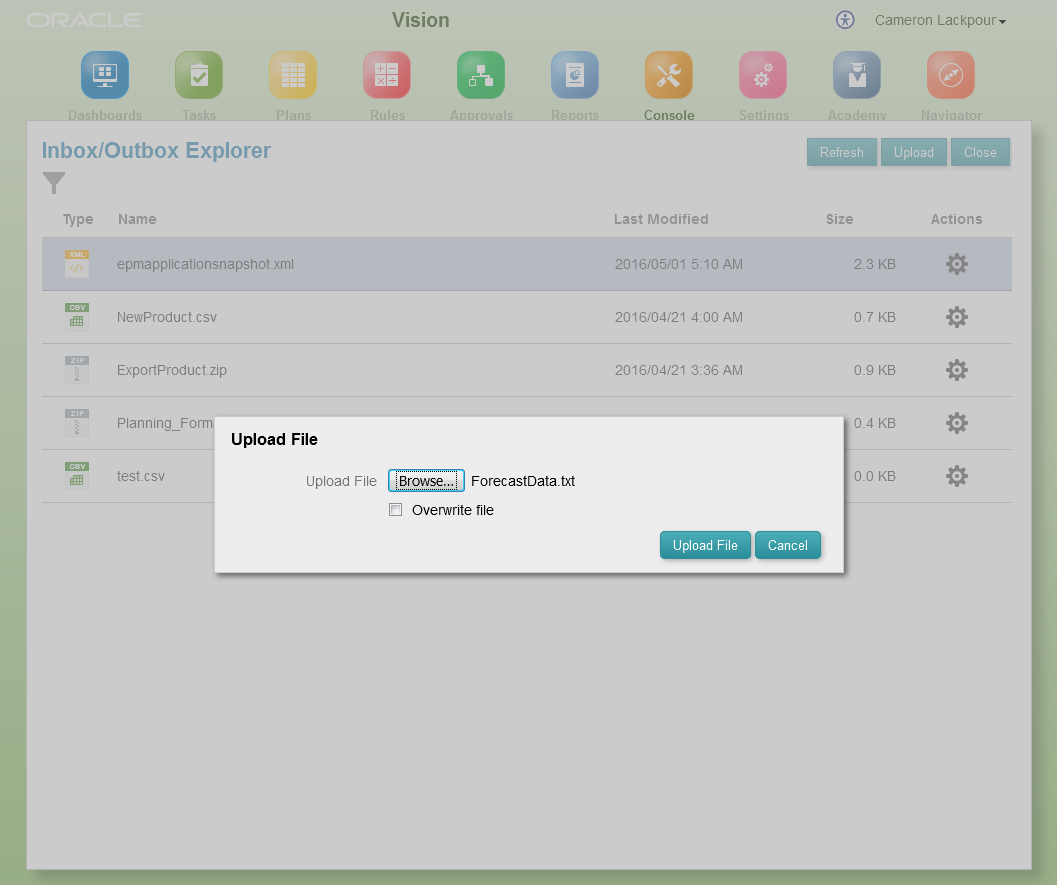
And then Upload the file to the InBox:

Pick the file.

Actually upload it

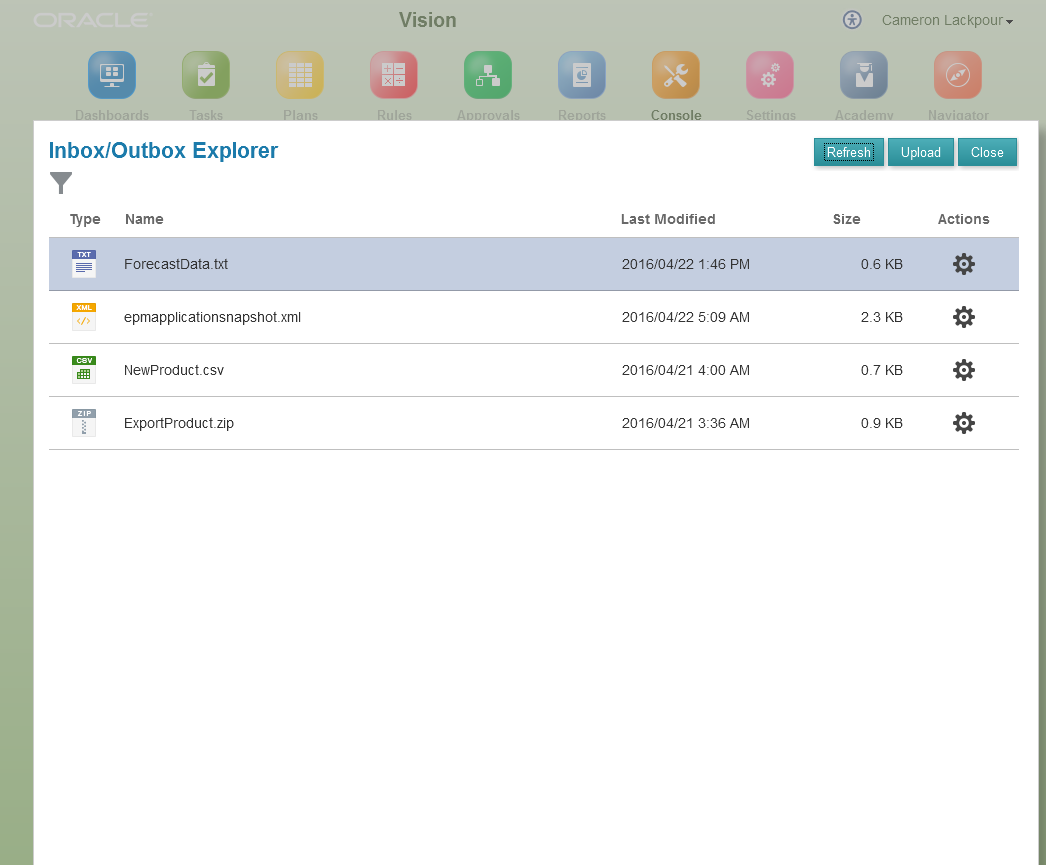
There’s the data file:

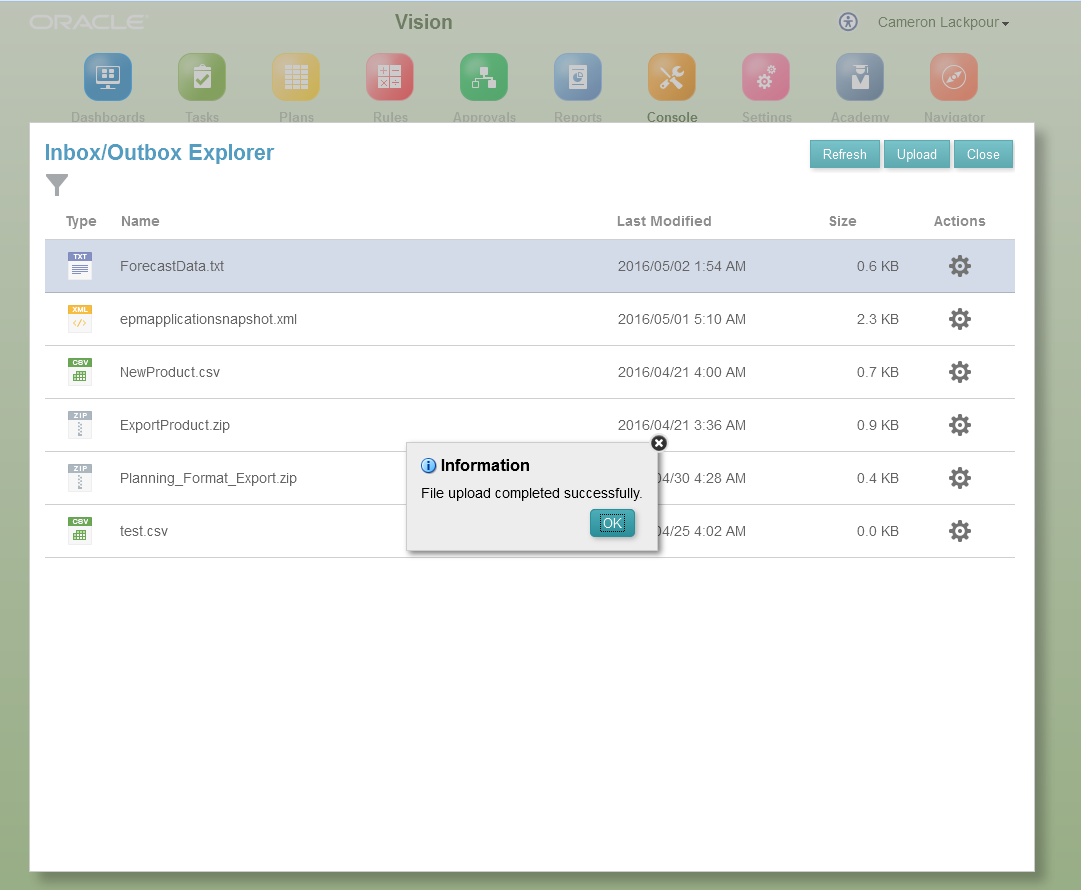
It worked:

A job can’t be run that doesn’t exist.   Create it by beginning an Import Data action.

Then Create it:

Does this look familiar?  It should as it’s the same screen we used for the local file import.

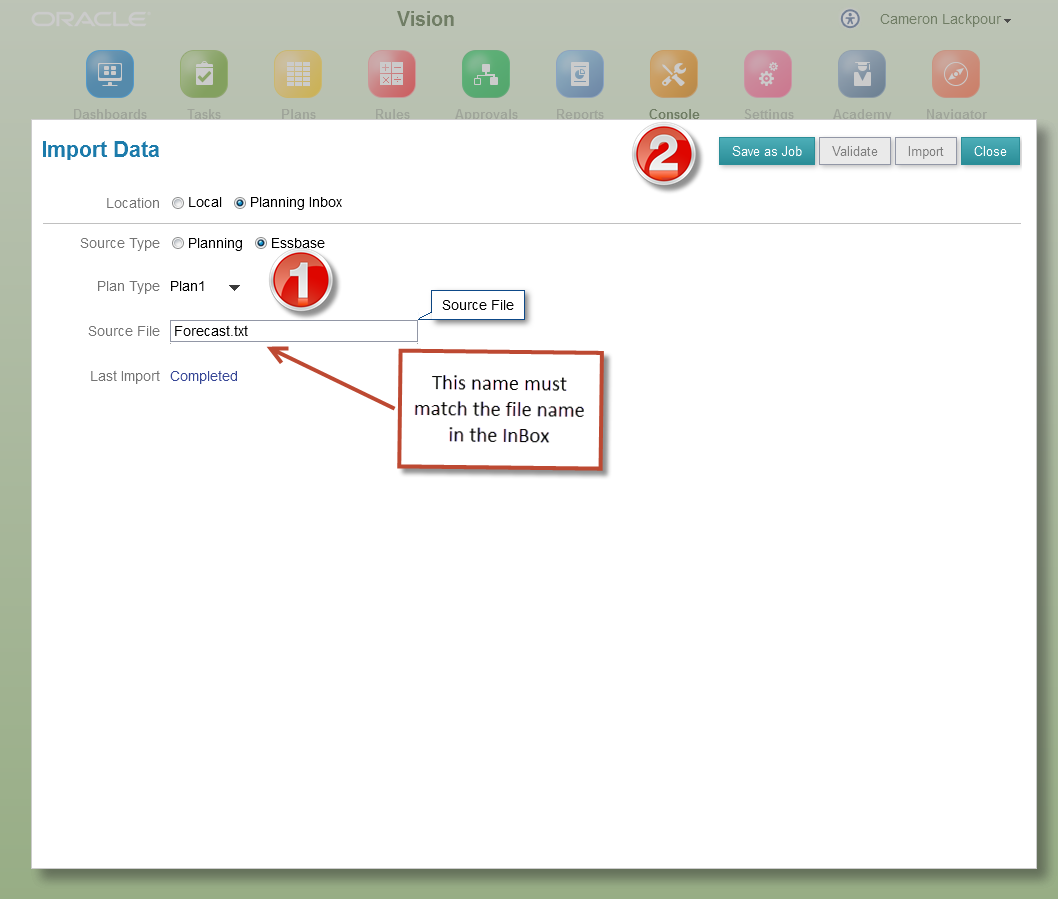
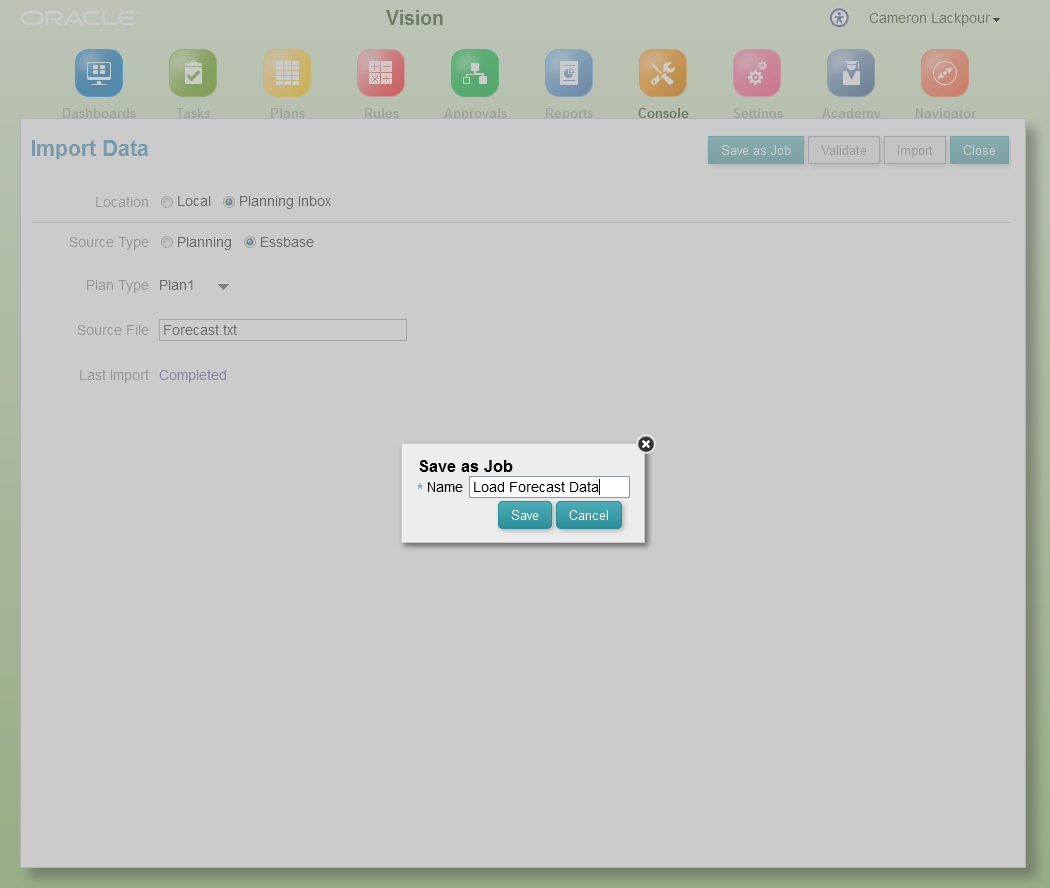
Change the location to the inbox, set the format as Essbase, and name the file with care.  It must match the file name in the inbox.  Then click on Save as Job.

Give it a name

We now have an import data job:

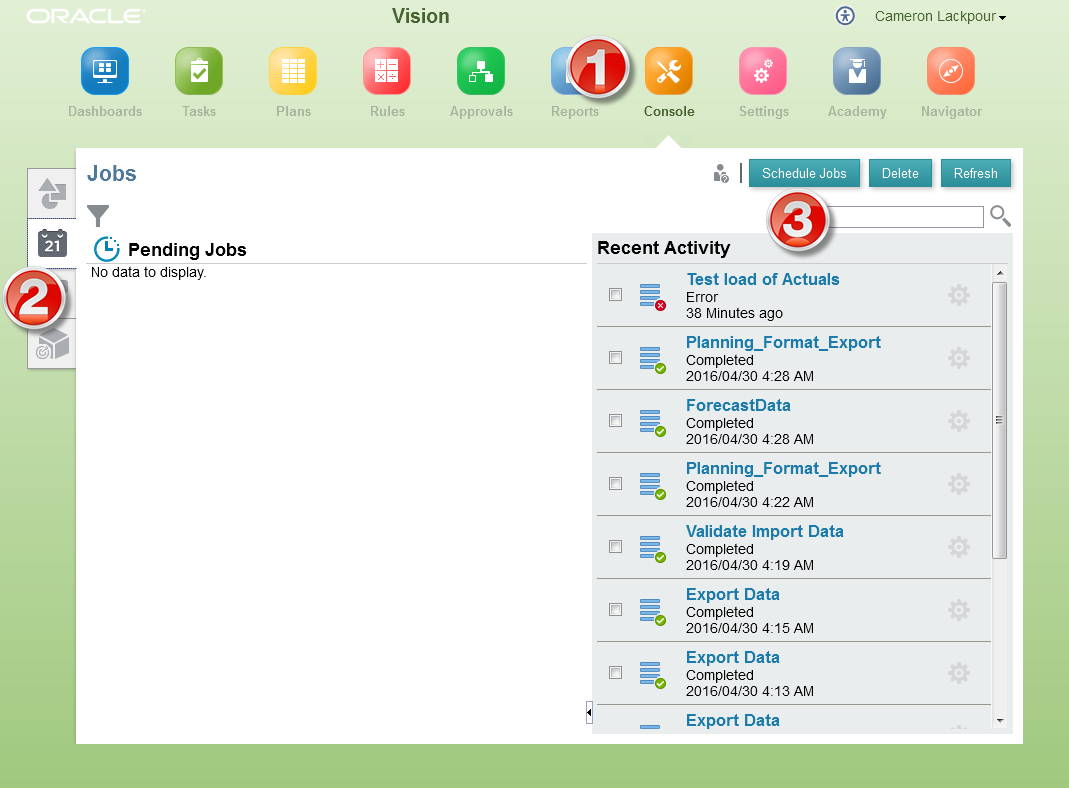
Close out, back to the Console, select Jobs, and now click on Schedule Jobs.

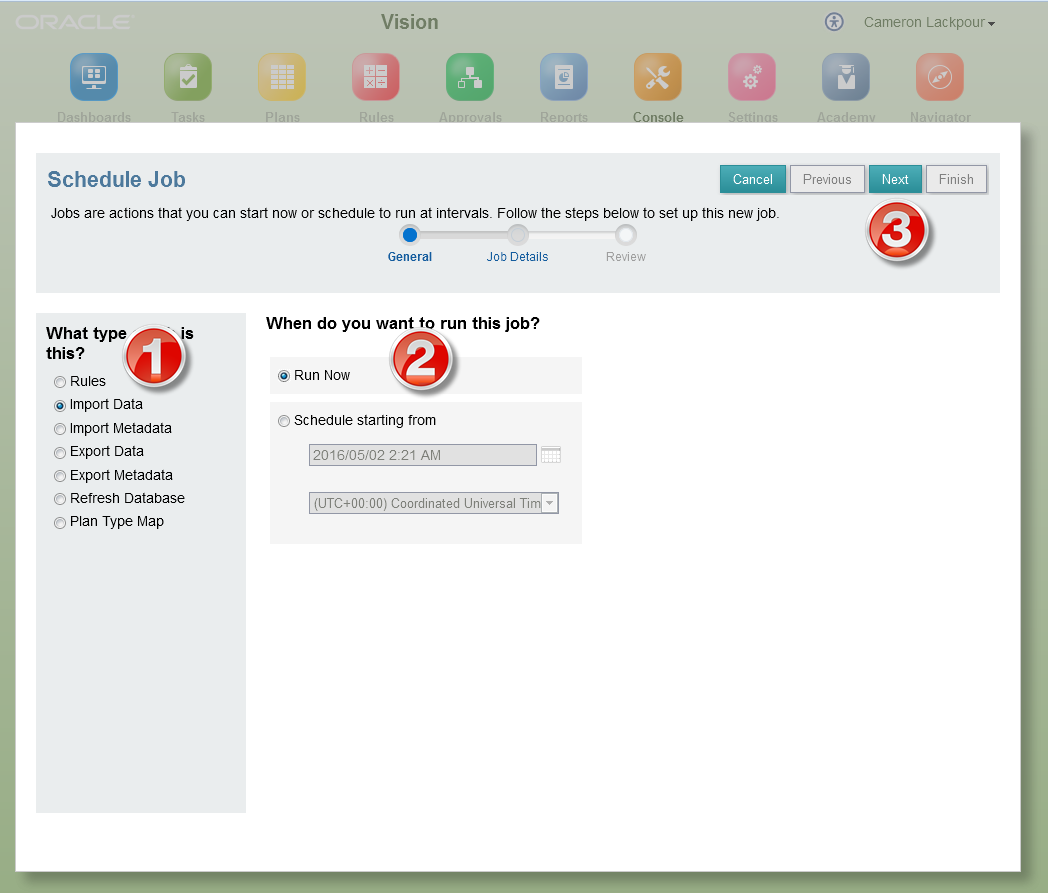
Once in the scheduler, click on Import Data, Run Now, and then Next.

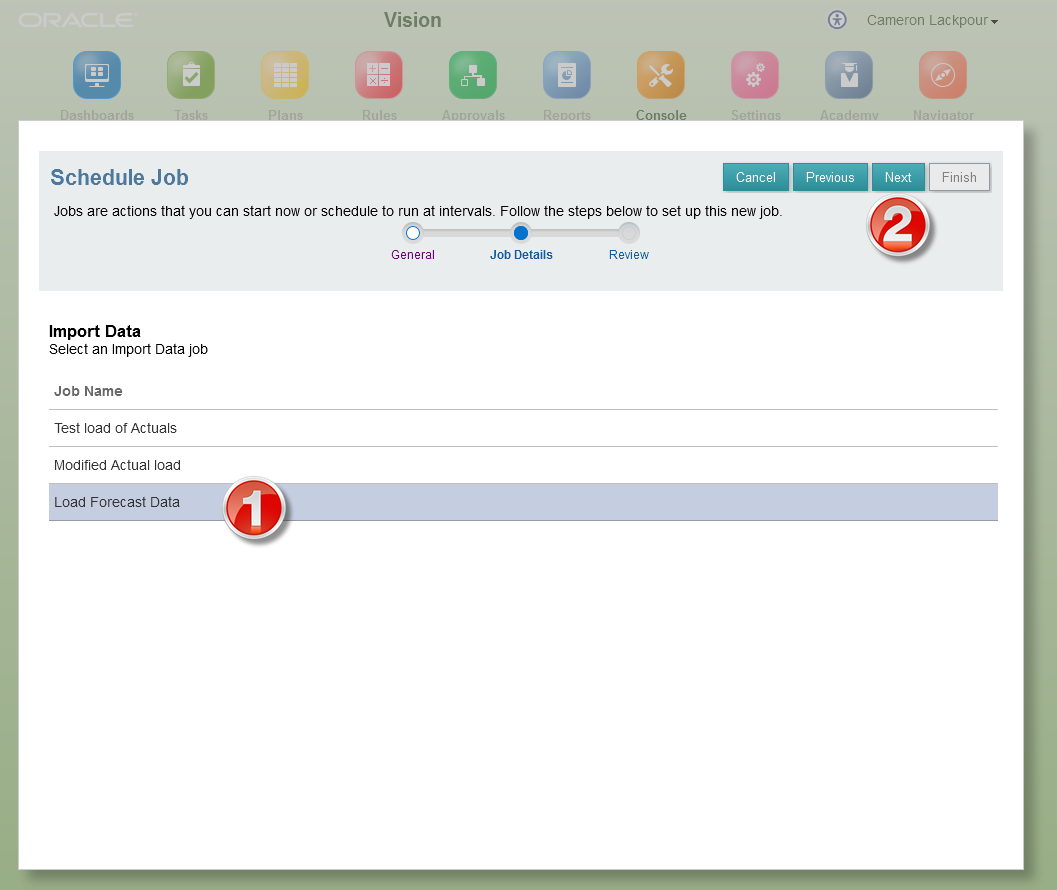
Pick the Inbox file and then click Next.

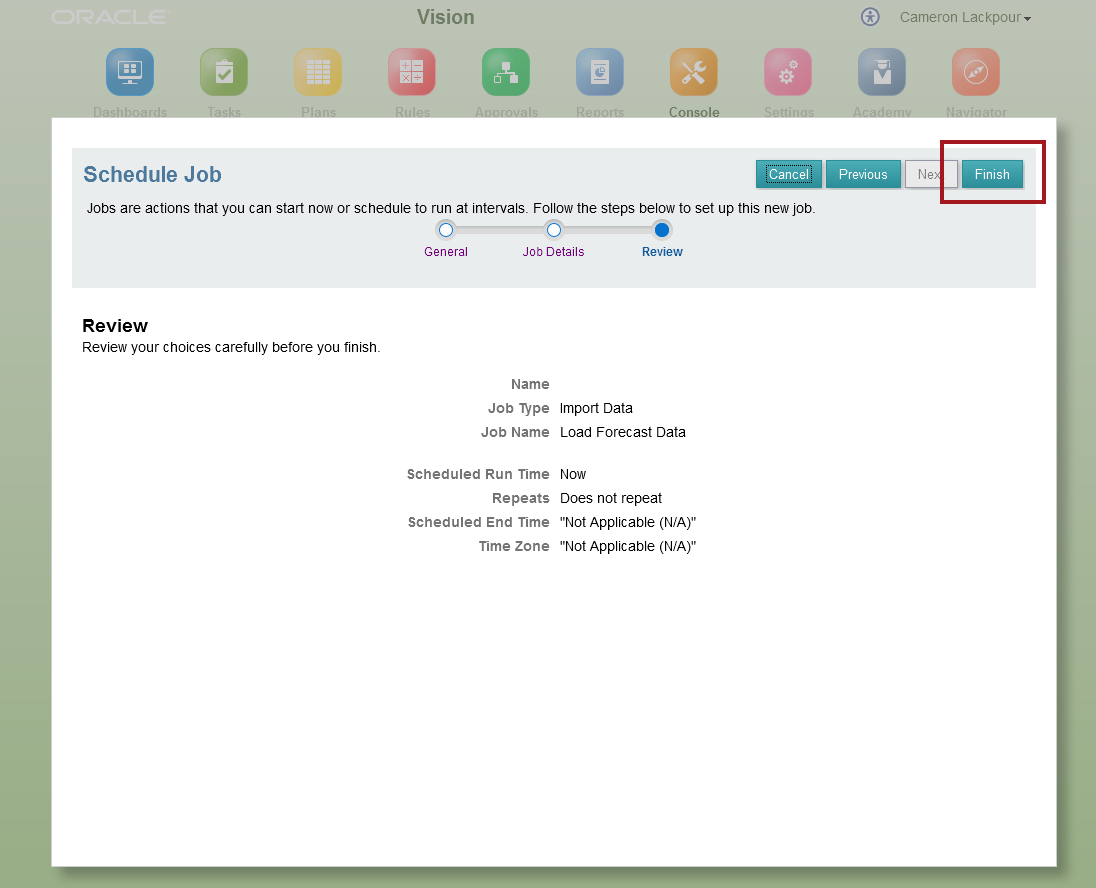
This is your very last chance.  Since you are that devil-may-care sort of a chap that I know you to be, throw caution to the wind and click on Finish.

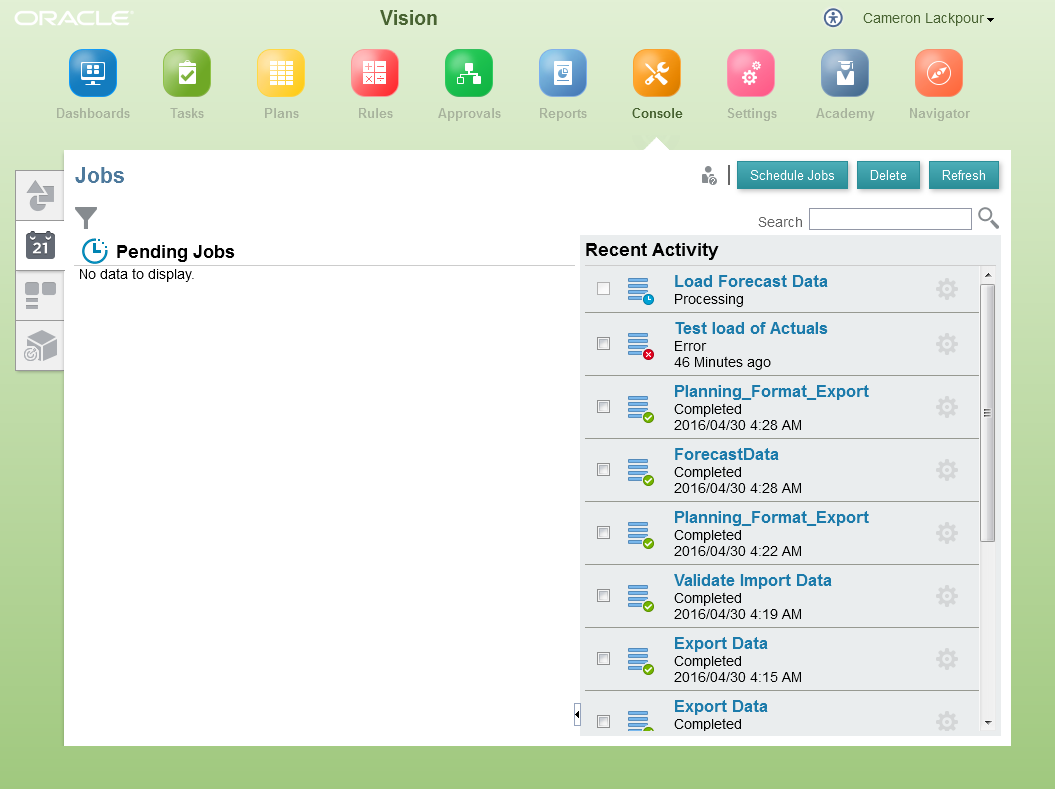
Lo, the mighty Infernal Machines begin their terrible work:

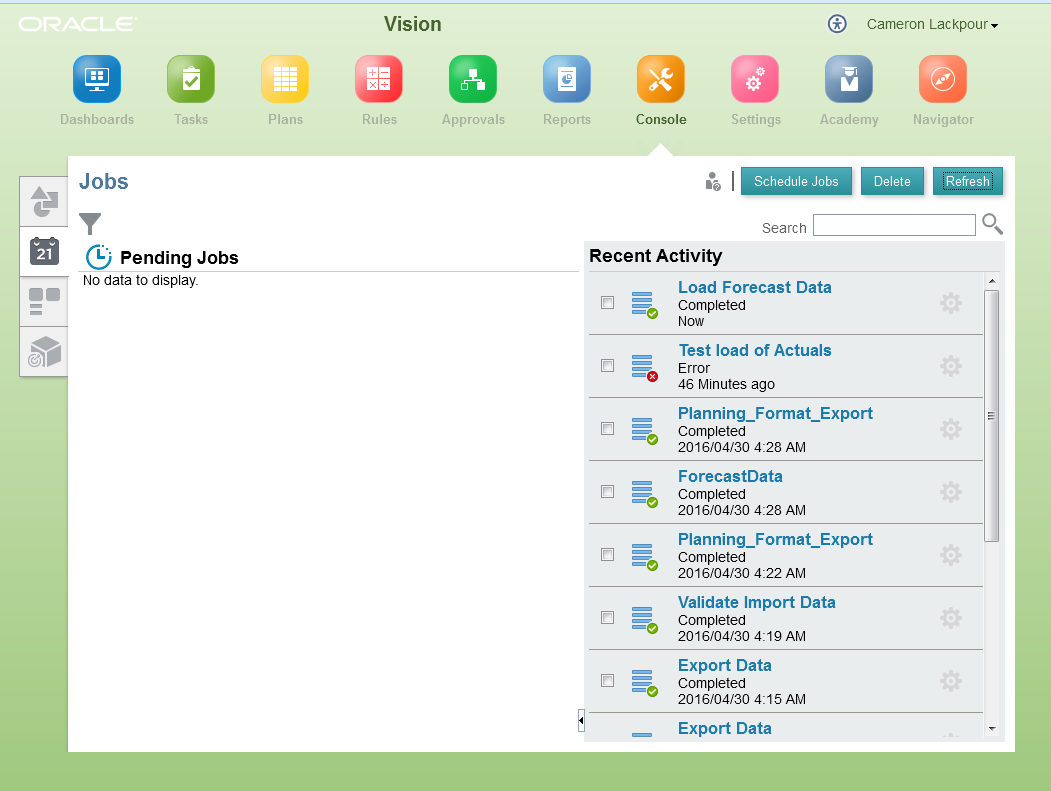
It works!

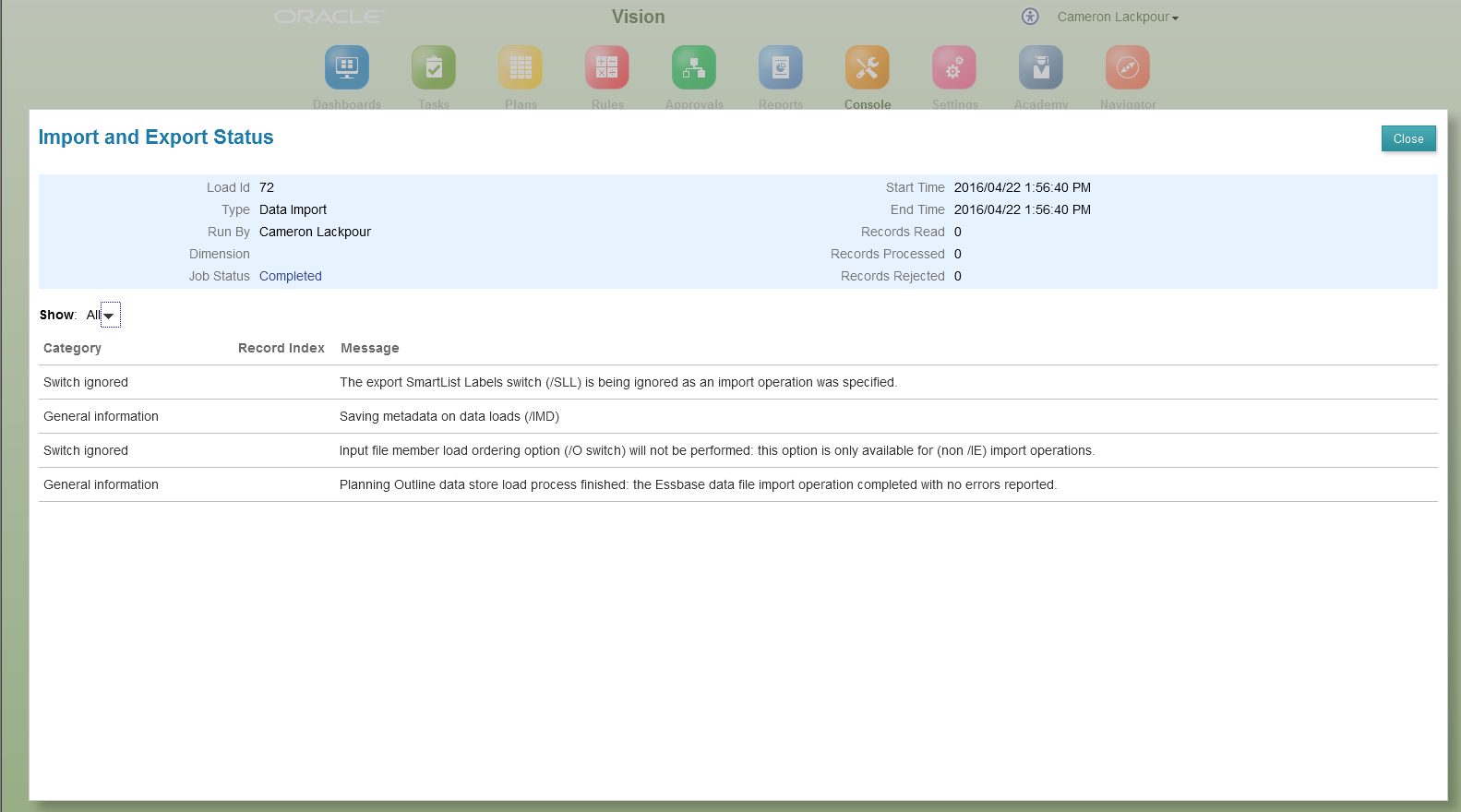
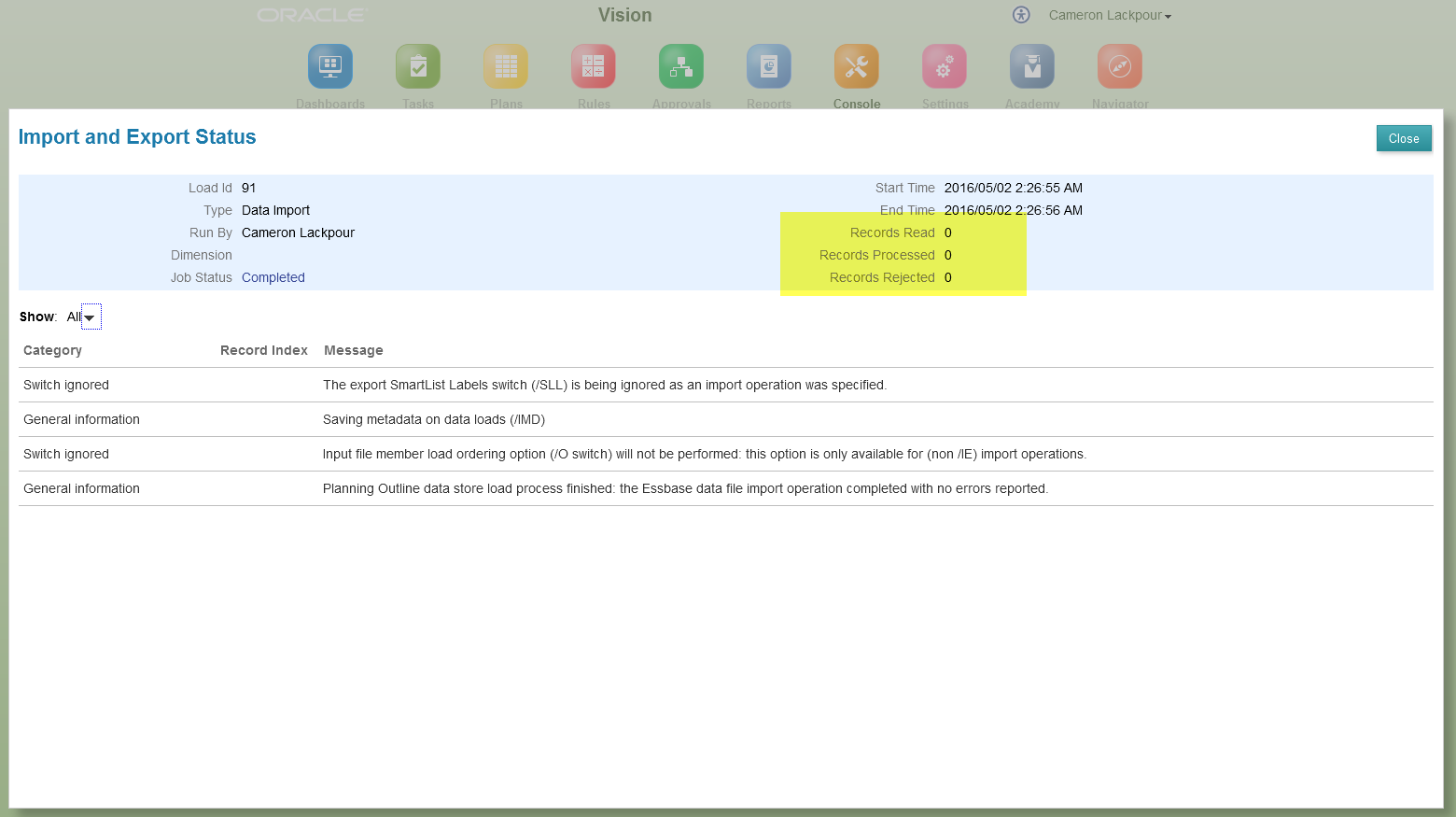
Let’s see what happened by clicking on the title, “Load Forecast Data”.  Oh, PBCS has a sense of humor.  Zero records?  Really?  Really?  Really?  No, not really.  

In fact it loaded:

Whew.

What have we learnt?

Other than I could keep this down to a mere 37 pages?  

More importantly, there’s an interesting observation for all to see with regard to effort:  the traditional Workspace requires less effort than local file Simplified Interface which requires less effort than jobs in the Simplified Interface.

Using this post as a guide, to load a single data file into a single plan type takes by environment:
  • Workspace – five steps
  • Simplified Interface Local – seven steps
  • Simplified Interface Job – 25 steps

Hmmm.

The other thing you have figured out is that I’m not fond of the Planning data file format but in comparison to an “old-fashioned” user interface that is five times as easy (using the rough number of clicks as a measure of effort) as the super-duper new one that dislike ain’t much cop.

We’re almost at the end of the follow-the-monkey approach.  There’s just the Business Rules that clear and aggregate the data.  I will note a handful of differences between on-premises and PBCS in that post.

And after that, I’ll finally tie this all together using both PBCS’ EPM Automate as well as traditional on-premises scripting.

Be seeing you.

Popular Posts