Showing posts with label Hyperion. Show all posts

Tuesday, March 24, 2015

The new (and improved) EPM documentation portal

In the beginning

In my experience (or at least memory, which, as you will read below, is perhaps not iron trap-like) there have been three major iterations of the EPM documentation portal under Oracle’.  Arbor and Hyperion Solutions had documentation before that, but recalling documentation portals from before 2004 (2006?) is simply beyond me.

Here’s the history, in Living Color.

Life under HYSL

Yes, really, thanks to the web’s Wayback Machine and a search for http://dev.hyperion.com a pretty good feel for what documentation used to look like..  What, you don’t remember Hyperion’s stewardship of Essbase?  Then you are a n00b.  No worries, it wasn’t all that much fun, as you’ll see below.  Let’s experience the horror together.

One other note – this was a search of 2004’s information.

And yet another note – it’s a bit unfair to judge an old portal by today’s standards, but as you’ll see, documentation has moved on quite a bit.

In the beginning with Essbase 6

It ain’t pretty, is it?  To be fair (there’s that concept again), as much as it pains me to try to be even handed, some of the ugliness of this is because the Wayback Machine isn’t perfect with grabbing all graphics.  Regardless, I have my reasons as will be revealed below.

With that, welcome to web design 10 years ago:
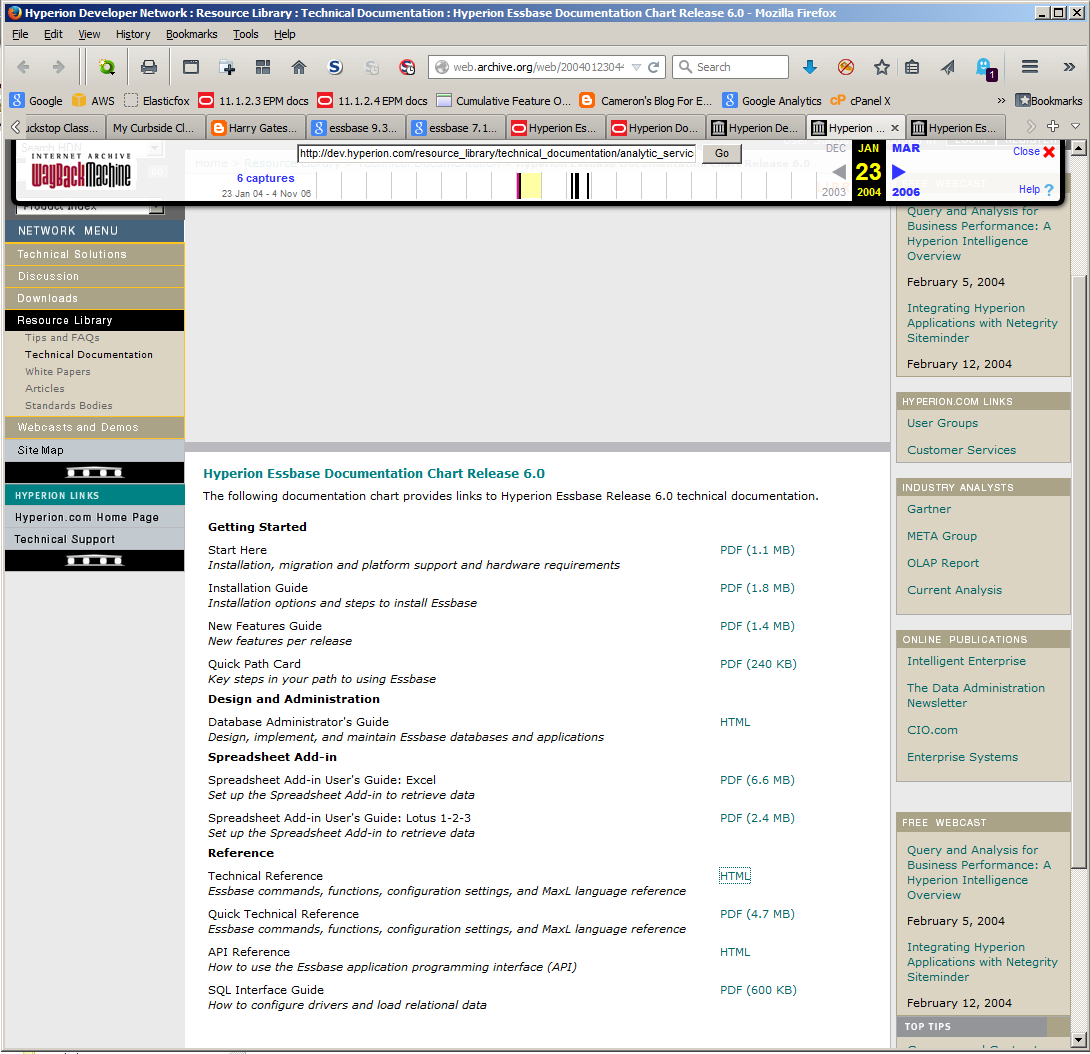
EPM?  What’s that?  We’ve got Essbase, and that’s all we need.  

Essbase was quite a bit simpler back in the 6.0.0 days.  Even yr. obt. svt. who is, to be incredibly charitable, a complete infrastructure idiot, could install Essbase.  It all got more complicated very quickly.  Let’s take a last fond look at the Good Old Days.
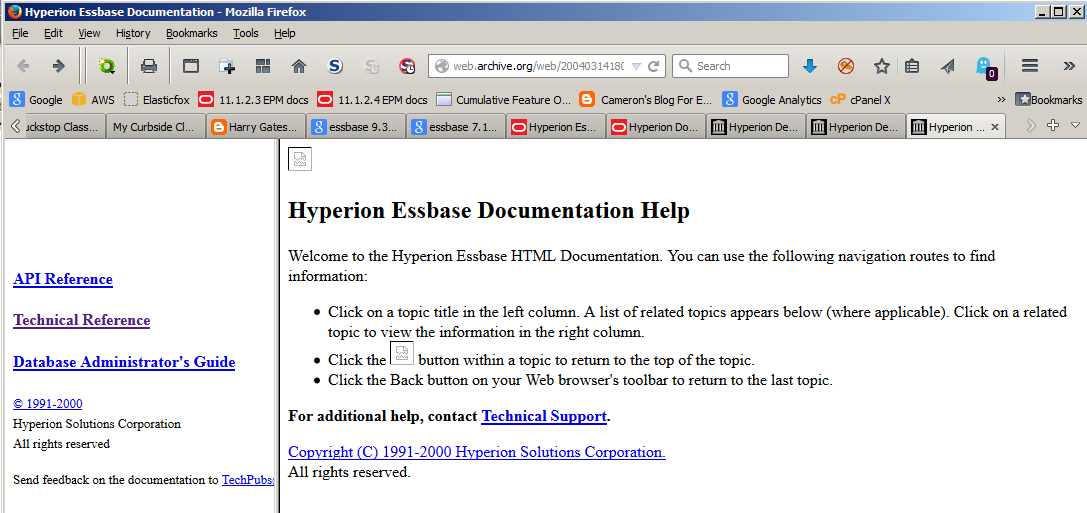
Essbase Administration System Console?

The late lamented Application Manager is no more.  Folks, it ain’t 1993 anymore (Essbase’s debut although I believe App Man didn’t come till Essbase 2.0) but I do miss the tight functionality with Windows.  Did Hyperion really think Essbase developers were using X Windows?  There were some weird product decisions back then, so who knows.  Note that EAS existed but isn’t available on the Essbase page.  Why?

Not too much change although I think that’s an artefact of the date of this web page.
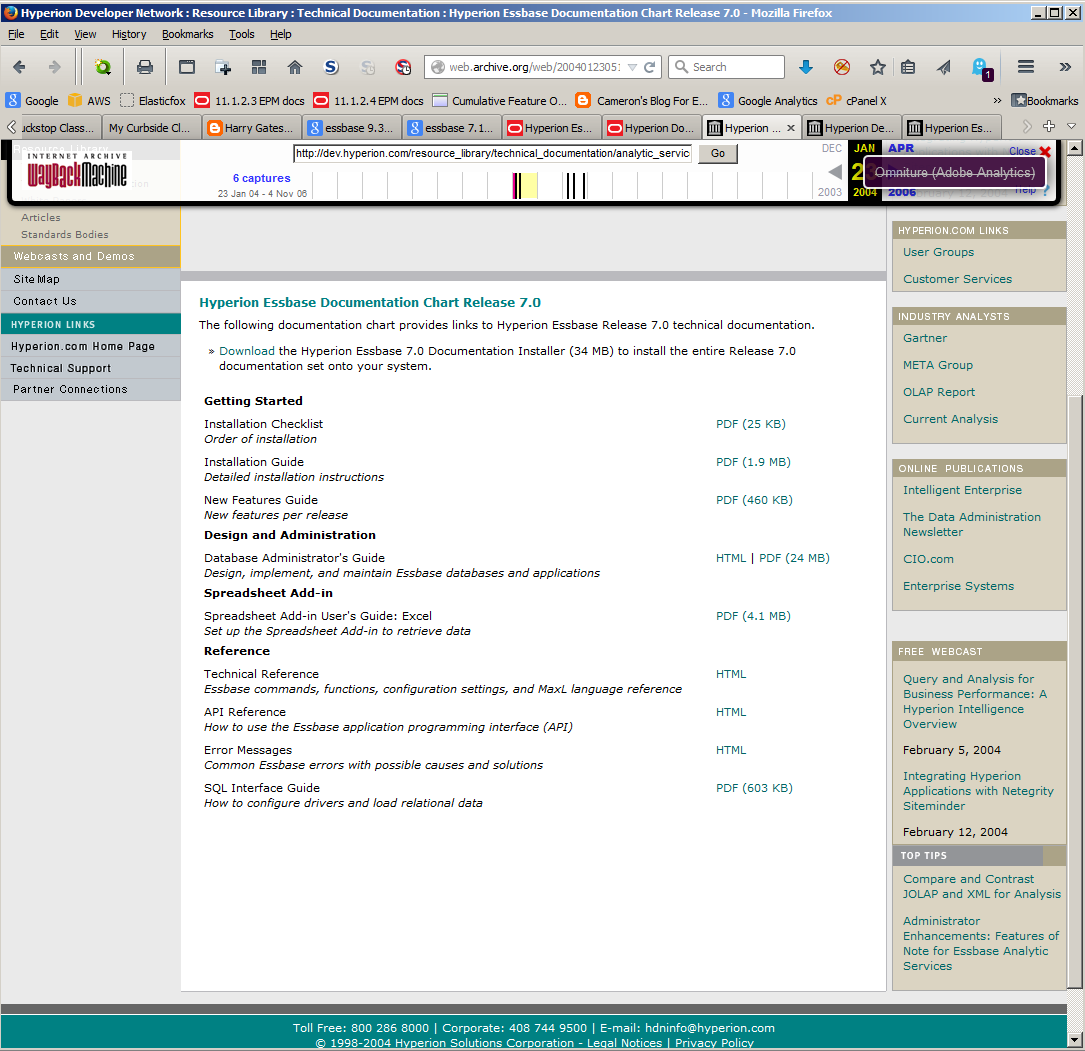
Why the ire and bile about Hyperion, given that so many of its employees now work for Oracle?
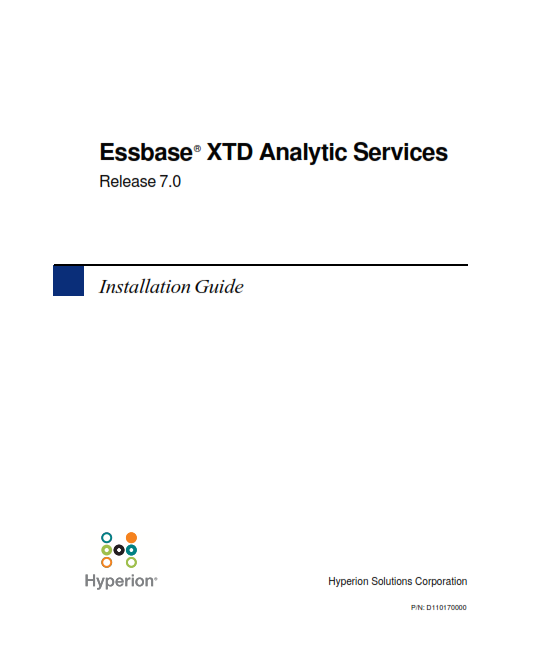
Essbase XTD Analytic Services?  What?  Hyperion never quite knew what to do with Essbase and tried to bury the thing.  One of the first acts Oracle did with Essbase was change it back to its original name.  In my opinion, that’s the difference between an applications company (Hyperion) and a database company (Oracle).  It’s not that there’s a whit wrong with applications – I bought my house on the back of the money I earnt from Hyperion Planning – it’s just that Essbase is so awesome it really frosted my cookies when Hyperion started to deemphasize it.  All EPM product management needed was to be free from their chains.

With that fairly epic rant over and done with, Essbase documentation is beginning to look a little more it is today.  Here’s the Tech Ref:
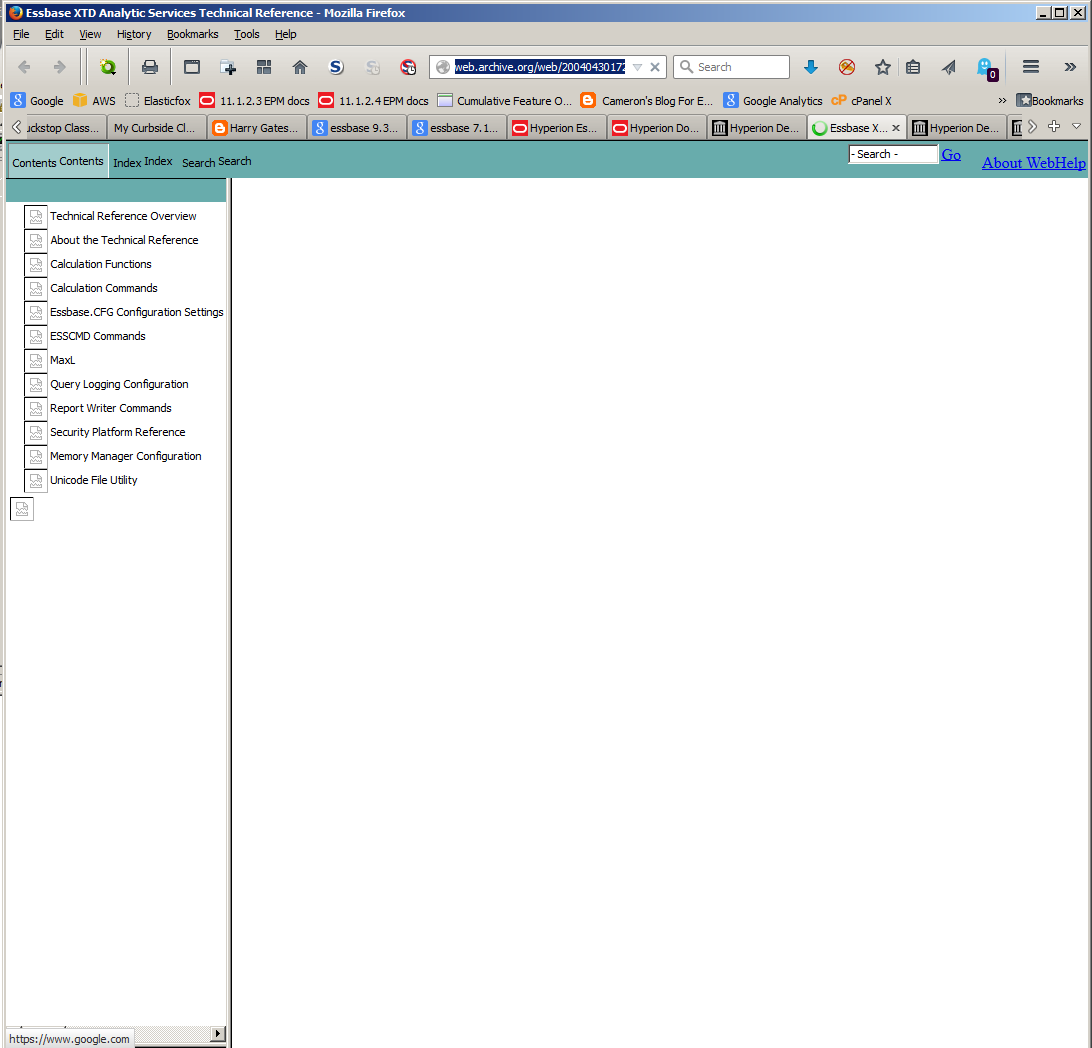
View it all in PDF format

As imperfect as web pages are displayed, you can see that the pdfs are all there.  Wonder when ASO was introduced?  Was it 7.0 or 7.1?  Take a look at the New Features Guide:
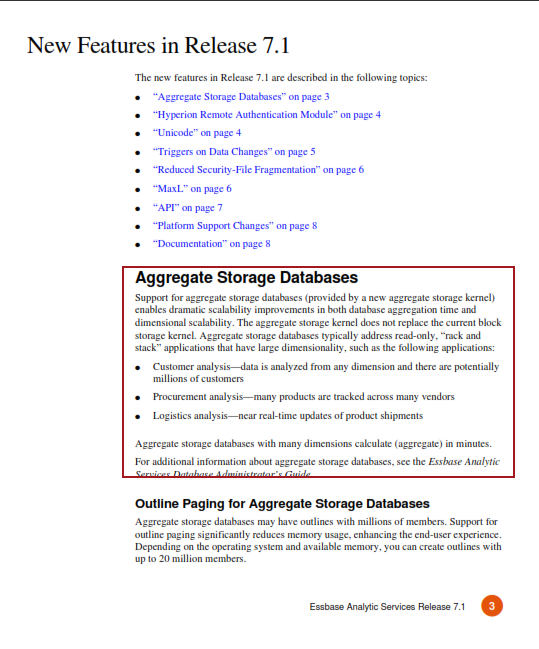
Thus began ASO which begat Hybrid and the future of Essbase.

Life under Oracle

System 9

Ah, much better.  Oracle put some money into it and it shows.
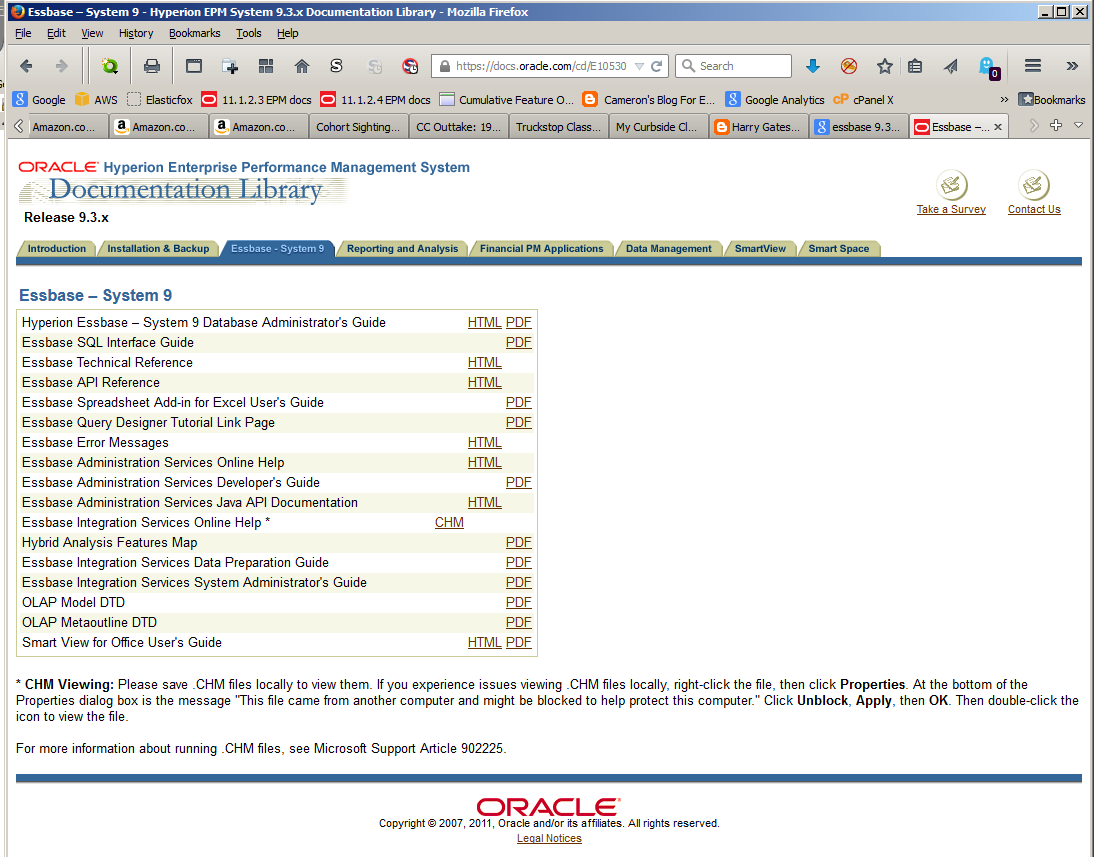
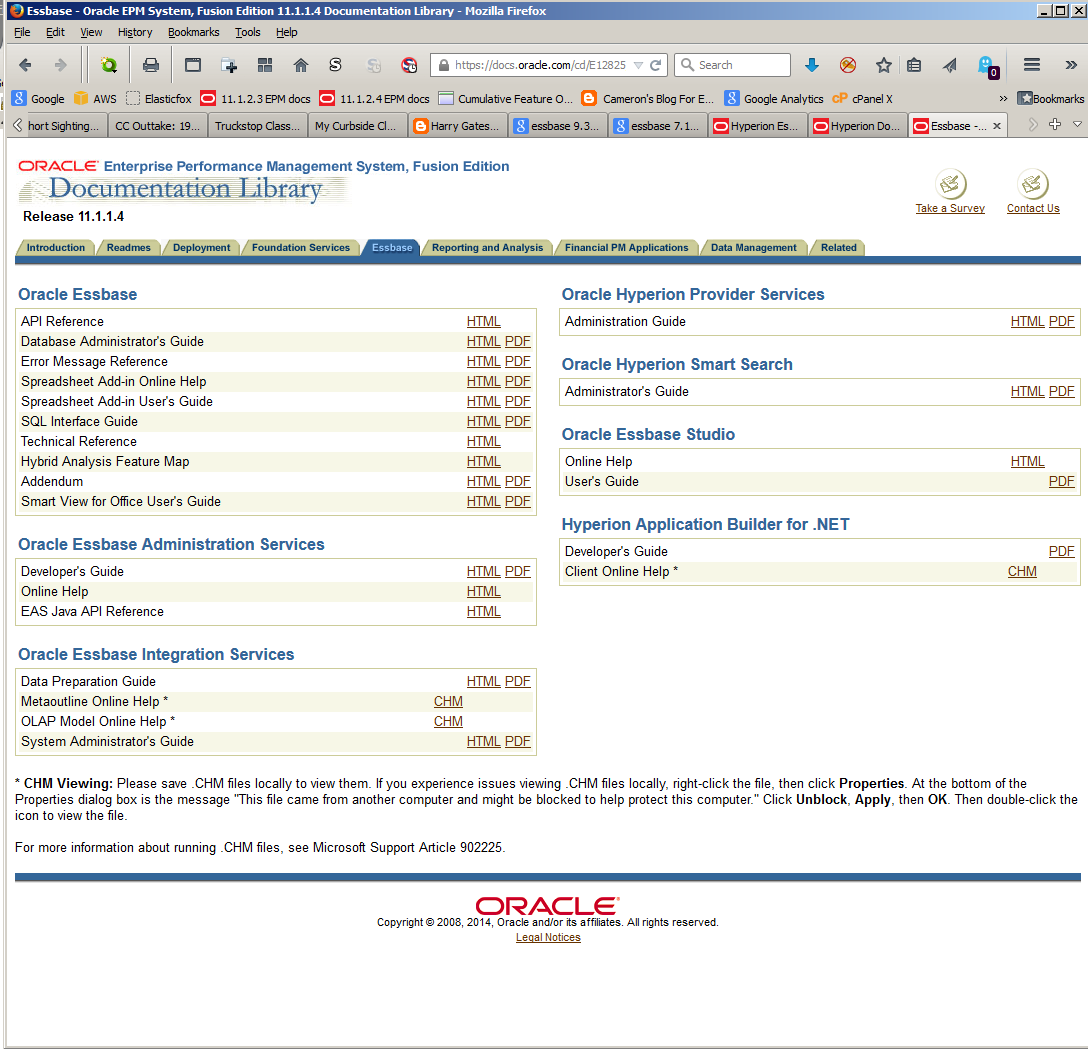
11.1.1.x

Pretty much the same thing, but you can see how the product is growing.  There were some turkeys amongst the gems.  Does anyone remember Smart Search?  The .NET builder?
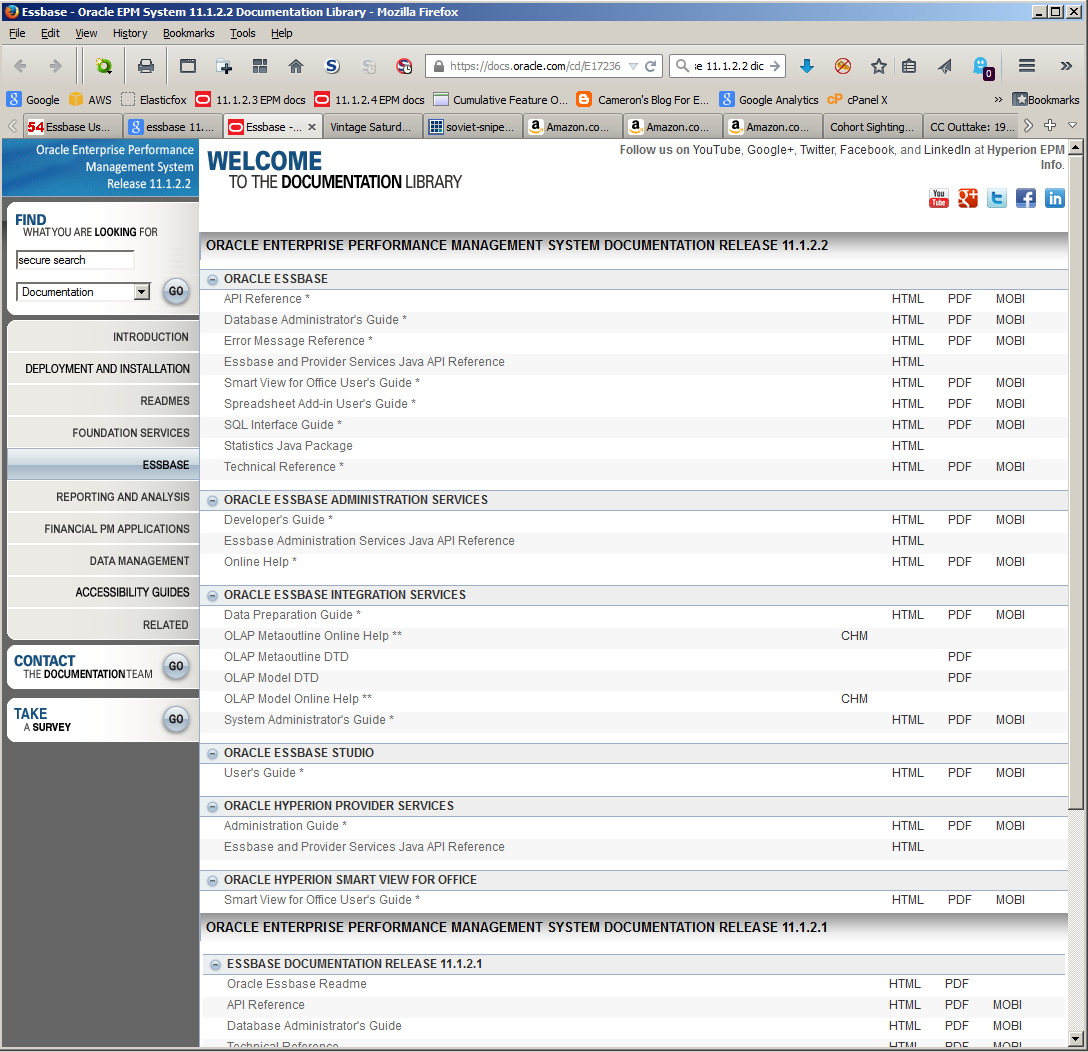
11.1.2.2

We are now in the modern era.
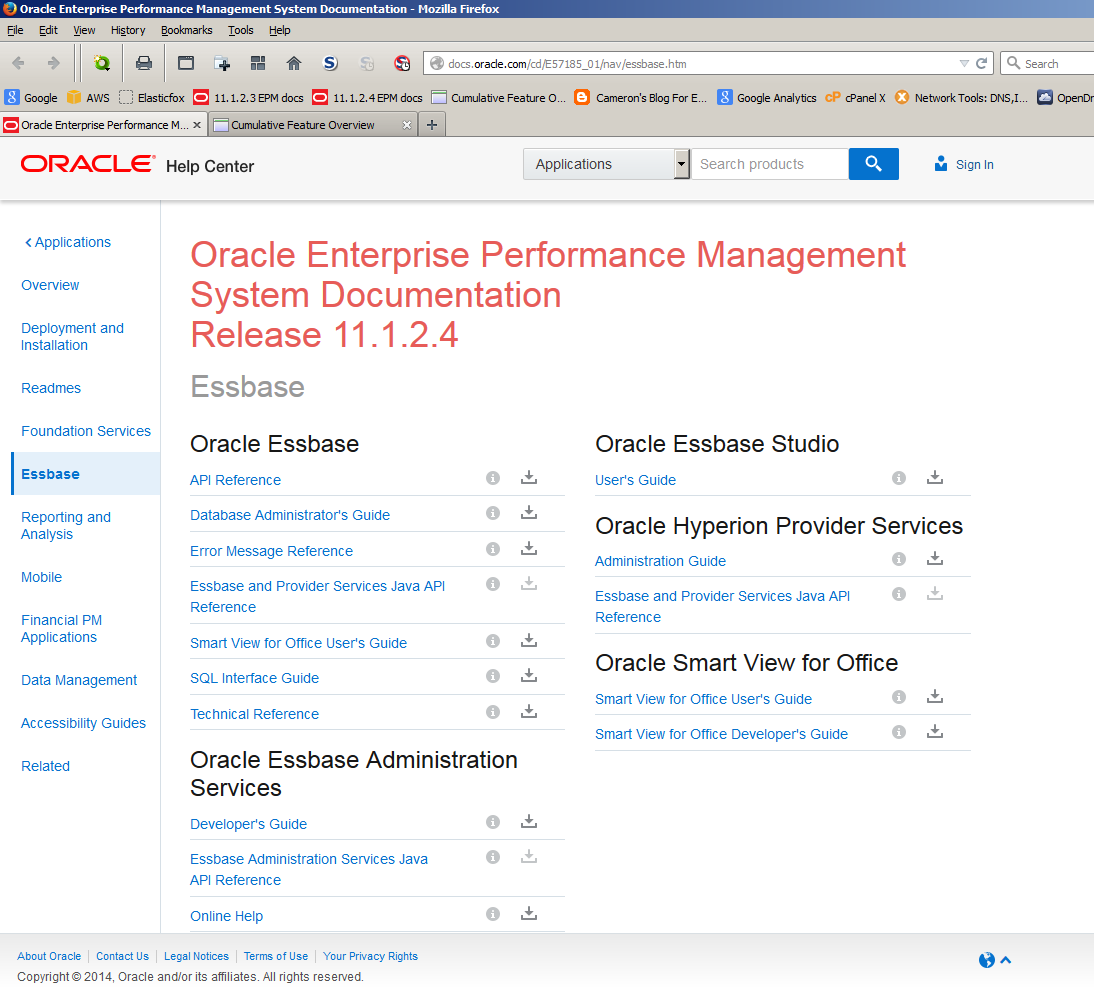
New and improved

The actual content of the documentation has of course been updated as the tools expand in breadth and depth, but the documentation UI has for the most part been old wine in new bottles since Oracle’s acquisition.

That is no longer the case both for 11.1.2.3.x and 11.1.2.4.

The Oracle documentation team have come up with a much cleaner interface and improved content.  Some might argue that a UI for documentation doesn’t really matter but I think that discounts how a clean and responsive design can impact quickly finding information.  The point after all behind documentation is trying to find the answer to a problem/understand a new technique/get the job done as easily and quickly as possible.  Documentation, while incredibly valuable, is not something yr. obt. svt. (and I suspect you as well) want to spend any more time reading than absolutely necessary.

So what does it look like?  Oooh, pretty colors that match either the Stars and Stripes, the Union Flag, or the Tricolor.  Wait, there’s the Russian and Dutch and I’m sure a few other flags I have missed.  Oracle is nothing if not international in its outlook.

Big deal you say.  Colors, schmolors, what does this actually do?  Well, one thing it does is dynamically resize the web page based on window width.

The above I sliced off on the right (this is a 1600x1200 desktop display) to get the Essbase page to display in a readable manner.

Here’s the reorganization within a smaller window.  It took me a few tries at it to notice this – it just works and makes finding links within the Essbase docs easier to find.  This sort of seamless productivity enhancement is the sort of detail that makes great UI.   The little things count.
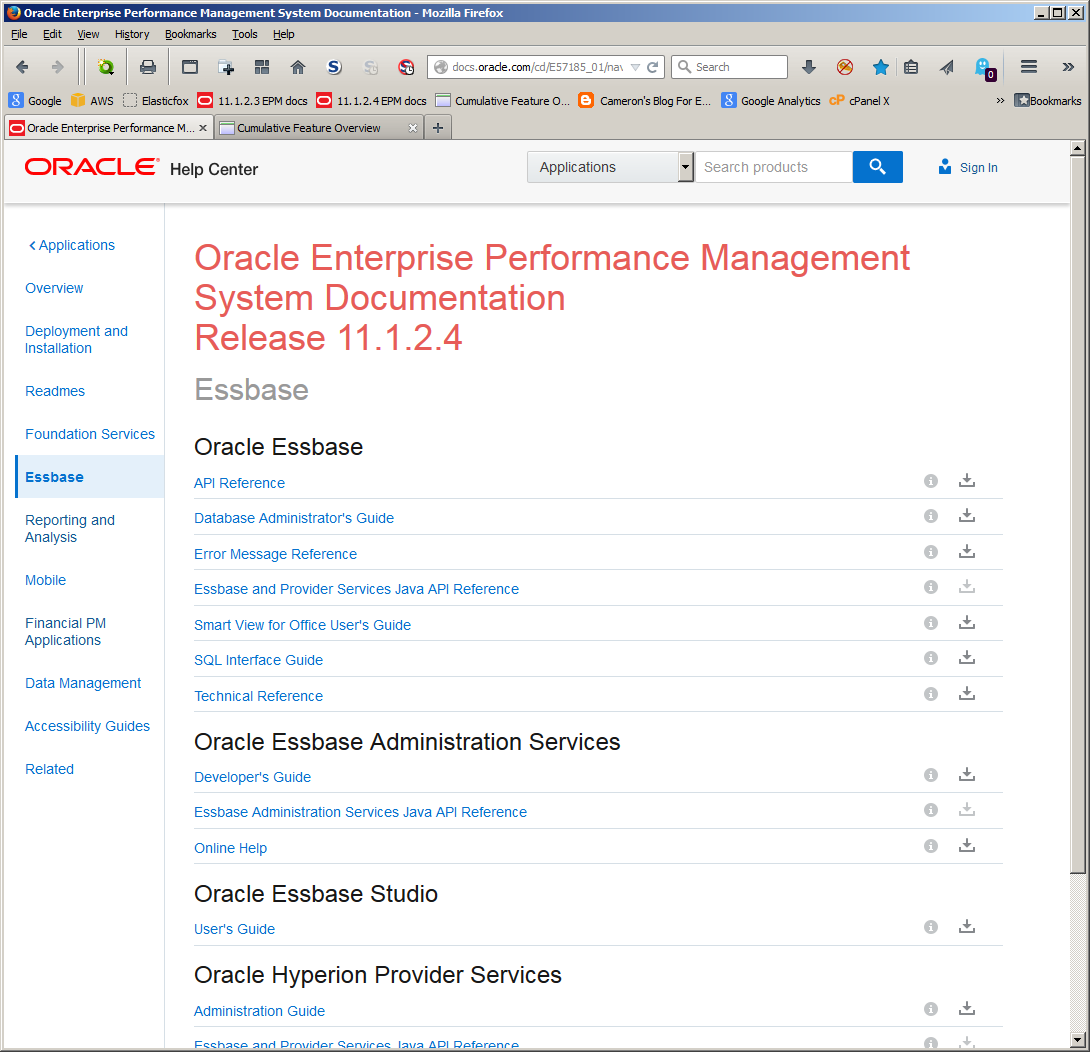
Errors, what errors?

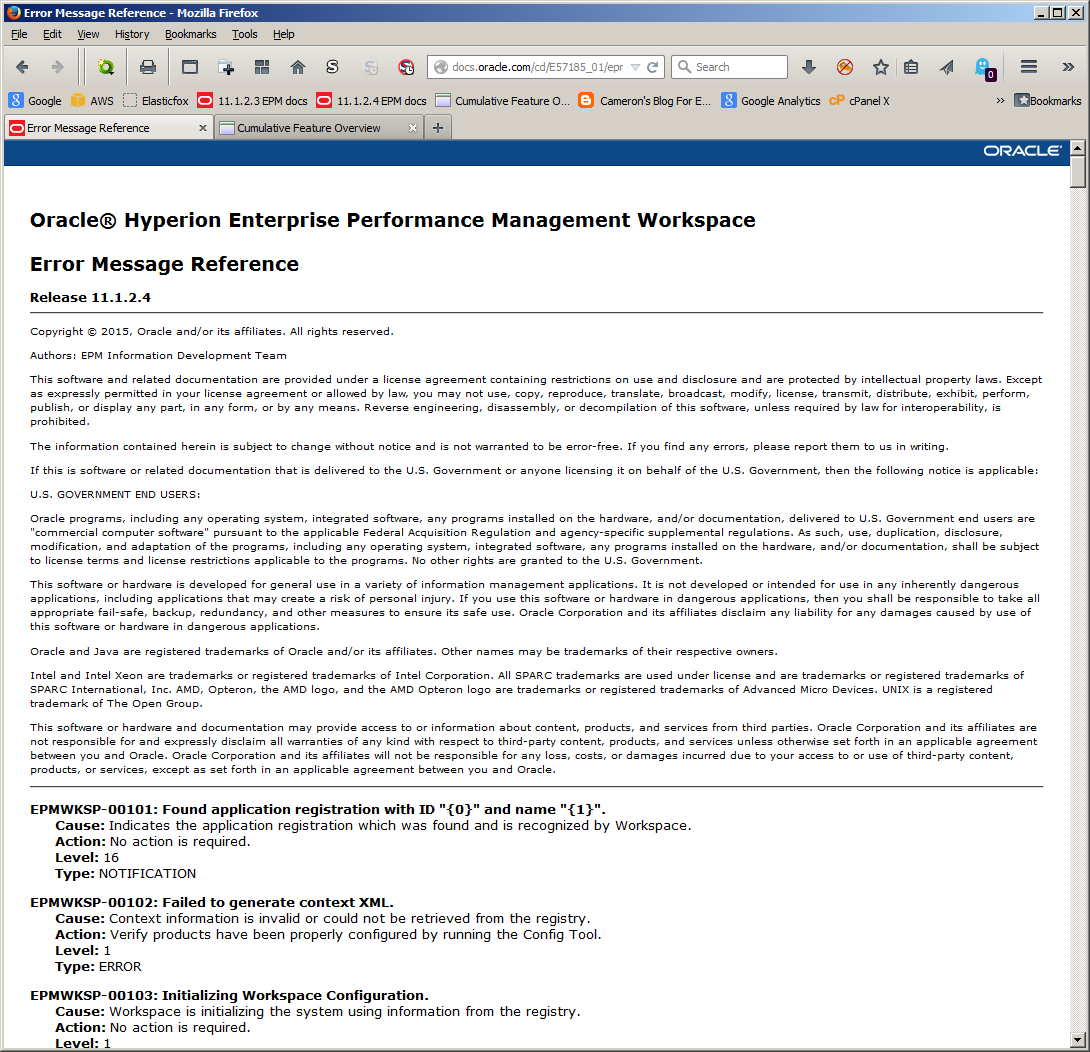
Oracle have also changed most of the Error Message Reference guides.  Looking at Foundation Services, the Workspace error list now looks like this:
Alas and alack, the Essbase error guide still has the old look, but upgrading it is on the radar:
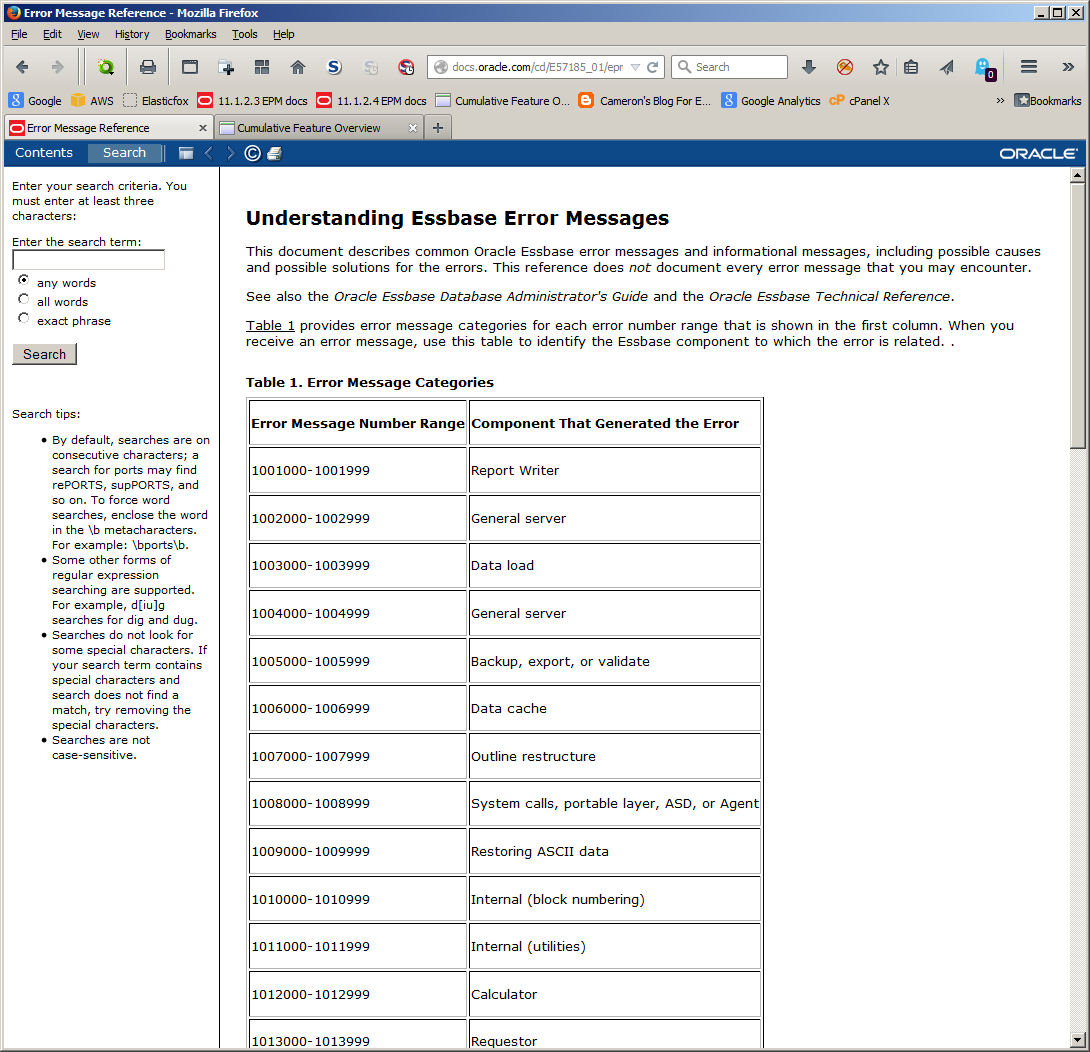
Again, you may think of these as incremental improvements but I view these improvements as making my life that much easier; if I’m looking at the Essbase error message list, life is bad, bad, bad.  Anything that makes that bad go away quickly is good in my book.

More than an incremental improvement

The EPM Cumulative Feature Overview has been around for quite a while.  I can remember looking at it during an 11.1.2.0 implementation and that was 2011.  It has heretofore been an Excel workbook that was only available on My Oracle Support.  I’m a Gold Partner (and yes, it is eye-wateringly expensive for a one man shop’s access to MOS but at least I don’t have to be Platinum) so I can download it when needed but for customers or consultants who are not on their firm’s Happy Support List, getting it meant begging and borrowing a copy of the file.  I try not to think about whether that violates licensing or not.
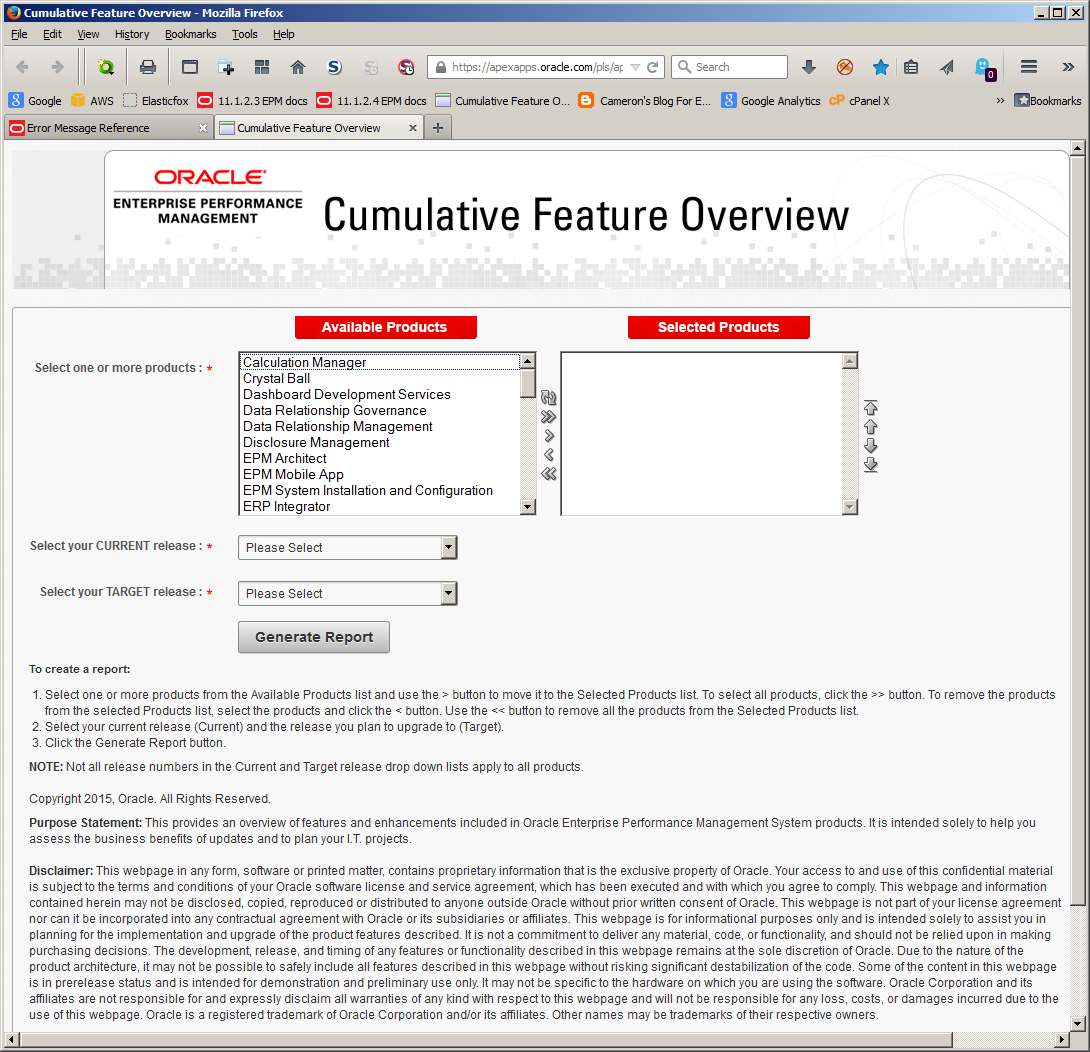
In any case, Oracle have now made it a web page.  Oh happy day.

It works as before.  

Pick a from and to release level:
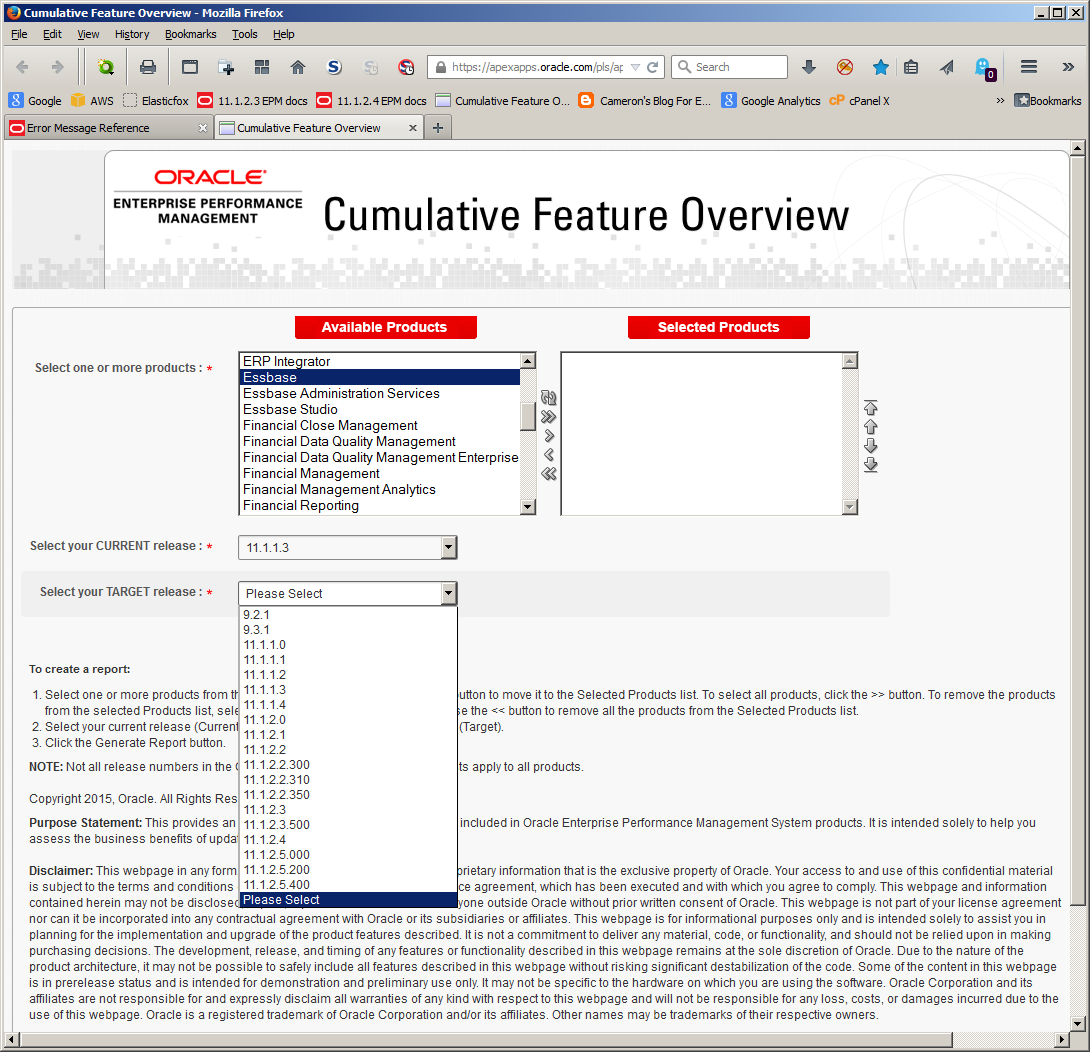
NB – the version numbers go up to the highest level, e.g., 11.1.2.5.400 is visible but it does not apply to any EPM product other than Smart View as of this writing.

Pick your version, select your technology (I am only selecting Essbase but multiple selects are possible):
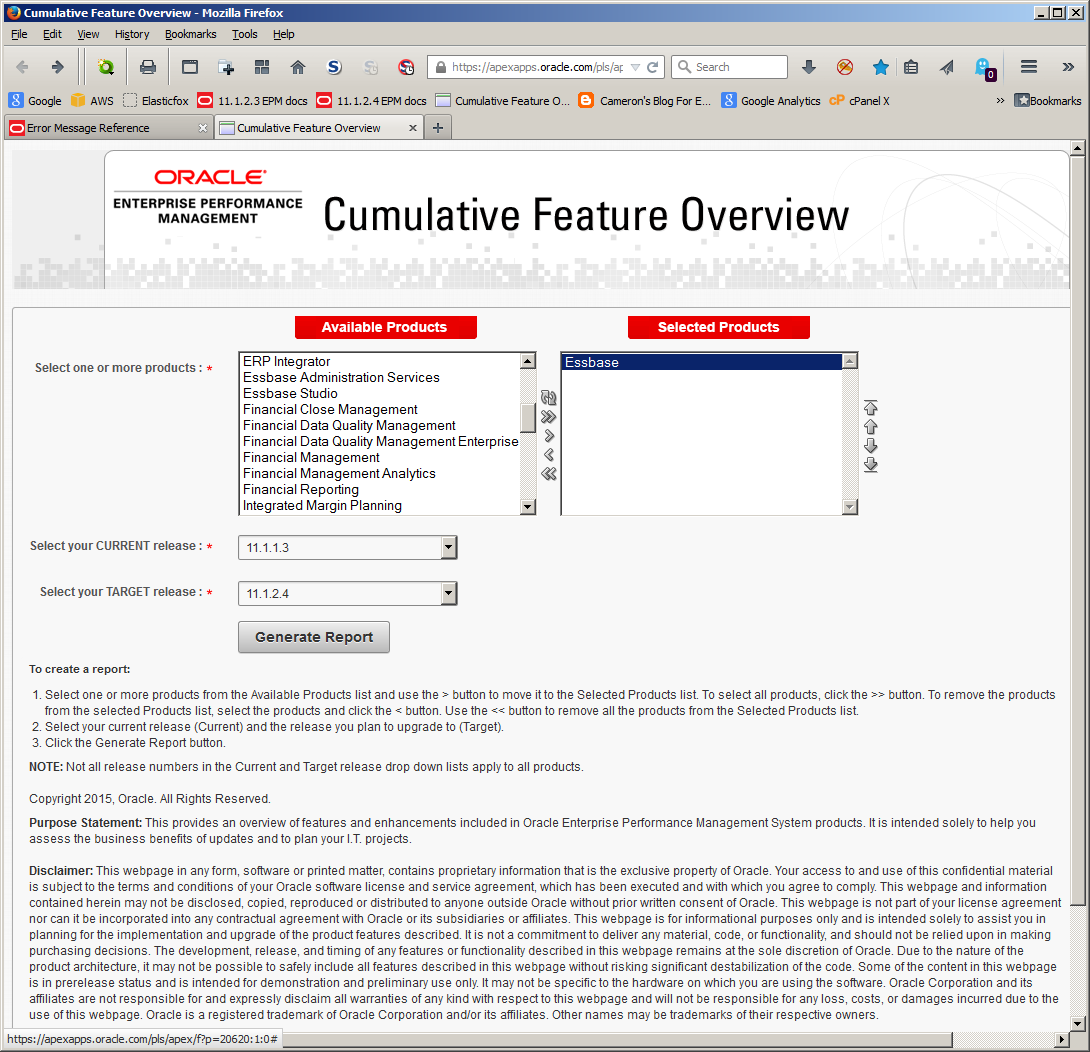
And Bob’s your Uncle, here it is:
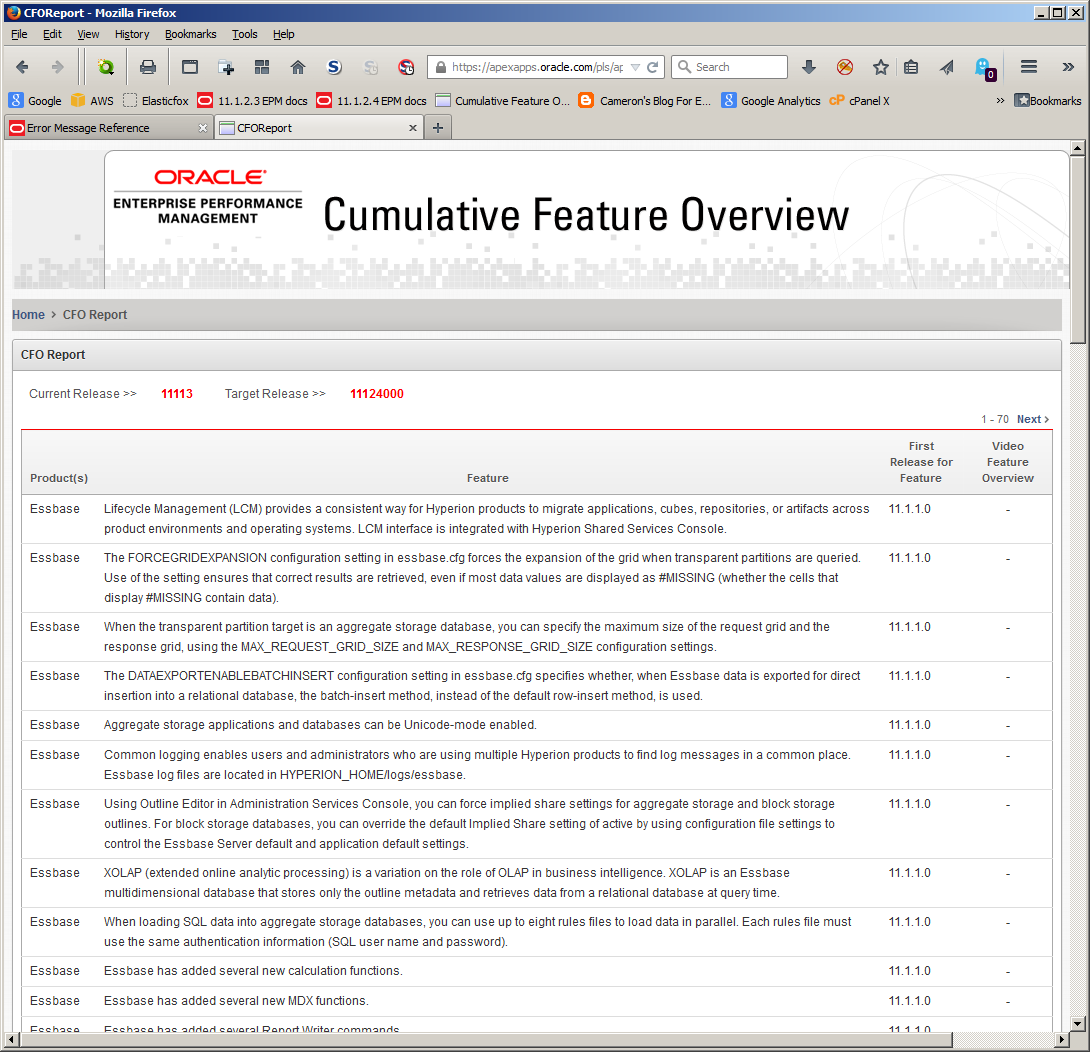
Do you see the bit in the red box?  You can either print this or save it to an Excel file.  Nice.
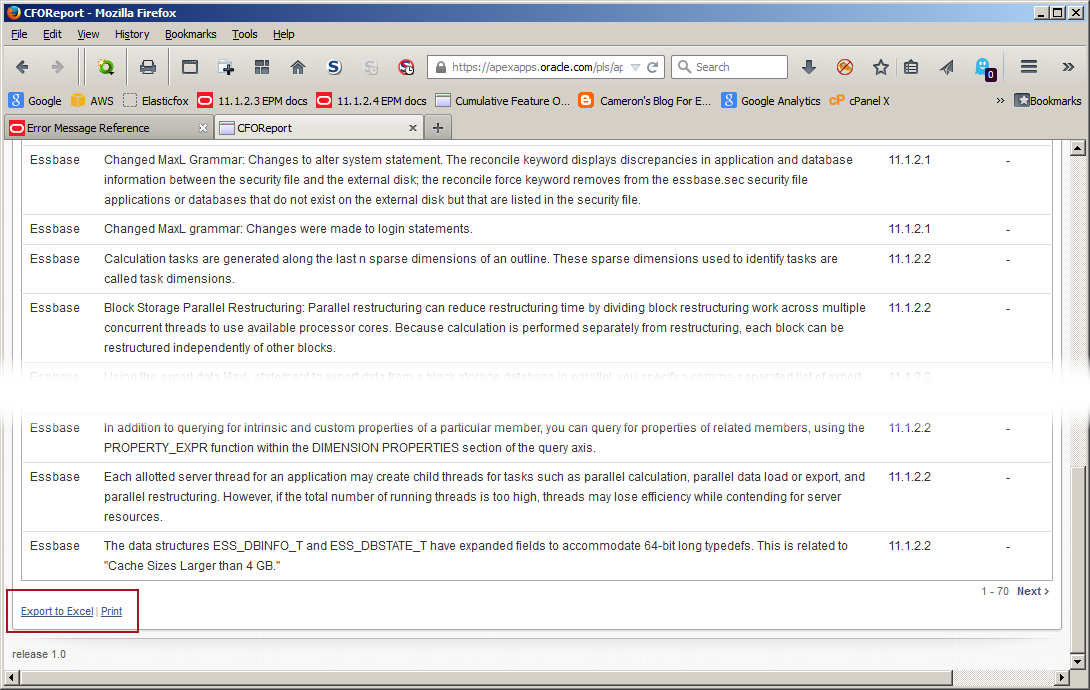
It’s as easy as 3.1249:
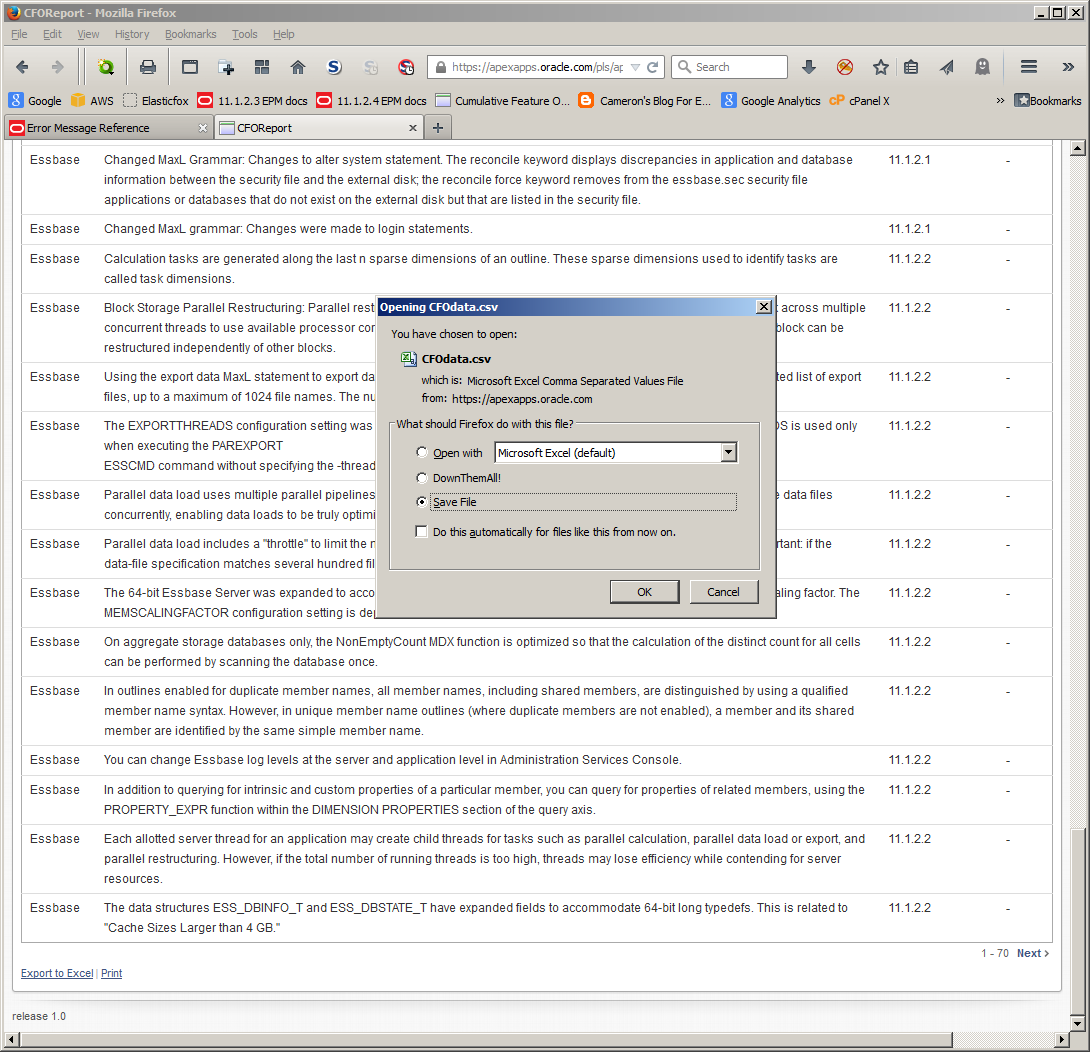
And here it is in all of its Excel-y glory, ready for you to send off to world+dog:
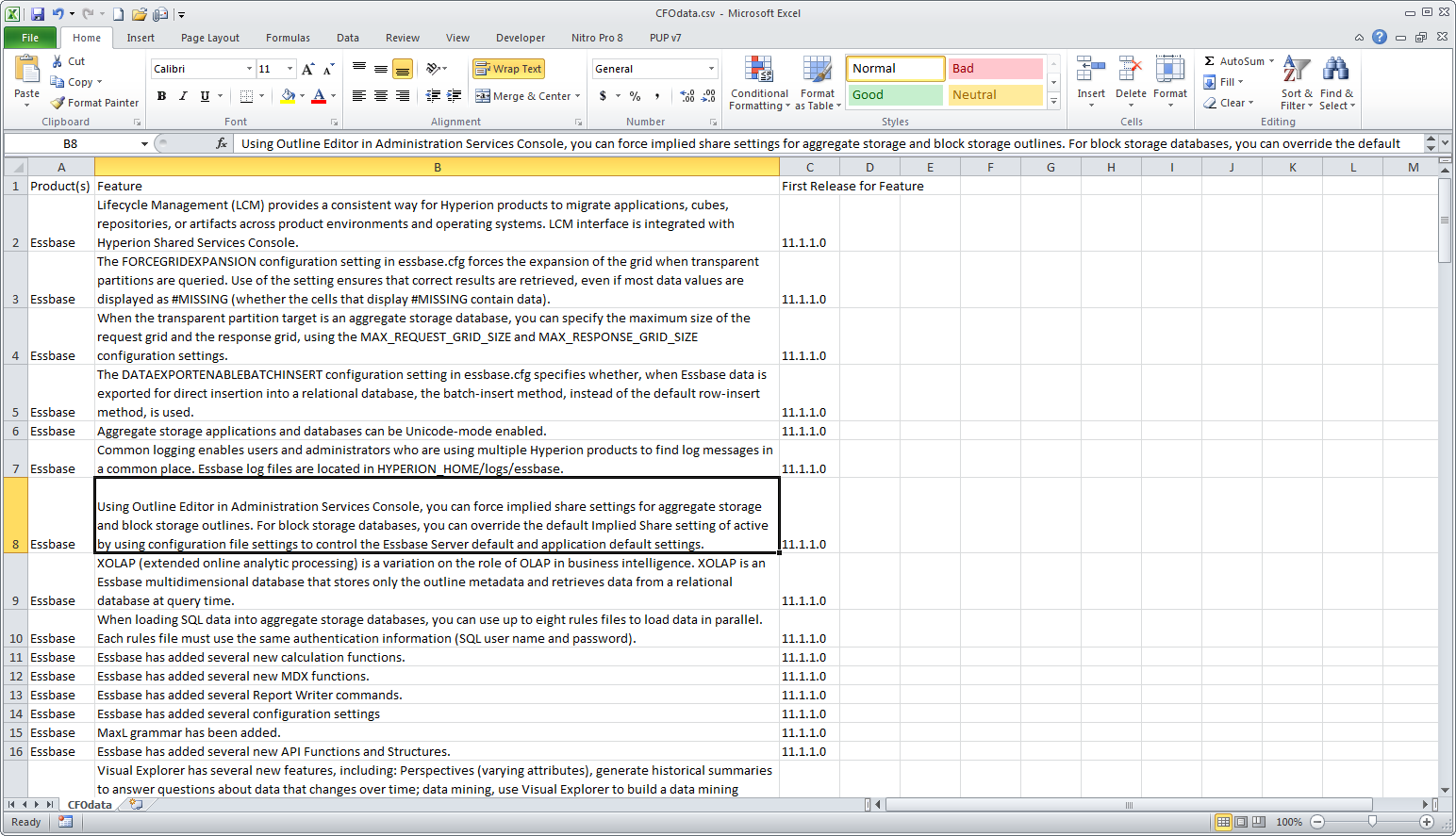
Isn’t that nice?

Yes, it is, and in fact it’s very nice.  These are all incremental improvements but those improvements add up to a much easier and handier interface and thus quicker access to the information that we all need.

I know I sometimes sound like a paid shill for Oracle but I can assure you no bribes (alas, this is not terribly likely, but if it does come to pass, please make it small unmarked bills in a manila envelope) were involved.  Those of you who know me privately are aware of my very critical, nay cynical, nature as evidenced by my continual pokes at Hyperion Solutions.  The flip side of that is when something or someone impresses me, I am a huge fan.  And I am a huge fan of what the Oracle EPM documentation team has produced.

Be seeing you.

Sunday, September 9, 2012

A simple 23 step guide to Books, Batches, and Bursting in Hyperion Financial Reports

Introduction to the guide

I was asked in in this thread over on the Network54 Essbase board to post a guide to Hyperion Financial Reports batch bursting I wrote a while back.  I’m happy to share what I came up with but first a couple of caveats:
  • I have redacted identifying information from the screenshots.  It’s usually pretty obvious where this has happened.  
  • If you have questions about this, go ahead and make comments but unfortunately, I can’t reproduce the environment I did this one because:
    • I wrote this for EPM 11.1.2.0 (so an almost two year old release).  I have no idea if the defects/bugs/weirdness/obvious-stuff-that-I-am-too-dense-to-see have been resolved or not in 11.1.2.1 and 11.1.2.2.  Mercifully, I have not been called upon to do more with batches since writing this document.
    • Some of the issues I encountered were, I think, caused by a less-than-perfect installation.  I could rant on and on about how bad it was but it would bore everyone, even me.  At the time, I asked someone I know in infrastructure what he thought it would take to resolve all of the issues (oh, I had a working issues list).  The reply?  “I wouldn’t touch that with a 40 foot barge pole.  If I were to come in, I would insist on a complete reinstallation on a clean box.”  In other words, nuke and pave.  I mention this not to reflect the frustration we application developers encounter when an install is bad, but to note that some of the general weirdness may be because the software wasn’t “right”.
  • I wrote this in the form of a step-by-step tutorial.  I never did find one on the web – I thought for sure there would be one but my google-fu failed me.  Maybe there’s one now, but I sort of doubt it.
  • Contrary to what I wrote in that thread, doing all of this is not 23 steps, but instead:
    • 24 steps (23 to create + 1 to view) to create that scheduled batch
    • 6 steps to import a bursting file (and yes, I explain what a bursting file is) into Workspace
    • 6 more steps to applying the bursting file into the batch scheduler
    • Although I am somewhat math-challenged, that means this is a 36 step process.  It's almost the 39 Steps.

And with that out of the way, enjoy.    

Background

Briefly, there are six kinds of Financial Reports documents typically encountered in a Planning implementation:
  1. Financial Reports – the base Essbase/Planning report
  2. FR Books – collections of FRs using, where applicable, a common POV to drive all reports within a book
  3. FR Batches – Objects that contain reports and books.  A batch can contain a single report, multiple reports, a single book, multiple books, mixes of reports and books, etc.
  4. FR Scheduled Batches – Scheduler (Workspace has its own, reports-only scheduler) of FR Batches and their Books and reports.  Scheduled objects can get written to Workspace folders, zip files, and emails.
  5. Burst batching – A way to parameterize scheduled batches and overload single dimension selections (only one dimension can be bursted and yes that is a strange word for it) with either manually selected members or members driven through imported burst files.
  6. Bursting files – These are comma-delimited files used to drive burst batching

How to create a Scheduled Batch in Workspace 11.1.2.0

It’s just a simple 23 step procedure to define a scheduled batch.

Creating a book


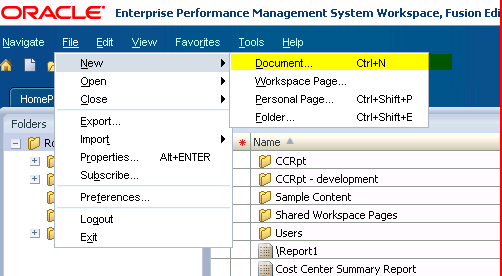
1)  After creating a FR report, create a FR book by logging into Workspace and clicking on the Explore button.  Then select File->New->Document,.
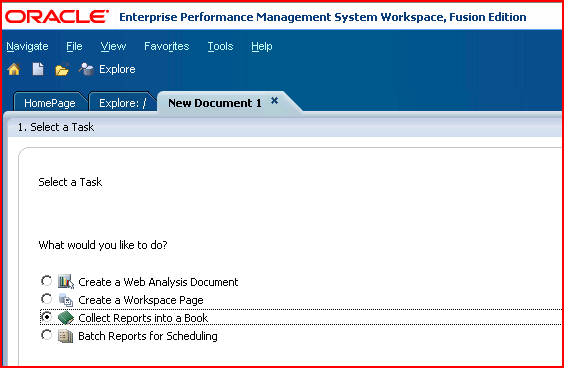
2)  Select “Collect Reports into a book”
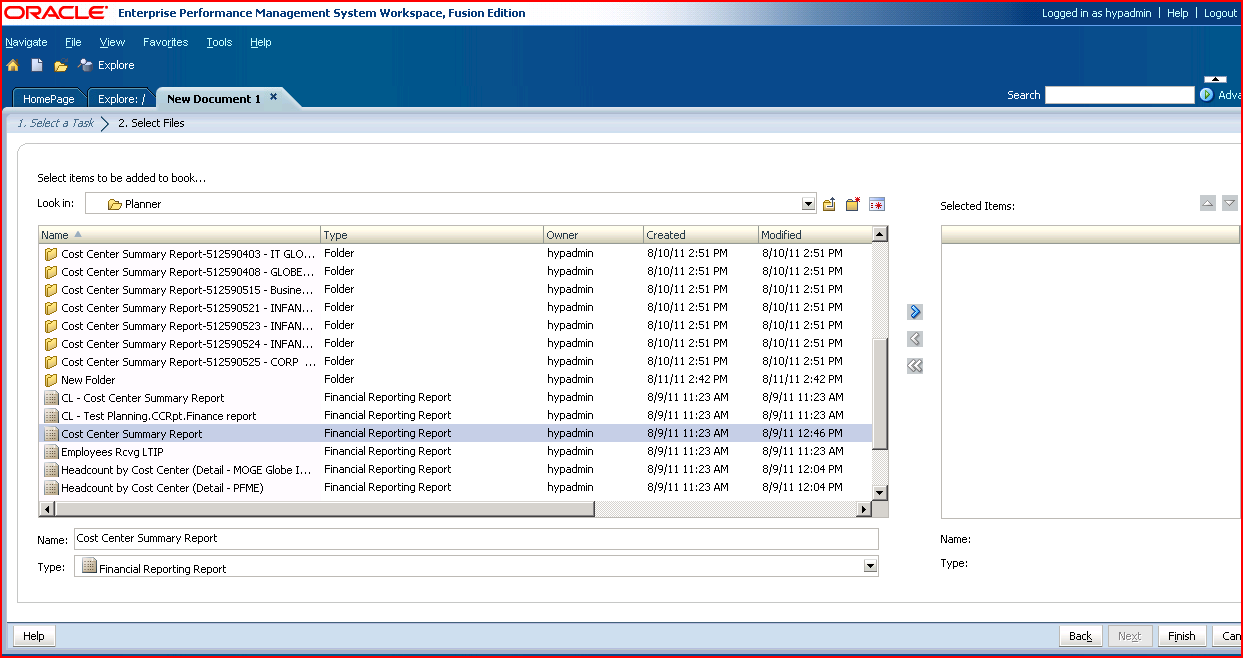
3)  Pick the report you want to incorporate into the book.  Books commonly contain more than one report but that is not a requirement.

4) Move the report(s) over to the right hand list box and when complete, click “Finish”.
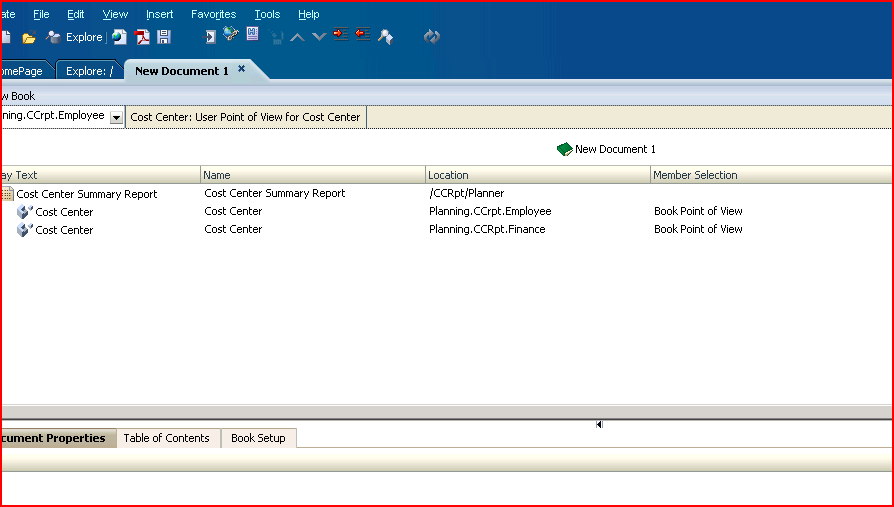
5) The data sources in the report(s) will show up in the book.  These will be driven by the book’s POV.  
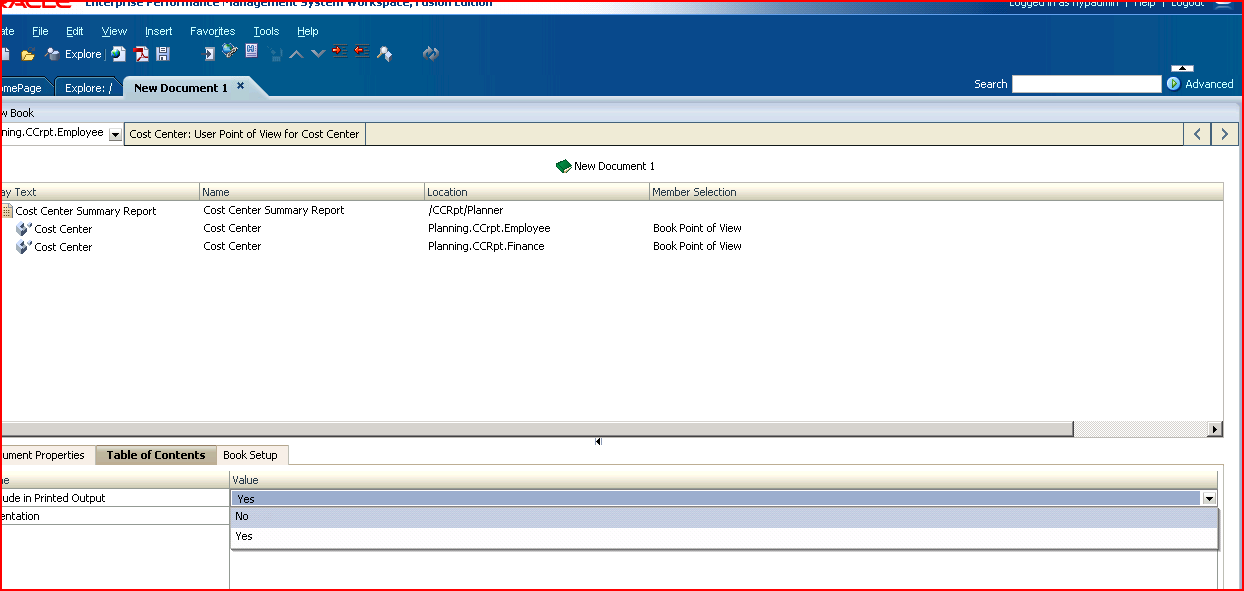
6) If you wish to get rid of the book’s table of contents, deselect it as shown below.
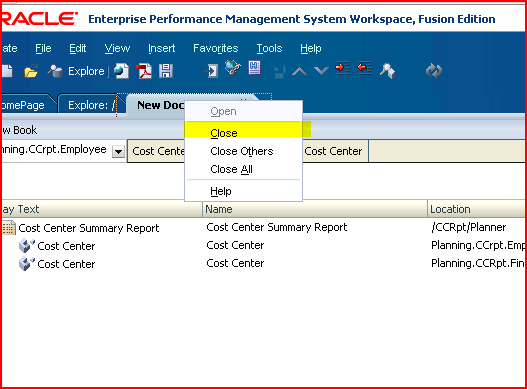
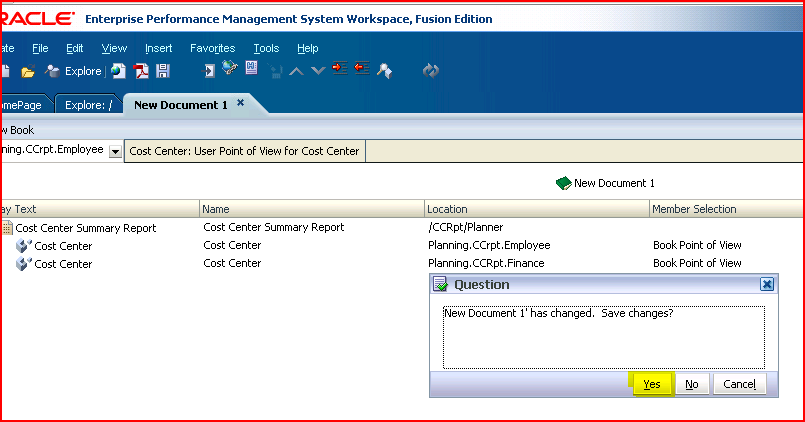
7) To force the save of the book, close the document; you will be prompted to save the book.
8) Save the book to whatever name and location you desire.
9) This book will be used in the batch.

Creating a batch


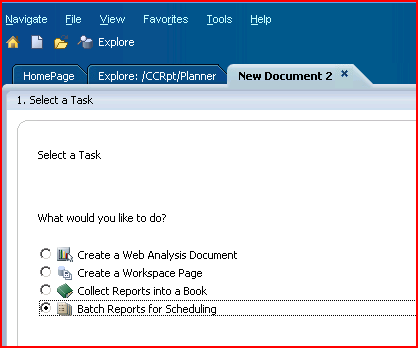
10) Go to File->New->Document again, but this time select “Batch Reports for Scheduling”.
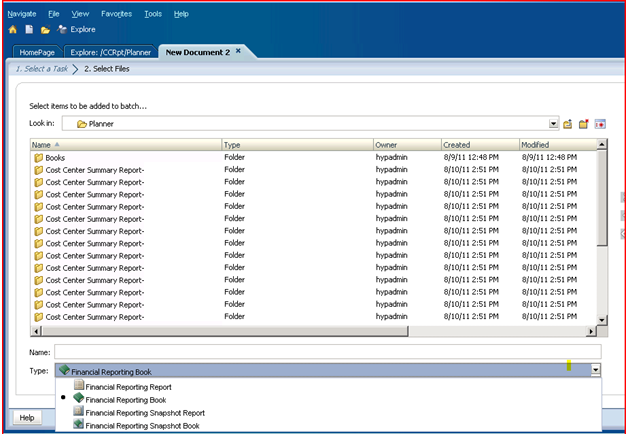
11) Batches can be just a single or multiple books and reports.  To see them in the file selector, use the dropdown at the bottom to toggle between the different kinds of base documents.
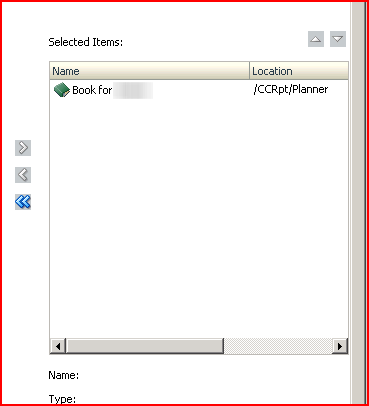
12) Move the object you want to put into the batch over to the right.
13) Again, close the document to force a save action.
14) Save the batch.

Scheduling a batch

Creating the scheduled batch

15) Schedule the batch by going to the Navigate->Batch Scheduler menu.
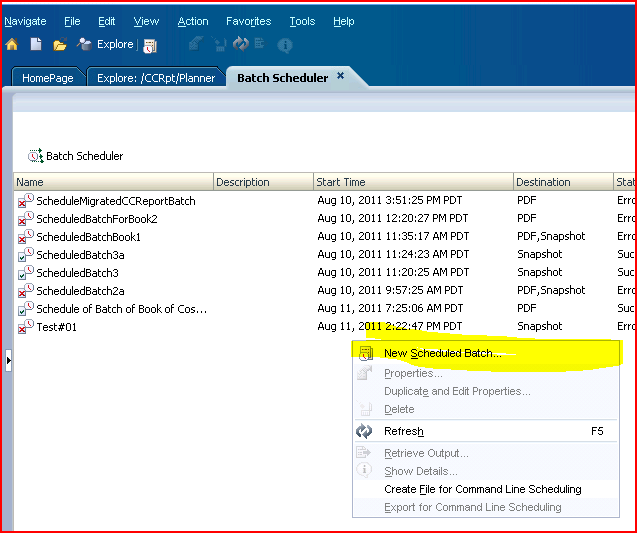
16) In the Batch Scheduler screen, right click and select “New Scheduled Batch”.  This will launch the scheduled batch wizard.
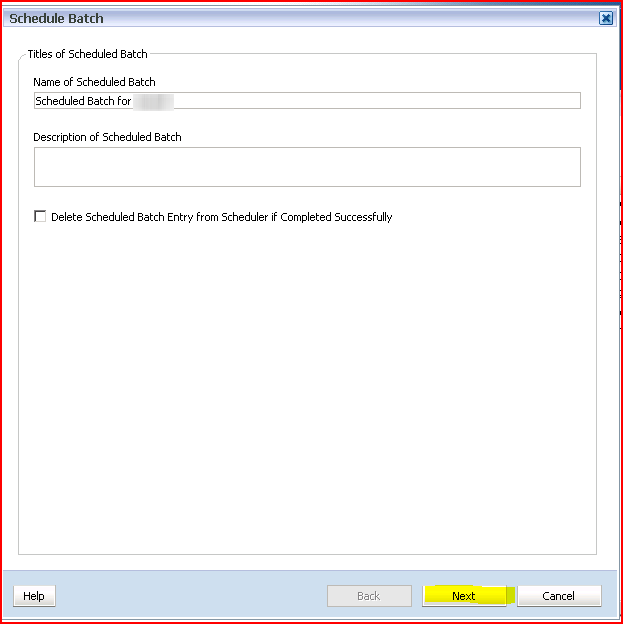
17) Name the batch.  You can make the batch a one-tme affair by selecting “Delete Scheduled Batch Entry from Scheduler if Completed Successfully”.  Do not do this as creating a batch is fairly painful, as you may have noticed.  Click on Next to move to the next step.
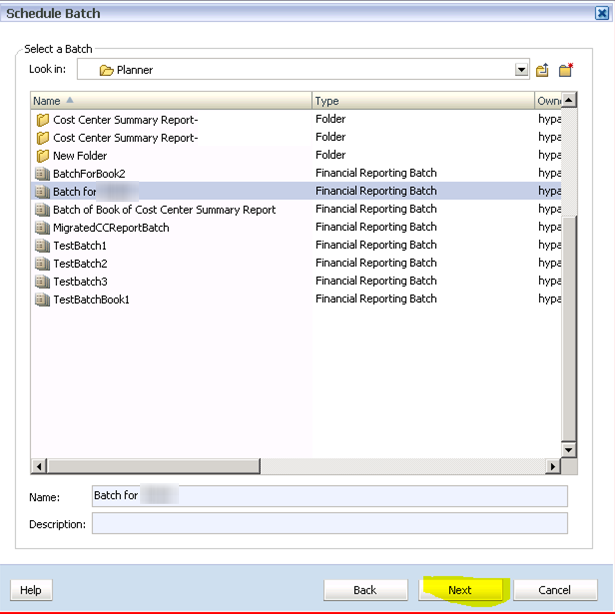
18) Select the batch you want.  In this example, it’s “Batch for XXXXXXXXXXX”.  After entering the name, click on Next to move to the next step.
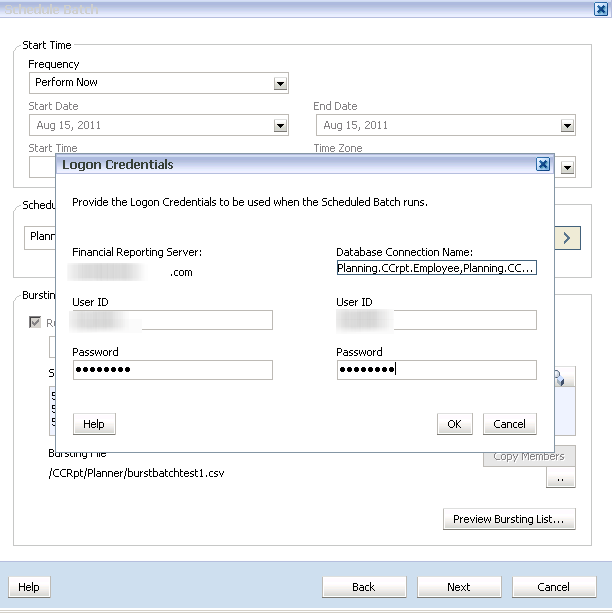
19) You will be prompted to log in to both FR and Essbase with an administrator id.  I do not recommend a specific userid like CameronTheConsultant as these ids get terminated.  

Selecting members for data connections

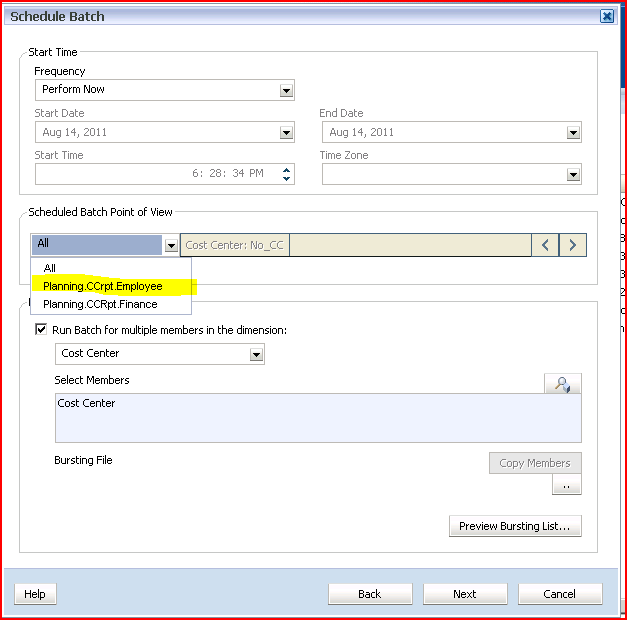
20) Individually select the connections (the All option doesn’t work, see Oracle Support ID 1097787.1) and select (usually) identical cost centers for each data source.
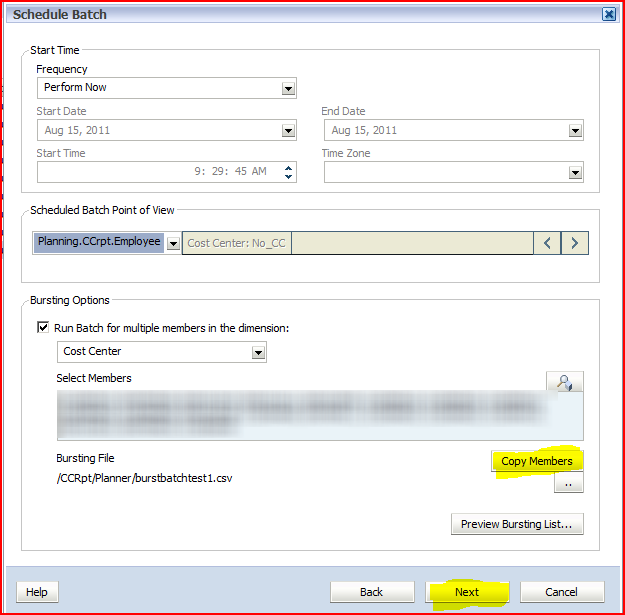
21) There’s a big bug in FR batches – as far as I can observe, when the scheduled batch is edited the Selected Members appear to be defined (and are shown in the Select Members text box) but are not.  The only way around this bug is to select the individual data connections and click on the Copy Members button to reapply the Cost Center members.

I have also found that clicking on the Preview Bursting List button for a given data source will deselect the selected members for the other data source.  To make sure both data sources are selected, click on the Copy Members button for both data sources and do not use the Preview Bursting List.

Click on Next to move to the next screen.

Defining where the batch output goes

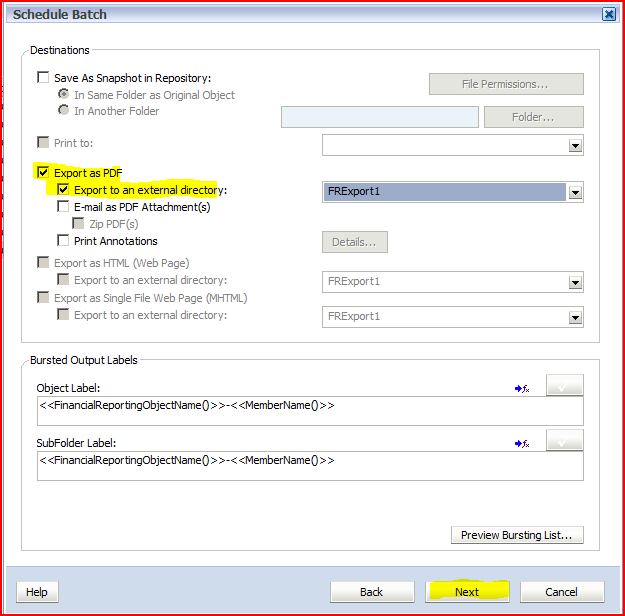
22) Select “Export as PDF” and “Export to an external directory”.  Click on Next to run the batch.
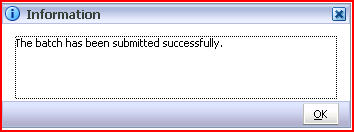
23) A confirmation dialog box will appear.
 

Reviewing the output 

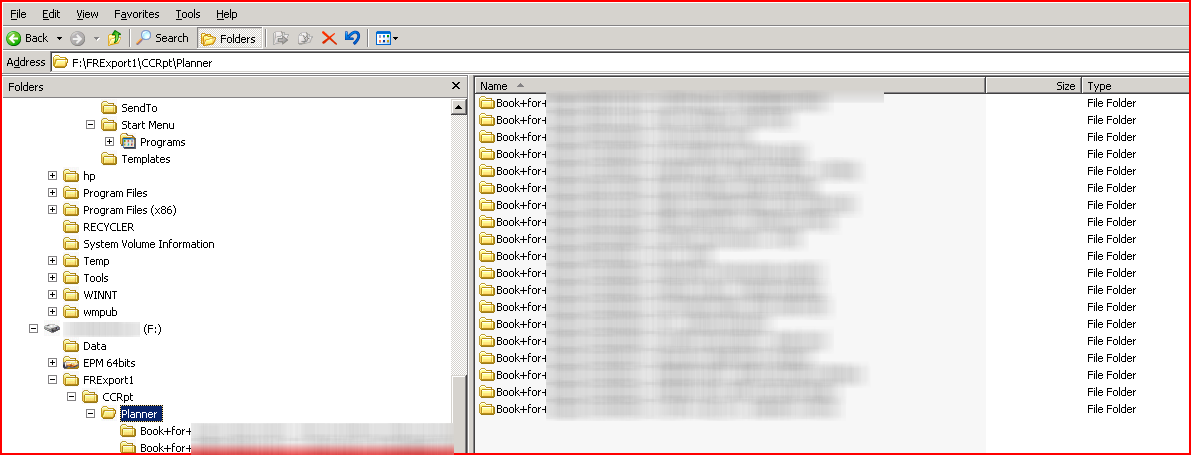
24) The external directory FRExport1, as defined through the FRConfig.cmd utility on the Financial Reports server, corresponds to \\yourservername\f$\FRExport1.  The output structure is as below.


Bursting files in scheduled batches

Bursting files are comma delimited files used to externally drive batch bursting member selections.  Given the bugs in FR batch scheduling, bursting files also provide a way to quickly and consistently select members in the Bursting Options.
For Oracle’s take on the bursting file parameters see:  http://download.oracle.com/docs/cd/E17236_01/epm.1112/fr_webuser/scheduler_wizard_fr.html

Bursting file fields

dimension_dimensionname

In the CCRpt example, the column name is dimension_Cost Center.  Within the field, the member values are the cost center numbers.  Per the documentation, member names must match on case.  Only one dimension per burst batching file can be defined.

subfolder_name

The name of the folders underneath the main one defined in the batch schedule.  The CCRpt example uses <<FinancialReportingObjectName()>>-<<MemberAlias()>> which passes the name of the book and the member alias from the dimension_dimensionname column into the sub folder name.  Other valid tags are <<MemberName()>>, <<BatchPovMember(DataSrcName,DimName)>>, <<BatchPovAlias(DataSrcName, DimName)>>, <<FinancialreportingObjectDescription()>>, and <<Date(“format”)>>.

financial_reporting_object_name

The name of the pdf files.  The same parameters as subfolder_name apply.

group_names

The Shared Services group that runs the batch, by row.  Not used in the CCRpt example.

role_names

The Shared Services role that runs the batch, by row.  Not used in the CCRpt example.

user_names

The Shared Services user name that runs the batch, by row.  Not used in the CCRpt example.

email_list

The SMTP email address that receives the batch pdf output.  Although this is set in the CCRpt example, it does not work because the SMTP configuration was not done during installation.

external_pdf_root

The root of the file output.  This overrides the output from the scheduled batch.

Importing the bursting file to Workspace

For the scheduled batch to read the burst batching file, it must be imported into Workspace.
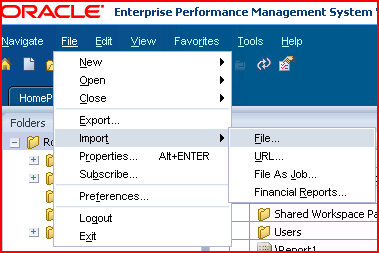
1) After creating the batch bursting file in Excel and saving the output as a comma delimited file, import the file into Workspace by clicking on the Explore button, navigate to the target folder,  and then the menu File->Import->File and then select the file.
 
2) Click on Browse and select the file.
3) After confirming the file in the File textbox, click on the Next button to move to the Advanced screen.
4) Click on the Next button to move to the Permissions screen.
5) Click on Finish to finish the import process.
6) The file will appear in the target folder.
For your amusement, I have stuck a copy of the file here.  It’s in (as noted) comma-delimited format.

Applying the bursting file into the batch scheduler

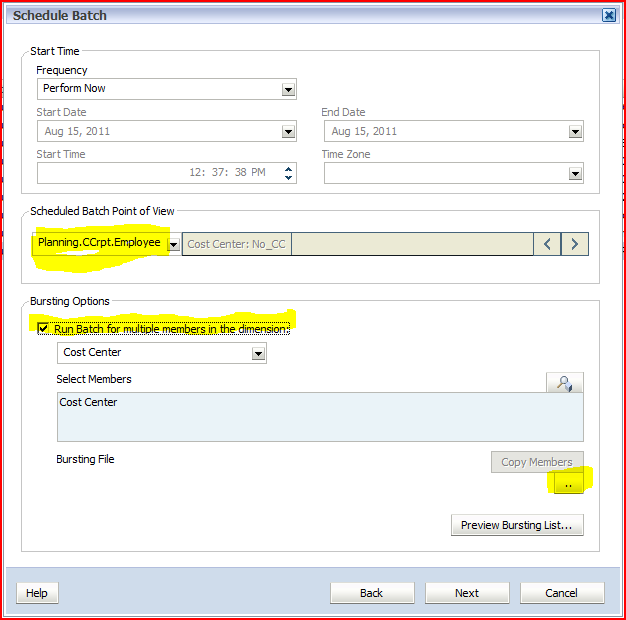
1) In the batch scheduler, select the data source, then tick the “Run Batch for multiple members in the dimension”.  Then click on the ellipsis button to import the burst file.
2) Select the burst file – this is the file just imported into Workspace.
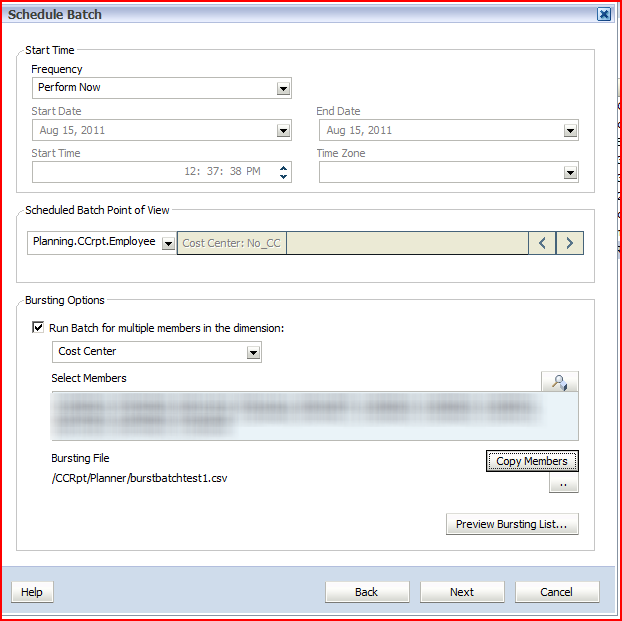
3) You will see the comma delimited batch bursting file’s full path.  Click on the “Copy Members” button to apply the values in the batch bursting file to the data source.
4) Once the Copy Members button has been clicked on, the members in the burst batch file will be shown in the Select Members text box.  This comma delimited list of members can be modified by clicking on the magnifying glass.
5) Select the other data source and apply the members by clicking on the “Copy Members” button.  It will look like the members are selected – this is not the case – never be afraid to click on that button.
6) Click on the Next button to continue defining the scheduled batch as defined above.

Conclusion

That was easy, wasn’t it?  :)

Okay, it wasn’t really hard at all, and it is pretty cool functionality.  However, it took me FOREVER and a day to figure out how to do this and I had to reach out to multiple people (in fact an ex-client from my ex-consulting company. Hello! Lisa Abrewczynski and Rholanda Brooks) to get the answer.  What, you think I figure all this stuff out by myself?  If only.  Oh wait, no one thinks that.  Regardless, it was super nice that they both took time to help me out – I am obliged.

And that’s it!  I hope you enjoyed this super short (hah!  25 pages in Word) guide to books, batches, and bursting.


Popular Posts